Wave Astra 4
Wave Astra 4
Updated
7 days ago
, by boAt Knowledge Base
Wave Astra 4
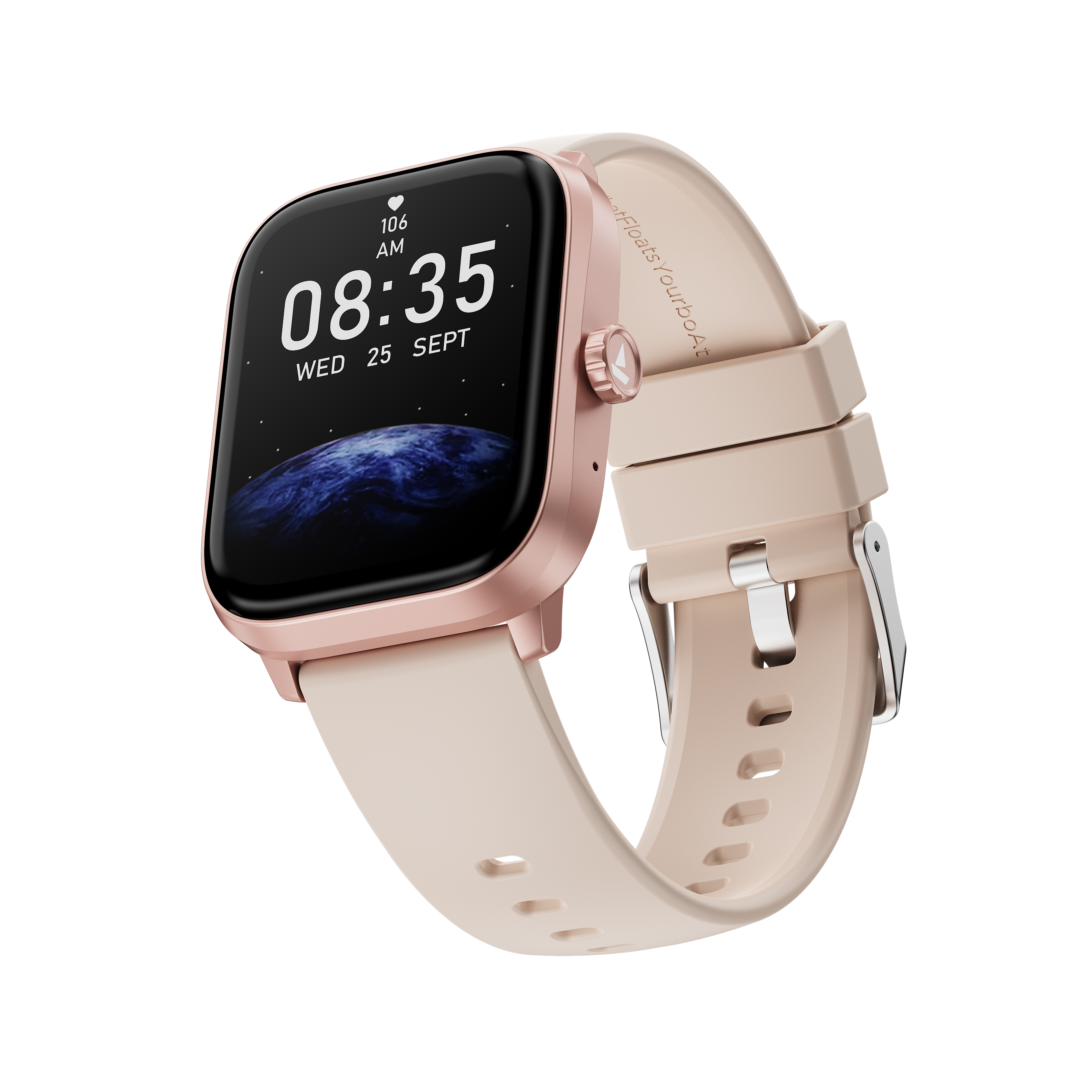
Elevate your everyday with the boAt Wave Astra 4—where cutting-edge technology meets ultra-sleek design.
Featuring a stunning high-definition display and seamless Bluetooth calling, it effortlessly blends premium style with ultimate daily performance.
Specifications
Model | Wave Astra 4 |
Bluetooth Version | BLE5.4 |
Charging Time | Up to 1 hour and 50 minutes |
Working Time | Up to 7 days* (Battery life may vary depending on usage) |
Stand by Time | 28 Days |
Screen Size | HD |
Screen Size | 1.83” |
Screen Resolution | 240*284 |
Battery Capacity | 300 mAh |
Water Resistance | IP68 |
Sensors | Heart-Rate Sensor, Blood Oxygen Sensor, G-Sensor, SOS |
Sports Mode | Multiple Activities mode |
Other Modes | Breathe Training Mode, Steps Monitor, daily activity tracker, sleep monitoring, |
Others Feature | Bluetooth calling, voice assistant, music and camera control, etc. |
Wrist Band Material | Silicon |
Watch Middle Frame | PC with paint |
Android and iOS Version | Android 7.0 & above & iOS 14.0 and above |
User Manual
Wave_Astra_4_UM.pdf
0.72 MB
Troubleshooting FAQs
General FAQs
Power On: Long-press the side button for 3–5 seconds to turn the watch on.
Power Off: While the watch is on, long-press the side button to select the power off option. Select "Power off" and then tap the ✔️ (Confirm) icon to initiate the restart.
To reset your smartwatch, go to Settings > General > Factory Reset
Alternatively, on the home screen – Swipe down > Settings icon > General > Factory Reset
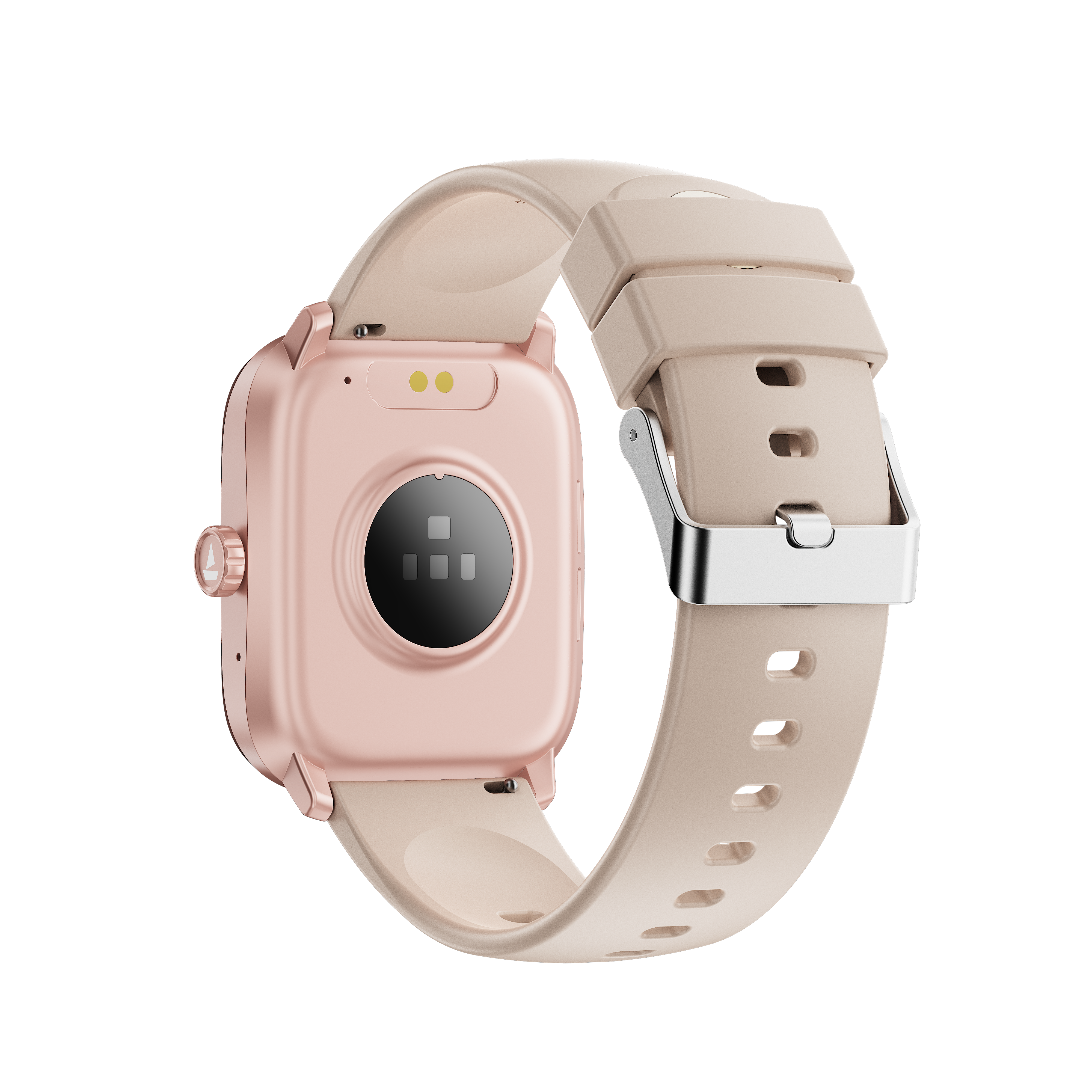
Attach the magnetic end of the charging cable which comes with the watch package on the charging pad of the watch which is located on the back of the watch and connect the other end which is an USB-A end to a 5V, 2A rated power adapter or power bank or a computer.
The Wave Astra 4 display would show the charging status and charging percentage while charging.
Note:
If the Wave Astra 4 is connected to a computer USB port for charging, the speed of charging would be less as the power pushed by the USB port of a computer is less than the 5V 2A rated power adapter
Before using Wave Astra 4 for the first time, please fully charge the smartwatch first.
Charging through wall adapter – Specs of the adapter: 5V/2A
Any other accessory can be used for charging Wave Astra 4 as long as the above norms are followed.
Short press the side button to reach the menu.
Swipe left or right on the home page for the shortcut menu.
Activities, Sleep, Heart Rate, Weather, and Music.
Swipe right to navigate back through the widgets in reverse order.
Method 1: Using the Power Button
Rotate the side button to scroll through the default watch faces.
Stop on the one you want to apply to—it will be set automatically.
Method 2: Long Press on the Home Screen
Long-press the home screen for a few seconds.
Swipe to browse available watch faces.
Tap the one you want to set as default.
You can check all the notifications from your connected device.
Choose from various default workout modes here, including:
Outdoor run, Outdoor Walk, Indoor Walk, Long Jump, Indoor Run, Strength Training, Football, Basketball, Table Tennis, Badminton, Indoor Cycle, Elliptical, Yoga, Cricket, Mountaineering, and Golf.
Press the side button three times in quick succession to trigger the Emergency SOS (once it has been set up via the Crest App). Follow the steps below to set up Emergency SOS:
Open the boAt Crest App
Go to Settings > Watch Features > Emergency SOS Settings
Tap on Add Emergency Contact
Select the Contacts you wish to save on the watch
Once set up, press the power button thrice continuously to initiate an Emergency SOS call from the watch
Tap on the Sleep icon to view data from the previous night.
Sleep tracking begins between 8 PM and 10 AM, once inactivity is detected.
Recording starts after 30 minutes of no movement and stops if excessive movement is detected.
Sleep data becomes available on the app after the awake criteria are met.
Note:
For accurate sleep data recording, the sleep criteria have to be met, which include limited movement, wrist positions and angles, and more.
The awake criteria will be met only after it records some noticeable movement.
For Heart Rate monitoring either swipe left from the home screen or press the side button.
Wear the smartwatch on the wrist to start real-time heart rate measurements.
Check out the Current Beats Per Minute (BPM), Max BPM, and Min BPM here.
View the detailed data on the boAt Crest app.
Note: Measurements are for reference only and not for medical purposes.
From the main menu, tap on the SpO2 icon.
Wear the smartwatch securely on your wrist.
Tap on Measure to begin real-time blood oxygen level tracking.
Stay still and wait a few seconds for the measurement to complete.
View your SpO2 reading on the screen.
You can also access detailed SpO2 data through the app.
Note: The measurement is for reference only and not intended for medical use.
Inside the menu, click on the ‘Music Control’ icon on the watch to enter into the music control feature.
While listening to music, users can play, pause, move back to the previous track, jump forward to the next track and control the volume of the music.
Note: This feature might not work for some of the music apps with different control protocols.
Inside the menu, click on the ‘Camera Control’ icon on the watch to access the remote camera on the Wave Astra 4.
Note: Turn the camera on from your device to use this feature.
You can control the brightness level of the watch by swiping down from the watch home screen & changing the brightness level
This feature will allow users to monitor and rate the quality of breathing. Breath exercise (Inhale/Exhale pattern) on the watch for selected duration and rhythm
It is a feature available on the watch where users can use it to do breathing exercises.
Yes.
While the user is inside the menu, tapping the several icons would lead to entering the different modes on Wave Astra 4.
There are the following mode options on the menu of Wave Astra 4:
Steps: For tracking daily activities like step count, distance travelled, etc. by the users.
Heart Rate: For measuring the heart rate of the users.
Blood Oxygen: For Measuring the saturation level of oxygen (spO2) in the user’s blood
Sleep Mode: For measuring the sleep hours of the users
Breathing Mode: For breathing exercise of the users
Alarm: To set up alarm for the users
Music Control Mode: To control the music from the watch when the users are listening to music. Note: This feature might not work for some of the music apps with different control protocols.
Camera Control Mode: To control the camera from the watch and click photos
Timer: To set up timer for the users when in need
Settings: To enter into the settings of the watch
Yes, it can be changed.
Yes, step counting, heart rate monitoring, calorie count and sports modes can be recorded directly on your watch while your phone is not connected.
The watch has some internal memory to record this data.
Once you are in contact with your phone, you can sync the data to the app.
The green lights are used to monitor your heart rate. There is an optical sensor that detects the passage of the blood and then estimates the heart rate based on that information.
Red light is a blood oxygen sensor.
Yes, users can set individual goals for every sports mode.
1. Via QR Code Scanning:
Find the QR code on the product manual of Wave Astra 4 for installing the boAt Crest App on your device.
Open the QR Code Scanner app on your device and scan the code present on the user manual as well as inside the watch settings.
Thereafter, follow the on-screen instructions to install the boAt Crest app on your device.

2. Via Searching the app on Google Play or Apple Play Store:
On Google Play or the Apple App Store, in the search bar, type ‘boAt Crest’ and enter search.
You will see the boAt Crest app in the search result list.
Click on the install button to install the boAt Crest app on your media device.
First, make sure that your phone version is either on Android 7.0 and above or iOS 12 and above.
Download the boAt Crest application from Play Store (Android) and AppStore (iOS).
When you open the app, please allow all permissions.
Register with your mobile number by accepting the terms and conditions.
You will receive a verification code as an SMS; enter the verification code in the app.
Follow the instructions on the App and you will find Wave Astra 4 smartwatch in the available device list.
Click on the ASTRA4_XXXX to pair the Smartwatch with your phone.
This will complete the pairing process after which the smartwatch will start syncing with the app.
Your smartwatch's data is automatically synced when you open the boAt Crest app. This may take a few seconds.
For manual syncing, go to the app and click on “Tap to Sync” to trigger immediate data transfer. If this doesn't work –
Open the Crest app and keep the watch within Bluetooth range, i.e., less than 10 metres.
Ensure the Bluetooth and R are enabled on your phone.
Allow the app to run in the background.
General permissions are needed on Android and iOS devices as below:
On Android:
Go to Settings > Apps > Crest > Permissions
Enable permissions for Location, Contacts, Phone, and Notifications.
On iOS:
Go to Settings > Privacy
Grant access to the Crest app for relevant permissions like Bluetooth and Notifications.
Open the boAt Crest app.
Tap on your profile icon located at the top-right corner of the home screen.
Scroll down and tap “Log Out”.
Confirm the logout action in the pop-up prompt.
Your smartwatch will be disconnected from your phone.
The watch will stop syncing data with the app.
You will stop receiving notifications on the watch.
To regain access, you will need to log in again with your connected account (e.g., Google or email) and verify with a one-time password (OTP).
No, the smartwatch is not waterproof. It is water-resistant and can withstand splashes, sweat, and light rain, but should not be used for swimming or deep water exposure.
