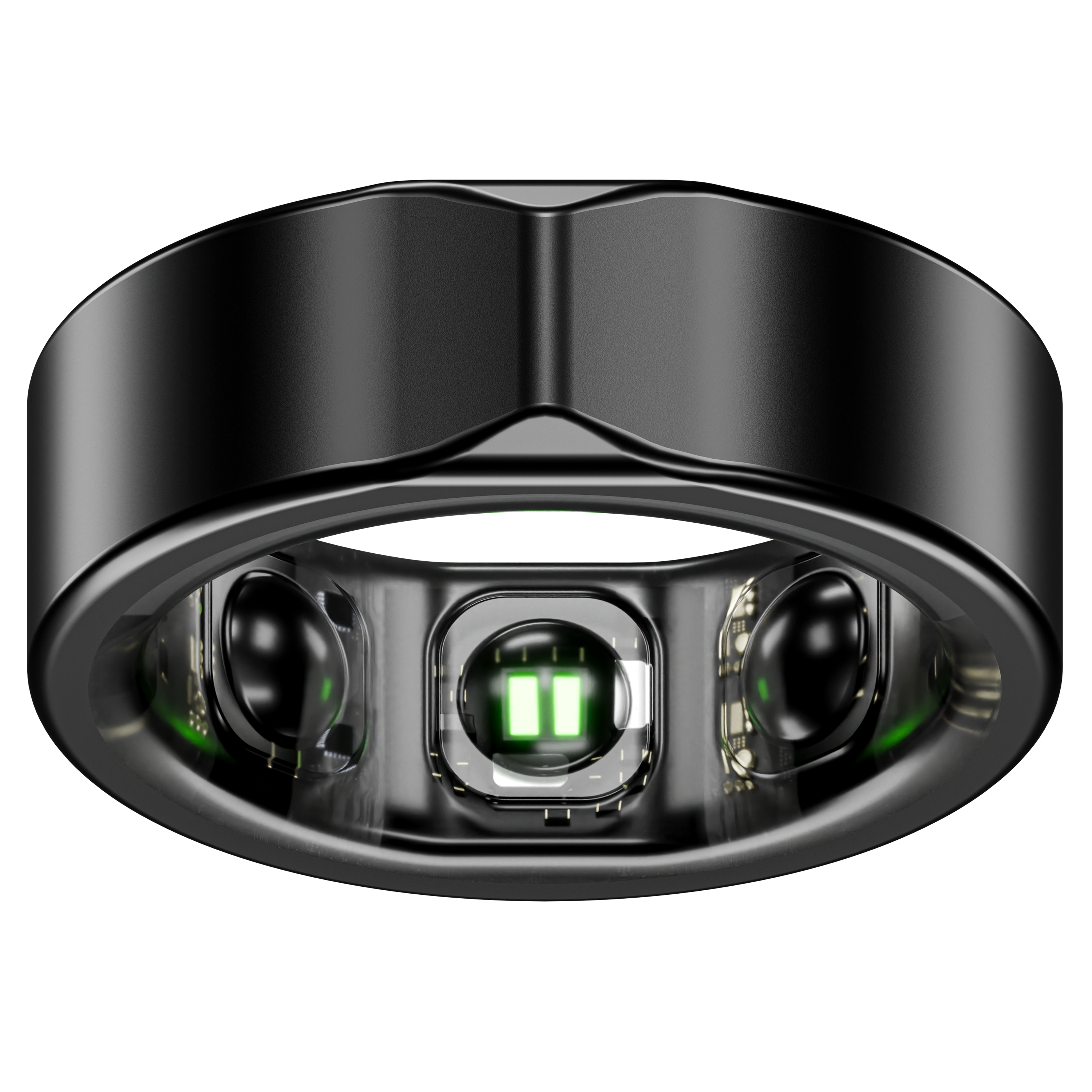
Valour Ring 1
smart ring 2
Updated
3 days ago
, by boAt Knowledge Base
Valour Ring 1
Meet Valour Ring 1is designed with a rugged titanium build, this powerful smart ring delivers advanced health insights with a compact, comfortable fit. From 24/7 heart rate and SpO₂ monitoring to automatic sleep, nap, and skin temperature tracking, Valour Ring 1 keeps you informed about your body like never before. With 40 dynamic sports modes, a next-gen precision sensor, and up to 15 days of battery life, it’s ready to support your active lifestyle—wherever life takes you.
Specifications
Product Name | Valour Ring 1 |
Net Weight | 4 to 6 Grams (depending on Ring Size) |
Body | Titanium |
Bluetooth Version | 5.0 |
Working temperature | - 20℃ to 50 ℃ |
Ring Charging Time | Up to 1.5 hours |
Charging Interface in Case | USB Type-C |
Standby Time | 15 Days |
Ring Battery | 14.5 - 21.5 mAh (depending on the Ring Size) |
Ring Water Resistance | 5ATM |
User Manual
Valour_Ring_1_UserManual.pdf
0.17 MB
Troubleshooting FAQs
General FAQs
Step 1: Via QR Code Scanning
Find the QR code on the product user manual of Valour Ring 1 to install the boAt Crest App on the user's media devices.
Open the QR Code Scanner app on the user’s device and scan the code present in the user manual of Valour Ring 1.
Thereafter, follow the on-screen instructions to install the boAt Crest app on the user’s device.

Step 2: Via searching the App on Google Play or Apple Play Store
On Google Play or Apple App Store, in the search-bar, type "boAt Ring" and enter search.
You will see the boAt Crest app in the search result list.
Click on the install button to install boAt Crest app on the your media device.
First, make sure that your phone's operating system (OS) is either Android 7.0 and above or iOS 14.0 and above.
Step 1
Download the boAt Crest app from the Play Store for Android devices and the App Store for iOS devices.
When you open the app, make sure to allow all permissions.
It is recommended that the ring is kept in a charging state while pairing it with the app.
Connect the device with the app; ensure that the phone’s Bluetooth, as well as the GPS functionalities, are turned on.
Select boAt Valour Ring 1 on the app’s home screen and click Pair to connect.
You will get an alert to connect with the device name, VALOURRING1_XXXX, click pair.
To use all features of your Valour Ring 1 seamlessly, tap ‘Yes’ on the ‘Connection’ and ‘Grant Access’ system prompts.
This phase will complete the pairing process, after which the Valour Ring 1 will start syncing with the app.

Step 2:
The previous process would enable the user to search for Valour Ring 1 to connect with the Crest app, just as it would enable Bluetooth on the device.

Open the Crest app on your phone.
Make sure you've connected your Valour Ring 1 to the application.
Synchronisation will start automatically once you enter the app's interface.
If synchronisation does not start automatically, tap "To Sync" on the home page.
Note: Sync data at least once a day to avoid data loss in the ring.
Wear the ring on your finger to use all the functionality.
Make sure that the inner monitoring sensor of the ring is touching the finger.
The Valour Ring 1 stays powered on as long as it has a battery, and it does not have a manual power-off function.
Connect the USB Type-C cable to the charging case port.
A blue LED on the front of the case will light up, indicating that the charger is securely connected and ready. It will turn off once the charging wire is removed from the charging case.
When the ring is correctly positioned in the dock, a green LED will begin blinking between the ring’s inner surface and charging interface. It indicates that the charging is in progress. Once charged, the green LED will stop blinking and become static.
Once the ring is placed inside, close the lid of the case for optimal charging conditions.
Please keep the smart ring fully charged when pairing for the first time.
When the charging level of the rings is below 20 per cent, a pop-up notification will be sent to the app.
Before using Valour Ring 1 for the first time, please fully charge the smart ring first.
Charging through a wall adapter, specifications of the adapter 5V/2A are followed.
There are multiple default activities on the ring.
You can also add or replace the activities according to your preference using the boAt Crest app.
Tap on any exercise to start the activity.
If the activity is less than 3 minutes, it will not be recorded.
From the Crest App Home Screen, go to ‘Vital’ in the ‘Wellness ’ menu to view your heart rate (HR) value on the screen.
To set the frequency for HR monitoring, go to ‘Settings’ and select the ‘Auto Monitoring Heart Rate’ option.
Here, users can choose a monitoring frequency from 5 min, 10 min, 15 min, 30 min (recommended), or 60 min to track heart rate at regular intervals.
From the Crest App Home Screen, go to ‘Vital’ in the ‘Wellness ’ menu to view your SpO2 (blood oxygen level) reading on the screen.
To set the auto SpO2 measurements, go to ‘Settings’ and select the ‘Auto SpO2 Measurements’ option.
When enabled, the measurements will be taken once every hour.
From the Crest App Home Screen, go to ‘Vital’ in the ‘Wellness ’ menu to view your stress level reading on the screen.
To set auto stress measurements, go to ‘Settings’ and select the ‘Auto Monitoring Stress & HRV Monitoring’ option.
Your stress can be recorded according to the heart rate variability.
0–29: Relax
30–59: Normal
60–79: Medium
80–100: High
From the Crest App Home Screen, go to ‘Vital’ in the ‘Wellness’ menu to view your body temperature reading on the screen.
To set auto temperature measurements, go to ‘Settings’ and select the ‘Auto Monitoring Skin Temperature’ option.
When enabled, the measurements will be taken once every 30 minutes.
From the Crest App Home Screen, go to ‘Restore’ in the ‘Wellness’ menu to view your HRV (Heart Rate Variability) reading on the screen.
To set auto HRV measurements, go to ‘Settings’ and select the ‘Auto HRV Measurements’ option.
When enabled, the measurements will be taken once every hour.
From the Crest App Home Screen, go to ‘Restore’ in the ‘Wellness’ menu to view your Sleep reading on the screen.
Click on this option to adjust the distance unit (Kilometres or Miles) and the temperature unit (Fahrenheit or Celsius).
You can start any activity in the boAt Crest app.
Go to the home dashboard in the app.
Click on the Activity > Select the desired activity.
You can pause or end the activity by clicking on the app.
If the activity is less than 3 mins, it will not be recorded
Post completion, you have to sync your app and SmartRing.
Then you can transfer the activity data to your smartphone app.
On the app, go to the dashboard. On the dashboard after the Wellness overview you will see " Vitals”.
Click on the “measure” option to measure the heart rate.
Go to Settings > Bluetooth > My Device > Valour Ring 1 > Tap on (i) > Share System Notifications > Turn off.
Open the boAt Crest app.
Go to Wellness > Movement.
Select “Edit Steps Goal” under the Steps Details.
Set your desired daily step target and tap on ‘Update Steps Goal’ to save the changes.
Note: You can modify the step goal anytime later based on your preferences.
Please launch the app again, and there should be a pop-up message to pair the ring. Tap on the pair option.
The battery charge status is displayed on the Crest app’s home screen.
Users can see the percentage of remaining battery levels on Valour Ring 1.
There are the following Vital options on the App menu of Valour Ring 1 –
Heart Rate: This is used to measure the heart rate of the users.
SpO2: For users to measure blood oxygen levels, which can help you understand your respiratory health.
Temperature: For users to monitor skin temperature.
HRV (Heart Rate Variability): For users to check the always-changing interval between heartbeats.
Vo2 Max: For users to track cardio-respiratory fitness. It tracks the maximum amount of oxygen your body can utilize in a single minute during an intense activity.
Sleep: For reviewing the user’s sleep data for the previous night.
Stress: This is used to measure the stress level of the user.
Skin Temperature: For users to identify variations that may be associated with your metabolic state, or potential signs of fever.
The data sync time depends on the amount of data that is to be synced from the watch to the app.
For first-time synchronisation, it takes approximately 2–3 minutes.
It is suggested to sync the data at least once a day for a better experience.
Go to More in the Dashboard.
Under Ring Settings, go to Ring Control > Change the format and unit of distance.
Go to Wellness Dashboard > Movement > Go to Activity to view your records.
This feature will track SpO₂, heart rate, and stress throughout the day.
Go to Settings > Click on Ring Features > Enable Auto Monitoring.
Go to Wellness Dashboard > At the top, select 'Vitals' > Choose SpO2 to view all historical readings, including highest, average, and lowest values.
To measure the spO2, On the app, go to Home Dashboard > After Wellness Overview, and you'll see 'Vitals'. Tap on 'Measure' under SpO₂.
The usual time taken to charge the Ring from empty to full is approximately 1.5 Hours.
Your boAt Crest app tracks hand movement. Activities like biking or using your hands often can affect step count.
The maximum number of steps that can be set on the “boAt Crest” app is 30,000 per day.
Go to the Wellness dashboard.
Select the Goal Insights. This menu option allows you to view insights for step counts and step data on a daily, weekly, and monthly basis.
Select the timeline you want to analyse.
Yes, step counting, heart rate, and sports modes can be recorded directly on your ring while your phone is not connected.
The Smart Ring has some internal memory to record this data.
Once you are in contact with your phone, you can sync the data to the app.
Only Steps data will be synced with the Apple Health and Google Fit apps.
The Valour Ring 1 has a water resistance rating of 5 ATM.