Storm Call 3 Plus
storm call 3 plus
Updated
6 days ago
, by boAt Knowledge Base
Storm Call 3 Plus
Storm Call 3 Plus is your ultimate wrist companion that does way more than just tell the time. Packed with smart features, a sleek design, and a large display, it’s here to keep you connected, fit, and entertained.
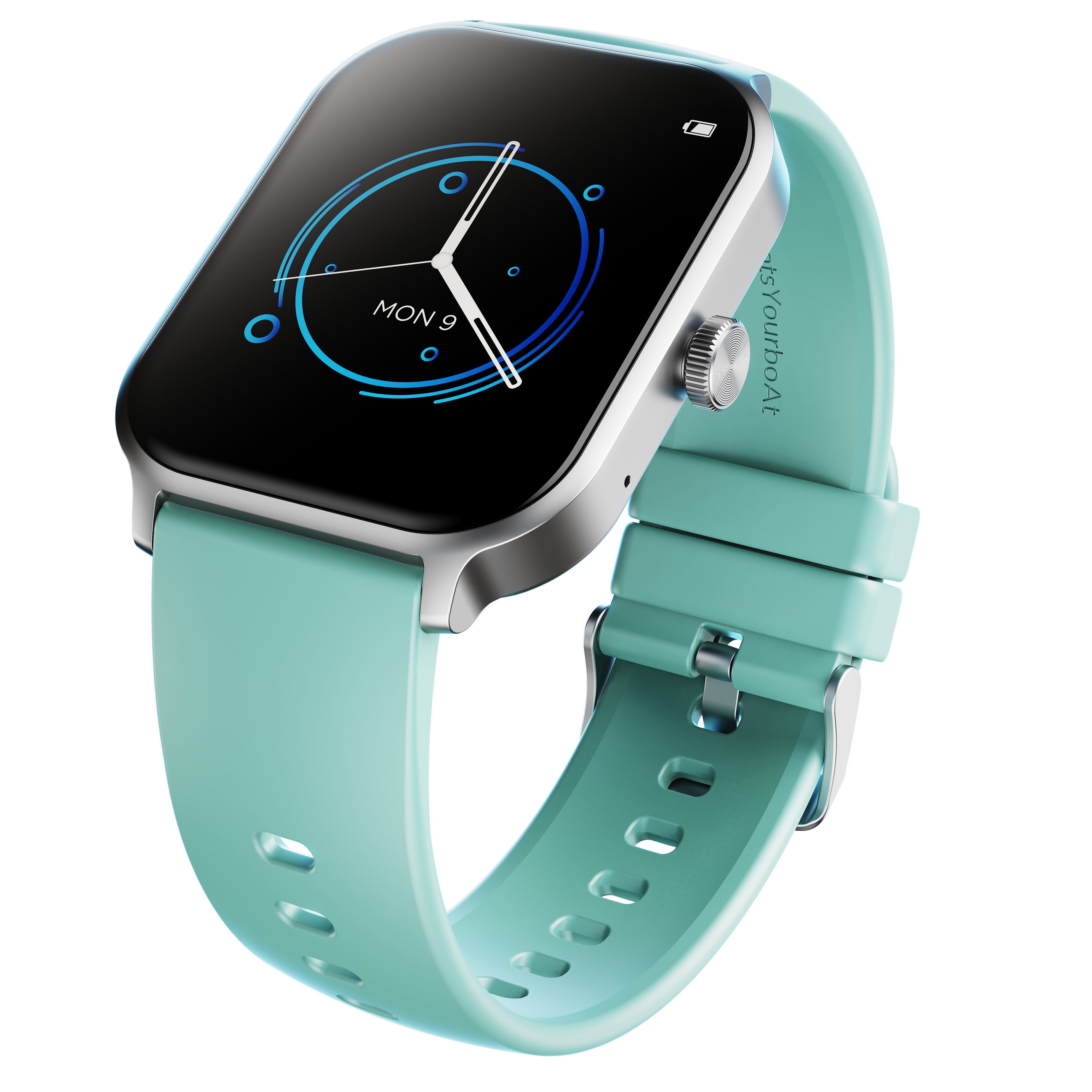
Specifications
Model | Storm Call 3 Plus |
Bluetooth Version | BLE5.2 |
Working Time | Up to 5 days |
Standby Time | Up to 5 days |
Screen Type | TFT |
Screen Size | 1.96'' inch |
Screen Resolution | 240*284 |
Battery Capacity | 230mAh |
Water Resistance | IP67 |
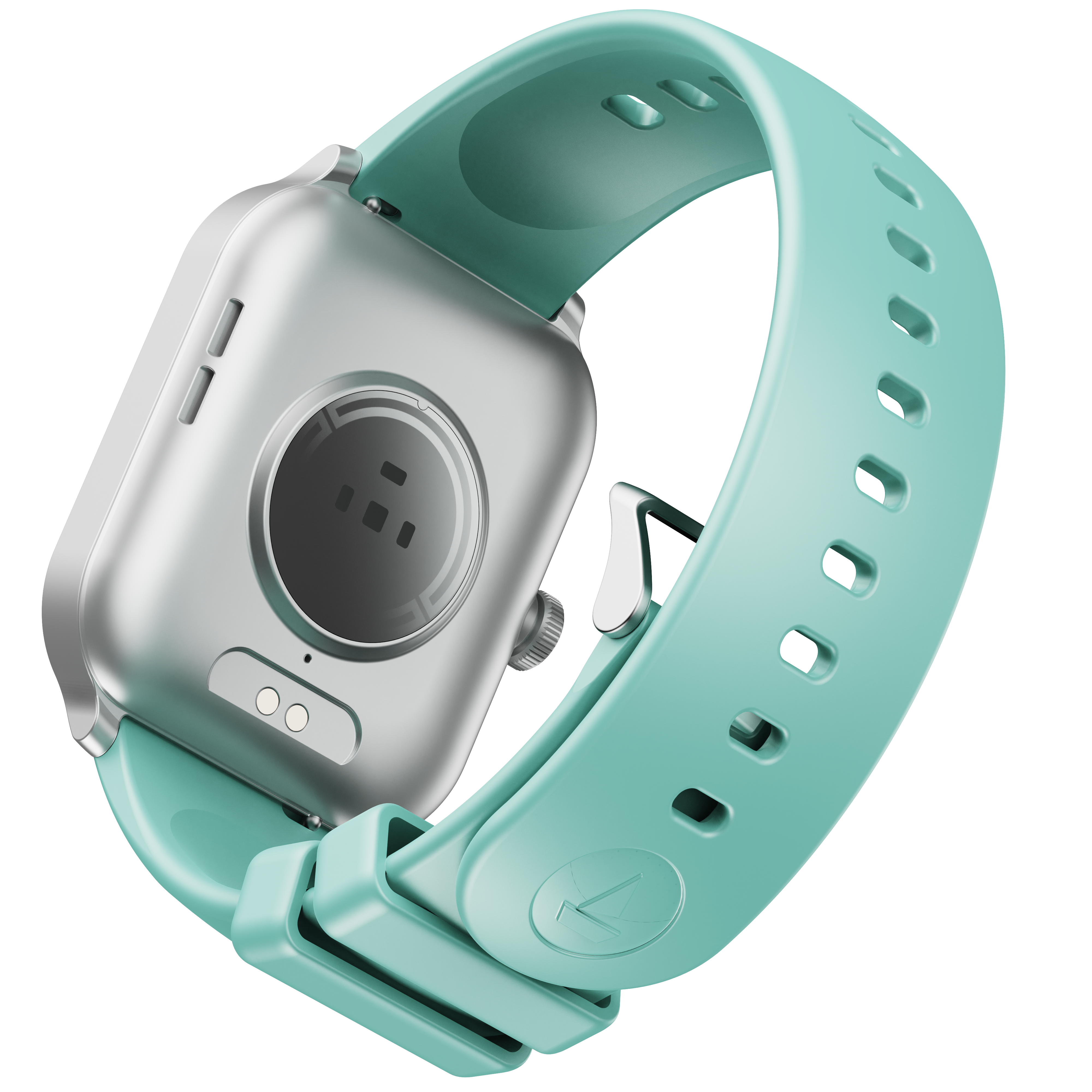
Sensors | Heart-Rate Sensor, Blood Oxygen Sensor, G-Sensor, SOS |
Sports Mode | 700+ Activities mode |
Other Modes | Breathe Training Mode, Steps Monitor, daily activity tracker, sleep monitoring, |
Other Features | Bluetooth calling, voice assistant, music and camera control, etc. |
Wrist Band Material | Silicon |
Watch Bottom Material | Plastic |
Watch Middle Frame | Aluminum |
Android and iOS Version | Android 7 and above & iOS 12.0 and above |
Troubleshooting FAQs
General FAQs
Long press the side button of the Storm Call 3 Plus it would lead to turning the watch on.
Raise your wrist to wake up the screen of the watch.
While the Storm Call 3 Plus on, long press on the side button for shut down power off option. This would lead to turning the watch off.
Short Press the side button to enter the main menu.
Swipe left or right on the home page would lead to shortcut menu.
The five functions in the shortcut menu are: (i) Steps (ii) SpO2 (iii) Heart Rate Monitor (iv) Sleep (v) Music (vi) Notifications.
There are 7 default watch faces available on the watch.
Long press on the watch home screen to view default watch faces, select and add your preferred watch face.
Tap on 'settings' on the home dashboard >> Go to Storm Call 3 Plus settings >> watch Faces. Under the Watch faces option, select the watch face you want to set on your watch & click apply.
Swipe left or right on the home page would lead to shortcut menu. Notifications is one of the functions in the shortcut menu.
While the user is inside the menu, tapping the several icons would lead to entering the different modes on Storm Call 3 Plus. There are the following mode options on the menu of Storm Call 3 Plus:
Steps: For tracking daily activities like step count, distance travelled, etc.
Heart Rate: For measuring the heart rate of the users.
Blood Oxygen – For Measuring the saturation level of oxygen (spO2) in the user’s blood
Sleep Mode- For measuring the sleep hours of the users
Breathing Mode – For breathing exercise of the users
Alarm – To set up alarm for the users
Music Control Mode– To control the music from the watch when the users are listening to music. Note: This feature might not work for some of the music apps with different control protocols.
Camera Control Mode- To control the camera from the watch and click photos
Timer – To set up timer for the users when in need
Settings – To enter the settings of the watch
There are 700+ activities modes available in the watch.
Examples include Walking, treadmill, running, badminton, football, basketball, Tennis, yoga, etc. You can access any out of these.
Select any one of the exercises before starting that exercise.
You can also add more sports activities or hide the activities.
Swipe right and then click on pause to start/pause that exercise.
On the App home dashboard >> Tap on "Heart rate” card.
You can view all your historical heart rate readings, Min and Max HR for the day.
You can also access the history by tapping on the history icon and can also filter the details based on a Daily, Weekly, or Monthly basis.
You can measure it on the watch. A user can view the details on the app.
Swipe left from the watch home screen >> Go to SPO2 >> Tap measure.
Post your measurement, please sync the SPO2 values to your boAt Crest app.
Open the ‘boAt Crest’ app and you will find “More” on the lower right-hand side on the home page of the app.
Click on it and go to Settings.
Inside Setting, you will find the Sleep Goal. You can set your Sleep Goal under this option.
Note: Your sleep goal is indicative of your sleep target, and the watch automatically records the sleep.
There are 7 default watch faces available on the watch.
Long press on the watch home screen to view default watch faces, select and add your preferred watch face.
Inside the menu, click on the ‘Music Control’ icon on the watch to enter the music control feature.
While listening to music, users can play, pause, move back to the previous track, jump forward to the next track and control the volume of the music.
Note: This feature might not work for some of the music apps with different control protocols.
Inside the menu, click on the ‘Camera Control’ icon on the watch to access the remote camera.
Click again on the camera icon to open the camera app on the media device. Note: Turn the camera on from your phone to use this feature.
You can control the brightness level of the watch by swiping down from the watch home screen & change the brightness level.
Swipe Up on the home page and you can check the cricket live scores.
You can add only 1 emergency contact through the boAt Crest app.
Follow these steps to activate the SOS feature: Open the boAt Crest app on your device >> Navigate to the "Home Dashboard" >> Locate the "Top Features" section >> In the "Top Features," you will find the "SOS" feature >> Click on it to access the SOS functionality.
To initiate an SOS call, perform a long press on the side button of your smartwatch.
In the watch click on the navigation feature.
Search your desired destination on the boAt Crest app.
Then send navigation instructions to your boAt smartwatch by clicking on get directions.
After clicking on it choose the navigate on watch option.
Then follow step-by-step instructions on your smartwatch to reach your destination. Note: The navigation is not shown in maps instead it is shown by direction arrows.
You can access the last alert from the watch navigation menu or by swiping left from the home screen.
To avoid receiving notifications on our smartwatch during navigation enable DND mode.
Make sure your phone and watch are connected through Bluetooth.
Click on the BT call icon on the top left corner of the home dashboard (initially it will be red).
Click on Pair Now.
A popup for pairing with STORMCALL3PLUS should come. Click on Pair & connect.
BT call will be connected now and the BT call icon on the home dashboard will appear green.
This feature will allow users to monitor and rate the quality of breathing.
Breath exercise (Inhale/Exhale pattern) on the watch for selected duration and rhythm.
It is a feature available on the watch where users can use it to do breathing exercises
It is necessary to accept and agree to all the terms and permissions, including the location services.
All permissions should be allowed when opening the app.
It is a feature available on the watch where users can use it to do breathing exercises.
This feature will allow users to monitor and rate the quality of breathing.
Click on the breath exercises icon to regulate your breathing by doing breathing exercises.
You can set the time and intensity level of the exercise
Yes, Storm Call 3 Plus does have a camera feature.
There are total 700+ activity modes on the watch.
Yes, users can set individual goals for every sports mode.
Yes, step counting, heart rate monitoring, calorie counting and sports modes can be recorded directly on your watch while your phone is not connected.
The watch has some internal memory to record this data.
Once you are in contact with your phone, you can sync the data to the app.
The green lights are used to monitor your heart rate.
There is an optical sensor that detects the passage of the blood and then estimates the heart rate based on that information.
Red light is the blood oxygen sensor.
Yes, it can be changed.
You can transfer the QR code of metro ticket/pass, bus pass, UPI, social apps, and more into the smartwatch by adding the QR code in the boAt crest app.
To add the QR code follow these steps: Click on "QR Tray” option in the boAt Crest app.
To add a QR code, capture a screenshot of the QR code of the app you want to include.
After this, you’ll be able to find a collection of QR codes in the smartwatch under the QR Tray feature. Select the QR code you want to be scanned.
The water resistance level of the Storm Call 3 Plus smartwatch is IP67.
