Chrome Ivory
chrome ivory
Updated
15 hours ago
, by boAt Knowledge Base
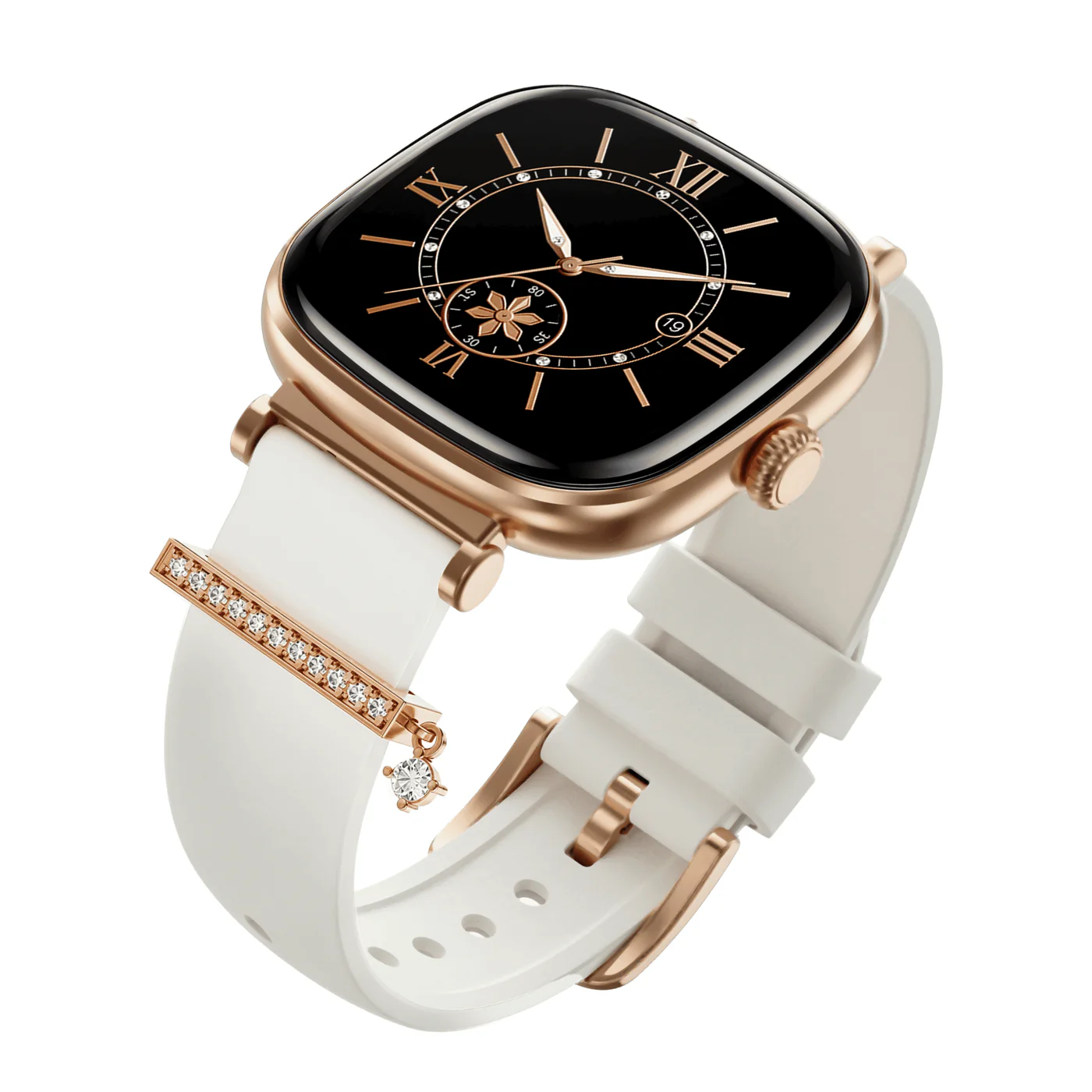
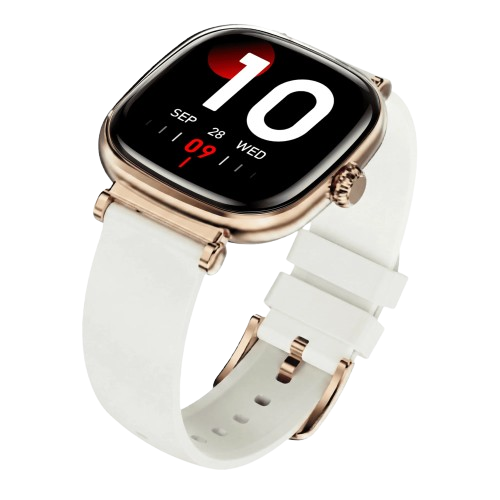
Chrome Ivory
Designed for those who demand both sophistication and performance, Chrome Ivory blends a premium metal build with cutting-edge smart features. From its ultra-sharp display to advanced health tracking and seamless Bluetooth calling, Chrome Ivory keeps you connected, informed, and in control—every moment of the day.
Specifications
Model | Chrome Ivory |
Bluetooth Version | BLE 5.3 |
Working Time | Up to 5 Days* (Battery life may vary depending on usage) |
Standby Time | 14 Days |
Screen Type | AMOLED Display |
Screen Size | 1.70” (4.31 cm) |
Screen Resolution | 366x366 |
Nits | 1000 |
Battery Capacity | 210 mAh |
Water Resistance | IP68 |
Wrist Band Material | Silicone and Metal Mesh |
Strap Size | 18 mm |
Watch Body Material | Zinc Alloy |
Android and iOS Version | Android 7.0 and above & iOS 14.0 and above |
User Manual
Chrome_Ivory_SmartGuide.pdf
1.91 MB
Troubleshooting FAQs
General FAQs
Long-press the Power Button for 3–5 seconds until the screen lights up.
Long-press the side button for 3–5 seconds to turn the watch on. Tap the ✔️ (Confirm) icon to initiate the power off.
Attach the magnetic end of the charging cable, which comes with the watch package, to the charging pad of the watch located on the back of the watch.
Connect the other end of the cable which is a USB-A end to a 5V/ 2A rated power adapter power bank or a computer.
Chrome Ivory’s display will show the charging status and charging percentage while charging.
Note: If Chrome Ivory is connected to a computer USB port for charging, the speed of charging will be less, as the power pushed by the USB port of a computer is less than a 5V/2A rated power adapter.
Before using Chrome Ivory for the first time, please fully charge the smartwatch first.
Charging through wall adapter – Specs of the adapter: 5V/2A
Any other accessory can be used for charging Chrome Ivory as long as the above norms are followed.
Short press the side button to open the Main Menu from the Home Screen. Alternatively, swipe right from the Home to open the Main Menu.
From the Home Screen, swipe down to access shortcuts such as Do Not Disturb, Power Saving Mode, Brightness, Flashlight, Always on Display and Settings.
Recent Call: Find recently received, missed, and dialed call logs under the recent call section. Select any entry to call the number directly from the smartwatch.
Dial Pad: Tap on Dial Pad to open the on-screen keypad number. Enter the phone number and tap the call icon to place a call.
Contacts: Tap on Contacts to view your synced contact list. To add a contact, open the boAt crest app > Settings > Watch Features > Bluetooth Calling > Your Synced Contacts. Add up to 8 contacts from the boAt Crest app.
Note: Make sure that call notifications are enabled and your smartwatch is connected to your device via Bluetooth calling.
While the user is inside the menu, tapping several icons would lead to entering the different modes on Chrome Ivory. There are the following mode options on the menu of Chrome Ivory –
Heart Rate – This is used to measure the heart rate of the users.
Activity – This feature allows the user to check the step count, calories burnt, and distance covered.
Sleep – For reviewing the user’s sleep data for the previous night
Guided Breathing – For breathing exercises of the users
Weather – To get the weather forecast and updates on the go
Music – For users to conveniently listen to their favorite tunes
SpO2 – For users to measure blood oxygen levels, which can help you understand your respiratory health
Stress - Tap on the Stress icon to check your real-time stress level.
Go to settings > Display > Watch faces.
Alternatively, you can long-press the home screen to switch between the watch faces.
There are 5 default watch faces available on the watch.
Swipe up on the home screen of the watch to check the notifications of the connected media device.
From the Main Menu, tap on Workout to view the list of available exercise modes. Choose from various default exercise modes here, including Walking, Running, Cycling, Skipping, Badminton, Basketball, Football, Climbing, Tennis, Rugby, Golf, Yoga, Fitness, Dancing, Baseball, Elliptical, Indoor Cycling, Free Training, and Rowing Machine. Tap on your preferred exercise to start recording.
Short press side button > Main Menu > Sleep > view sleep record.
To see the detailed sleep pattern, sync your watch with the app
Tap on the Heart Rate (HR) icon to measure your real-time heart rate. The smartwatch also displays:
Current Beats Per Minute (BPM)
Max BPM
Min BPM
Heart Rate Insights: Swipe up on the HR screen to check 24-hour HR data across different times of the day. View the detailed data on the boAt Crest app.
Note: Measurements are for reference only and not for medical purposes. Ensure the smartwatch is worn securely on your wrist for accurate readings.
Tap on the SpO2 icon to check the blood oxygen saturation in percentage.
Make sure to wear the smartwatch securely on your wrist.
Tap on the screen to begin real-time blood oxygen level tracking.
Stay still for the measurement to complete.
View your SpO2 reading on the screen and Max/Min SpO2 readings.
SpO2 Details: Swipe up to access detailed SpO2 data of last 7 records.
Note: The measurement is for reference only and not intended for medical use.
There are 5 default watch faces available on the watch.
Go to Settings > Display > Watch Faces.
Under the Watch Faces option, select the watch face you want to set on your watch & click apply.
Alternatively, long press on the watch home screen to view or switch between the default watch faces; select add your preferred watch face.
Tap Music to control audio playback on the paired device. Functions include Play/Pause, Next/Previous track, and Volume adjustment.
Volume Adjustment: Tap on the speaker icon on the screen for volume adjustment. Then, move the slider up and down to turn up or down the music.
Music Control Toggle: Toggle On/Off to enable or disable music control for the connected device.
Note: This feature might not work for some of the music apps with different control protocols.
Tap on the Remote Camera icon to remotely trigger the camera on your paired smartphone.
Open the Crest app.
Tap on Remote Camera on your smartwatch to capture a picture.
Note: To use this feature, make sure the smartwatch is connected to the boAt Crest App. The Crest app must remain open for this feature to work properly.
Swipe down on the Home screen of the watch.
Click on the brightness icon.
The brightness of the watch screen can be changed as per the user’s preference using the slider.
Slide the bar upwards to increase the brightness and slide it down to reduce the brightness.
1. Via QR Code Scanning:
Find the QR code on the product manual of Chrome Ivory for installing the boAt Crest App on your device.
Open the QR Code Scanner app on your device and scan the code present on the user manual as well as inside the watch settings.
Thereafter, follow the on-screen instructions to install the boAt Crest app on your device.

2. Via Searching the app on Google Play or Apple Play Store:
On Google Play or the Apple App Store, in the search bar, type ‘boAt Crest’ and enter search.
You will see the boAt Crest app in the search result list.
Click on the install button to install the boAt Crest app on your media device.
First, make sure that your phone version is either on Android 7.0 and above or iOS 12 and above.
Download the boAt Crest application from Play Store (Android) and AppStore (iOS).
When you open the app, please allow all permissions.
Register with your mobile number by accepting the terms and conditions.
You will receive a verification code as an SMS; enter the verification code in the app.
Follow the instructions on the App and you will find Chrome Ivory smartwatch in the available device list.
Click on the CHROMEIVORY_XXXX to pair the Smartwatch with your phone.
This will complete the pairing process after which the smartwatch will start syncing with the app.
Users can upload a custom watch face with images from their device. Follow the instructions to update the custom watch face mentioned below:
Open the boAt Crest app.
Go to the “My Watch” section.
Here the option to “Change Watch Face” is available.
Go to my creation and click on “Create a watch face”.
Select a background ‘Image’ from your gallery.
Choose the parameters you wish to add to the selected background:
Time
Date
Steps
Distance
Calories
Heart Rate
Battery
Finally, click on the “Update on the watch” to get the watch face updated.
Note: Depending on the selected watch face’s size and resolution, this may take up to 2 minutes.
Turn the device’s Bluetooth on and bring your smartwatch closer to the device. If this doesn't work check the following functionality:
Enable Contact Sharing: Open Crest App > BT Calling > Connect your watch CHROMEIVORY_XXXX > Enable Contact Sharing
Enable Notifications: Open Crest app > Settings > Turn on Call Notifications
Your smartwatch's data is automatically synced when you open the boAt Crest app. This may take a few seconds.
For manual syncing, go to the app and click on “Tap to Sync” to trigger immediate data transfer. If this doesn't work –
Open the Crest app and keep the watch within Bluetooth range, i.e., less than 10 metres.
Ensure the Bluetooth and GPS are enabled on your phone.
Allow the app to run in the background.
General permissions are needed on Android and iOS devices as below:
On Android:
Go to Settings > Apps > Crest > Permissions
Enable permissions for Location, Contacts, Phone, and Notifications.
On iOS:
Go to Settings > Privacy
Grant access to the Crest app for relevant permissions like Bluetooth and Notifications.
Open the boAt Crest app.
Tap on your profile icon located at the top-right corner of the home screen.
Scroll down and tap “Log Out”.
Confirm the logout action in the pop-up prompt.
Your smartwatch will be disconnected from your phone.
The watch will stop syncing data with the app.
You will stop receiving notifications on the watch.
To regain access, you will need to log in again with your connected account (e.g., Google or email) and verify with a one-time password (OTP).
To add a fitness buddy:
Open the Crest App
Go to My Buddies
Tap on Add Buddies
Select a contact from your list
An invite will be sent automatically
Once they accept, they’ll be added to your Fitness Buddies list.
Go to My Buddies
Tap on the name of the person you want to remove
Select Remove Buddy
They will be removed from your buddy list and won’t have access to your fitness updates.
Follow the steps mentioned below to check the live cricket scores using the Crest app:
Swipe up on the home screen to view live scores.
Open the boAt Crest app and go to the “My Watch” section.
Tap on “Sports Score”.
Select “Enable” to activate live score updates on your watch.
Turn on “Enable Score Push to Watch” for real-time updates.
You can also enable “Vibration Alert” for score notifications.
Now open Settings: Choose Cricket >> Then choose match type – T20 or ODI, and set your preferred update interval.
Note:
Alternatively, you can also choose a football score. Tap on “Get Score Update” to receive updates every 15 minutes.
Enabling Vibration Alert may lead to increased battery consumption on the watch.
You can transfer the QR code of metro ticket/pass, bus pass, UPI, social apps, and more into the smartwatch by adding the QR code in the boAt crest app. To add the QR code follow these steps:
Click on "QR Tray” option in the boAt Crest app.
To add a QR code, capture a screenshot of the QR code of the app you want to include.
After this, you’ll be able to find a collection of QR codes in the smartwatch under the QR Tray feature. Select the QR code you want to be scanned.
Go to “Settings” from the main menu and click on “Watch Features”.
Click on the “QR Tray” option to upload a QR code.
Upload the QR code from your phone.
Select any one from these categories: Payment/Movie/Others.
Enter the name of the QR code at “Name this QR code”.
Click on “Save & Push to Watch”.
The QR code will appear on your smartwatch.
Swipe left on the home screen to view the QR code on the watch.
Note: Double tap the watch screen to change the brightness level in case the QR code scanner doesn’t work.
Yes.
Yes, step counting, heart rate monitoring, calorie count and sports modes can be recorded directly on your watch while your phone is not connected.
The watch has some internal memory to record this data.
Once you are in contact with your phone, you can sync the data to the app.
The green lights are used to monitor your heart rate. There is an optical sensor that detects the passage of the blood and then estimates the heart rate based on that information.
Red light is a blood oxygen sensor.
No.
