Party Pal 600
partypal 600
Updated
29 days ago
, by boAt Knowledge Base
PartyPal 600
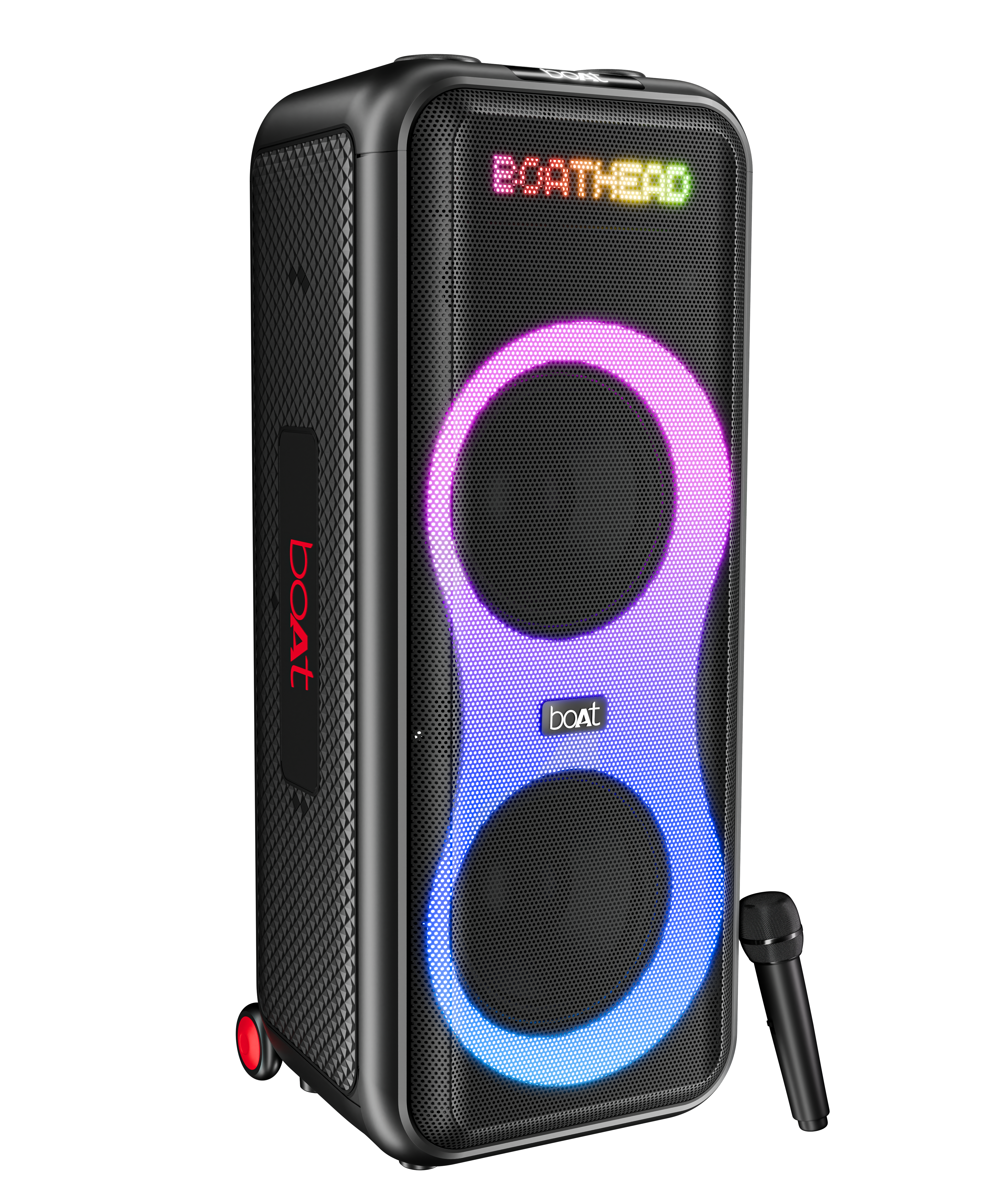
Party Pal 600 is packed with a thumping 220W boAt Signature Sound, this powerhouse speaker keeps the beats pumping. With TWS for Double Impact, connect two speakers and amplify your party experience. Animated Text Display adds a fun, dynamic visual element. The boAt Hearables App lets you fine-tune your music, while Multi-Compatibility ensures seamless connections.
Specifications
.png)
Product Type | Portable Party Speaker |
Technology | USB, TF, Wired Microphone Input, AUX, Guitar IN, Recording, Bluetooth, TWS Function |
Drivers | 10"high quality speaker driver60W*2 2.5" Tweeter 15W*1 2.5" Tweeter10W*1 |
Audio Output Power | 160W |
Frequency Response | 45Hz-20KHz |
Net Weight | 15Kg |
Working range | 10m |
Dimension | 1005*415*410 mm |
Lead-Acid Battery | 12V 7500mAh |
Charging Time | 7Hours |
Playtime | Up to 7 hours (At 60% volume) |
Troubleshooting FAQs
General FAQs
Use the power switch to turn the speaker on or off.
Short press the “INPUT” button on PartyPal . On your phone search for “PartyPal 600”and connect.
In case the device is not working, please turn of the power button & turn it back on.


Connect the provided power Cable to charge the speaker.
Turn off the speaker before charging, the LED indicator turns red while charging; once the charging is completed the indicator turns blue.
Note:
The speaker working time varies from the different working conditions, such as music volume, LED light mode, etc.
The built-in rechargeable battery is not replaceable. Do not trash it to the fire or liquid to avoid safety risk and environmental pollution.
Short Press the MODE or BT button on the control panel until the LED displays BT.
The on the LED display will flash to indicate that the speaker is in Bluetooth pairing mode. Ensure that the device you wish to connect is also in pairing mode and search for PartyPal 600 in its device list.
The on the LED display will stop flashing and remain constant when the pairing is done.
Note:
The speaker will now automatically re-pair with this device whenever it is within range and has Bluetooth turned on).
The speaker will automatically play the music by the music player which operated during Bluetooth paired in the first time.
Connect a compatible device with a 3.5mm – 3.5mm stereo jack cable.
Select AUX mode by pressing the MODE button on the speaker control panel.
Ensure the connected device is producing an audio signal, then adjust the volume of the speaker by Volume Knob or connected device.
Note: All music-playing-related function can be controlled by externally connected device under AUX mode.
Power on the speaker and insert the flash memory or TF card, the speaker will automatically start to play compatible music.
To select previous or next music press or buttons, to increase or decrease the volume turn the VOLUME knob on the control panel, to play or pause the music press the button.
Note:
The speaker will disconnect the Bluetooth connection to automatically play the music from flash memory or TF card, you can back to Bluetooth mode by pressing the BT button on the control panel.
Compatibility with all commercially available storage devices cannot be guaranteed.
External USB devices that require a voltage rating greater than 5V and a current rating greater than 200mA are not supported.
If you use a USB extension cable, the connected storage device may not be recognized or function properly.
The speaker also has an additional guitar jack which can be used for attaching an electric guitar.
To connect with the microphone, turn on the power and insert the microphone into the microphone hole.
This text will be hidden
Short press the Mode button to change the connectivity mode (BT/USB/ TF Card/ AUX).
After turning on the speaker, short press the "LED MODE" button to switch to LED effect mode. Long press the "LED MODE" button to turn the LED light effect on/off.
Short press "LED MODE" button on the control panel to switch between the 7 LED modes.
The operation cycle is as follows-
LED Mode1 - LED Mode2 - LED Mode3 - LED Mode4 - LED Mode5 - LED Mode6 - LED Mode7 - LED Mode1
LED Mode1 to LED Mode6: Screen display remains continuously on and shows different LED light effects.
LED Mode7: Screen display remains continuously on and the LED light effects turn off.
The speaker will power on in the same LED mode that was active when it was powered off, ensuring a consistent experience each time.
LED Mode Switch On/Off: Long press the LED mode button to turn off the screen display and LED lights. The screen display will activate for 10 seconds only to show the volume level change, mic volume, other features, etc. To turn all the LEDs on, long press the LED mode button.
Turn the knob towards the right (clockwise direction) to increase the volume and turn the knob to the left (anticlockwise direction) to decrease the volume.
Turn the knob towards the right (clockwise direction) to increase the bass and turn the knob to the left (anticlockwise direction) to decrease the bass.
Previous Track: Short press the Previous Track button to return to the previous track. (not applicable in AUX mode).
Next Track: Short press the Next Track button to skip to the next track (not applicable in AUX mode).
Short press the Play/Pause button to play/pause audio.
AC Input: Connect the power cable over here.
TF Card Slot: Insert the TF card in this slot.
AUX Port: Connect the AUX cable here.
USB Port: Insert the USB flash drive in this slot.
Guitar Input: Insert the guitar cable here.
Mic Input 1: Insert the microphone 1 cable here.
Mic Input 2: Insert the microphone 2 cable here.
Charging LED Indicator: Indicates the LED while charging
Disco Ball: Disco Ball Light
Make sure the speakers are not paired with any external devices.
Turn on the two PartyPal 600 speakers you want to pair and select Bluetooth mode (shown as BT on the LED display).
Once the speakers are in Bluetooth Mode and your main speaker is connected to your Bluetooth device, long press the Mode button to activate TWS on the main speaker until the speaker emits a tone indicating that it has entered TWS pairing mode. You can now playback audio through the speaker.
Once TWS is activated, the speakers will automatically pair with each other if turned on at the same time.
Long press the “Mode” button to deactivate the TWS mode and unpair the speakers.
Note: Once the two units execute the TWS function, they automatically get paired again if next time they are turned on within the effective range.
Insert a USB flash drive/ microSD/ TF card (containing songs in MP3 format) into the USB port/TF card slot and it will switch to USB/TF card mode automatically.
Connect one end of the provided cable to the 3.5 mm AUX input of the speaker and the other to the external device. The speaker will automatically switch to AUX mode.
Alternatively, short press the “Mode” button repeatedly to switch to AUX connectivity mode.
In AUX mode, you can control the audio playback via the media device/phone.
NOTE: In AUX mode, all the functions will work from the connected device.
Slide the “On/Off” button to turn the wireless microphone on/off and connect it to the speaker.
You can also connect up to 2 separate wired microphones to the speaker (not provided). To connect a wired microphone, turn on the power and insert the mic wire into the microphone input port on the speaker. press 3 seconds to turn the mic on and off.
Long press the “Play/Pause” button to activate the microphone priority function which allows you to speak with higher volume and decreases the volume of the track being played when the microphone is used.
Note: You can also connect two wireless microphones to the speaker- one wireless microphone is provided with PartyPal 600, while the second wireless microphone can be purchased separately. It must be a boAt wireless microphone, compatible with PartyPal 600.
PartyPal 600 features a guitar jack which can be used for attaching an electric guitar.
Short press the Disco ball light button to switch the disco lights mode, long press the button to turn the Disco lights on/ off.
To ensure maximum efficiency and battery life, make sure that the speaker is not used at 100% volume at all times and that the battery is charged when it falls to 20% and below.
Yes, it does. It supports wireless Bluetooth v5.3 and TF card, USB, and 3.5 mm AUX-in port playback in case you don’t want to stream wirelessly. It can support up to 6 hours of playback at 60% volume.
Note: Increasing the volume to more than 60% will reduce the playback time.
The speaker has a TF card slot, AUX port which supports 3.5 mm jack, and a USB port. Other than that, it supports Bluetooth v5.3 connectivity. It does not support FM radio.
No, PartyPal 600 does not support calling features.
Yes, you can charge it with a Type-C cable.
Yes, the speaker is not powered through the AUX cable. So, please make sure that it is charged and powered on before using it through AUX connection.
No, PartyPal 600 cannot be used as a speakerphone in any connectivity mode.
Yes, it can be. However, it is advised to only do so using an AUX connection as Bluetooth mode might have latency issues.
No, it cannot be.
Only 2 speakers of the same model can be connected in True Wireless Mode
No, it is not.
