Rockerz Uno
Rockerz Uno
Updated
18 days ago
, by boAt Knowledge Base
Rockerz Uno
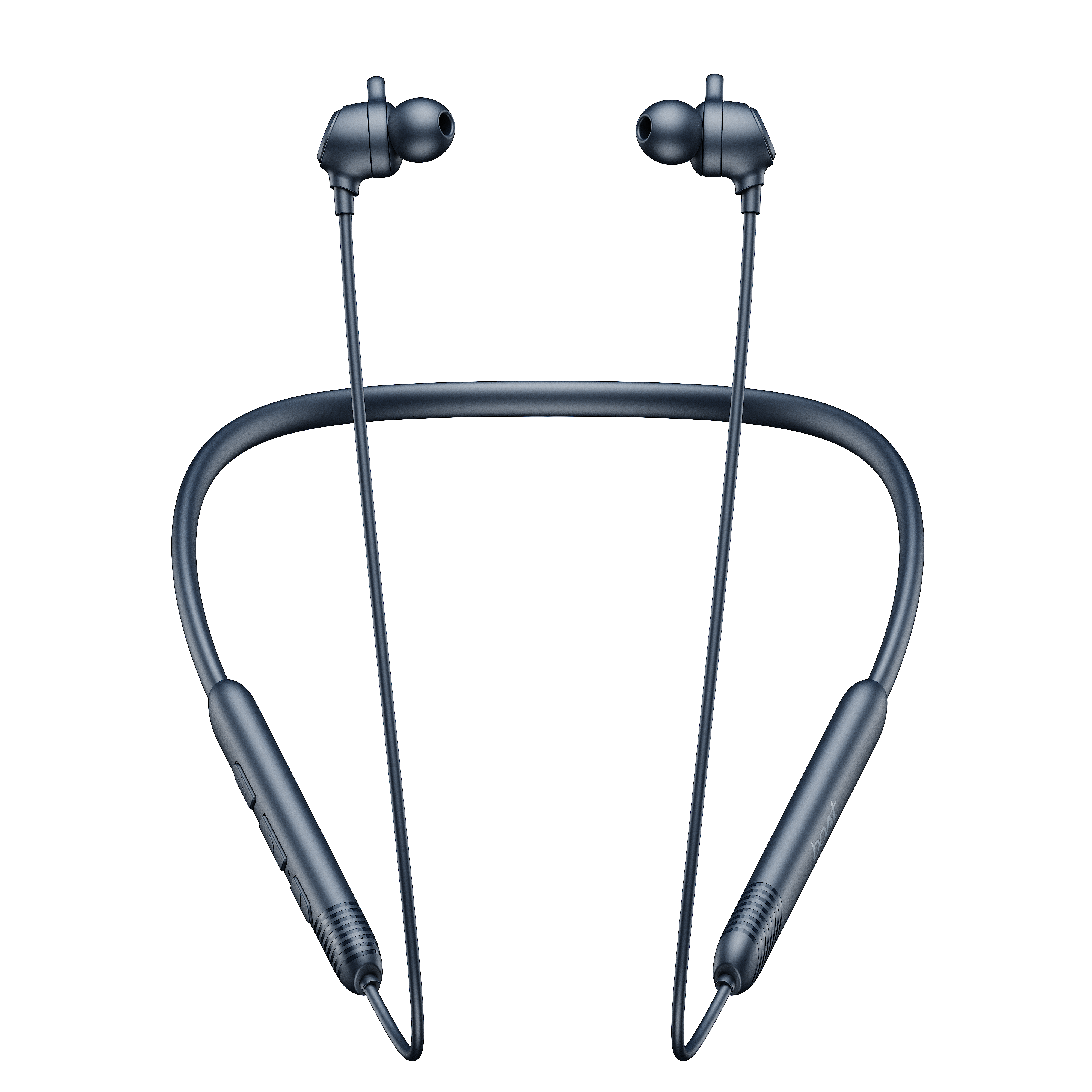
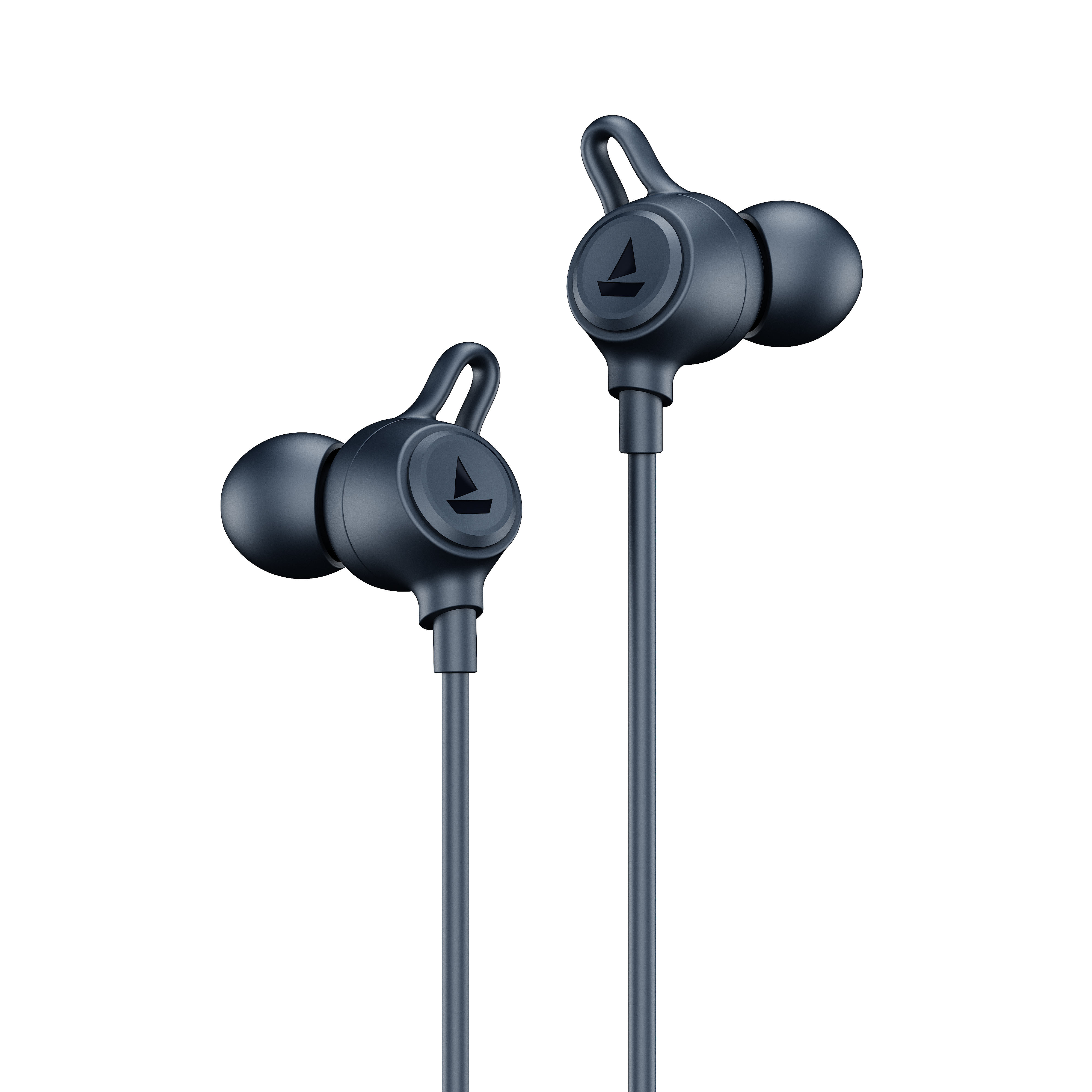
Built for active lifestyles and bold audio performance, the boAt Rockerz Uno delivers crisp sound clarity paired with signature punchy bass. Engineered with an ultra-comfortable ergonomic fit and long-lasting battery life, it provides the ultimate high-energy soundtrack to keep you moving forward.
Specifications

Type of Product | Bluetooth Wireless Neckband Earphones |
Bluetooth Version | v5.3 |
Dual Pairing | Yes |
ENx™ Tech | Yes |
BEAST™ Mode | Yes; 60 ms Low Latency |
Operating Range | 10 m |
Frequency | 20 Hz-20 kHz |
Driver Size | 10 mm*2 |
Driver Impedance | 32 Ω |
Battery | 200 mAh |
Talk Time | Up to 30 hours |
Music Playtime | Up to 30 hours (At 60% volume) |
Charging Time | Up to 50 mins |
Charging Interface | USB Type-C |
ASAP™ Charge | Yes; 10 mins Charge = 10 hrs Playtime |
Water Resistance | IPX5 |
Troubleshooting FAQs
General FAQs
Power On: When switched off, press and hold the MFB for 3 seconds.
Power Off: In switched on state, press and hold the MFB for 5 seconds.
Press and hold the Volume Up (+) and Volume Down (-) buttons simultaneously for 5 seconds to clear the list of paired devices.
The red and blue LEDs will flash alternatively for 1 second to indicate a successful reset.
When switched off, press and hold the MFB for 3 seconds to switch on the earphones and put them into pairing mode. The earphones will automatically enter pairing mode with a prompt; the blue and red LEDs will flash alternatively to indicate the same.
Turn on the Bluetooth functionality on your phone/media device and scan.
Search for ‘Rockerz Uno’ and tap on the same for pairing & connecting via Bluetooth.
If asked for a passcode, enter the pairing code as “0000” to establish Bluetooth connectivity.
Once successfully connected, the blue LED remains solid on for 3 seconds to show successful pairing.
The wireless neckband automatically turns off if there is no pairing established in 5 minutes.
To charge the earphones, plug one end of the provided USB Type-C cable into the earphones and connect the other end to a laptop, wall adapter, or a power bank.
During charging, red LED remains solid ON.
Once the charging is complete, the LED turns off.
Use a wall adapter with 5V/2A specifications.
Use a standard cable with 35 strands @0.10mm diameter/strand.
Note that earphones cannot be used or switched on while charging.
Go to the sound settings of your phone and set the equalizer to normal/ default/ none/ 0. EQ settings navigation for top 9 popular mobile brands are as follows:
Vivo - https://www.vivoglobal.ph/questionlist/hi-fi-audio/
Go to i Music>press the icon at the left upper corner>select Audio effect>turn on Deep space sound effects>touch Equalizer in the bottom., then you can adjust Equalizer as you like.
Note: Equalizer is supported in Funtouch OS 4.0 and higher version and can be adjusted only with the earphone plugged in.
Xiaomi - https://www.mi.com/global/support/faq/details/KA-497702/
Settings > Sound & vibration > Sound effects > Graphic equalizer, You can now choose preset styles or manually adjust the equalizer to your preference.
Samsung - https://www.samsung.com/levant/support/tv-audio-video/how-to-set-eq/
Settings > Sounds and vibration > Sound quality and effects > Equalizer, You can now either choose from pre-set EQ options (like "Music", "Bass", etc.) or manually adjust the frequency bands to fine-tune the sound.
Realme - https://c.realme.com/in/post-details/1397554219417985024
There 3 variations for EQ settings navigation according to the different UIs as mentioned below:
A] Realme UI 6.0: Settings > System & updates > Sound > Equalizer.
B] Realme UI 5.0, 4.0, 3.0: Settings > System/Additional settings > Sound > Equalizer.
C] Realme UI 2.0: Settings > Convenience tools > Sound > Equalizer.
Oppo - https://www.youtube.com/watch?v=-gpyYtrw-58
Open the main Settings app on your phone > Go to Sound & vibration or a similar menu > Look for an Equalizer or Sound Effects option > The exact path can vary depending on the phone model and Android version > Enable it and choose from presets or manually adjust the sliders for different frequency bands.
Apple - https://support.apple.com/en-in/guide/iphone/iph5643d2c85/ios
Settings > Music > EQ
Motorola - https://en-in.support.motorola.com/app/answers/detail/a_id/155724/~/enhance-sound
Go to Settings > Sound (& vibration) > Audio effects. (Or, open the Moto app and touch menu > Play > Audio effects) > Turn it On > to use only for earphones or connected devices, set the speaker equalizer to Flat.
Settings > Sound & Vibration/ Sound > Sound Effects / Equalizer > Graphic Equalizer
OnePlus - https://community.oneplus.com/thread/1111615
Settings > Sound & Vibration > Sound Quality & Effects > Audio Tuner or Audio Tuner > Equalizer Settings.
Perform a factory reset.
If the earphones are clogged with ear wax, simply clean the earphones to restore the original sound.
In case the earphones have water droplets, use the blow dryer to dry out any water from a distance (Caution - Prevent your product from overheating through the dryer).
Check for equalizer settings on the connected device.
Test with different media players or devices to see if the issue persists.
Check to see if the device has been properly charged first; the solid red LED will turn OFF when fully charged.
Check if the charging wire being used is working.
Verify if the voltage of the charger is correct (5V/2A).
Check if the charging port is clogged with dirt and clean if necessary.
Ensure the device was not subject to mishandling, broken wires, or extreme heat.
Unpair/Forget the device and pair it again.
Check if the controls work when connected to a different device.
Check if the media player being used supports such controls.
Check for physical damage or exposure to hazards.
Ensure the feature is enabled on your pairing device (Google Assistant or Siri).
Press the MFB 3 times to activate the voice assistant.
Note that some devices may have restrictions that prevent this feature from working.
Try restarting the device.
Perform a factory reset.
Make sure there are no objects between your earphones and your connected device. Try moving your device closer to the earphones to see if the connection improves.
Look closely at the microphone hole for any dirt or earwax. If the microphone seems blocked, gently clean that area.
Rockerz Uno can be connected to 2 devices at once. To enable this feature, following steps are to be taken:
Pair Rockerz Uno neckband earphones with your first media device via Bluetooth.
Turn off both the earphones and the Bluetooth on the first device.
Switch on the earphones and the Bluetooth on your second media device to pair.
Finally, switch on the Bluetooth of the first media device again. Congratulations! Your earphones are now connected to both your devices successfully via Bluetooth.
Note: If the earphones are not connected, try connecting the first device manually once again to activate dual pairing.
Short press the Volume +/- button in steps to increase/decrease the volume.
There will be a ‘tone’ when the sound volume reaches its maximum.
Short press the MFB once.
Press the MFB 2 times during an incoming call.
While playing music, short press the Media Button once to play/pause the music.
Next Track: Press and hold Volume + for 2 seconds while playing music.
Previous Track: Press and hold Volume - for 2 seconds while playing music.
Press the MFB 3 times to activate the default Voice Assistant.
ASAPTM Charge is boAt’s very own patented technology. It lets your device charge at an incredible charging speed (may vary under some circumstance) where 10 mins of charging can give up to 10 hours of playback!
It is recommended you follow the charging norms mentioned on your user manual.
Rockerz Uno does support 60 ms low latency for entertainment and casual gaming. But if you’re looking for a professional gaming equipment, then Rockerz Uno is not the right product.
Yes, it does.
Yes, it does.
No, it does not.
No, it does not.
For ASAPTM charge to take place effectively, kindly charge the product using an adapter with Type–C 5V/2A specification.
While your earphones do have IPX5 water and sweat resistance, it is recommended that they are not submerged inside water directly or used for prolonged periods inside water like for swimming/showers as it may lead to damage.