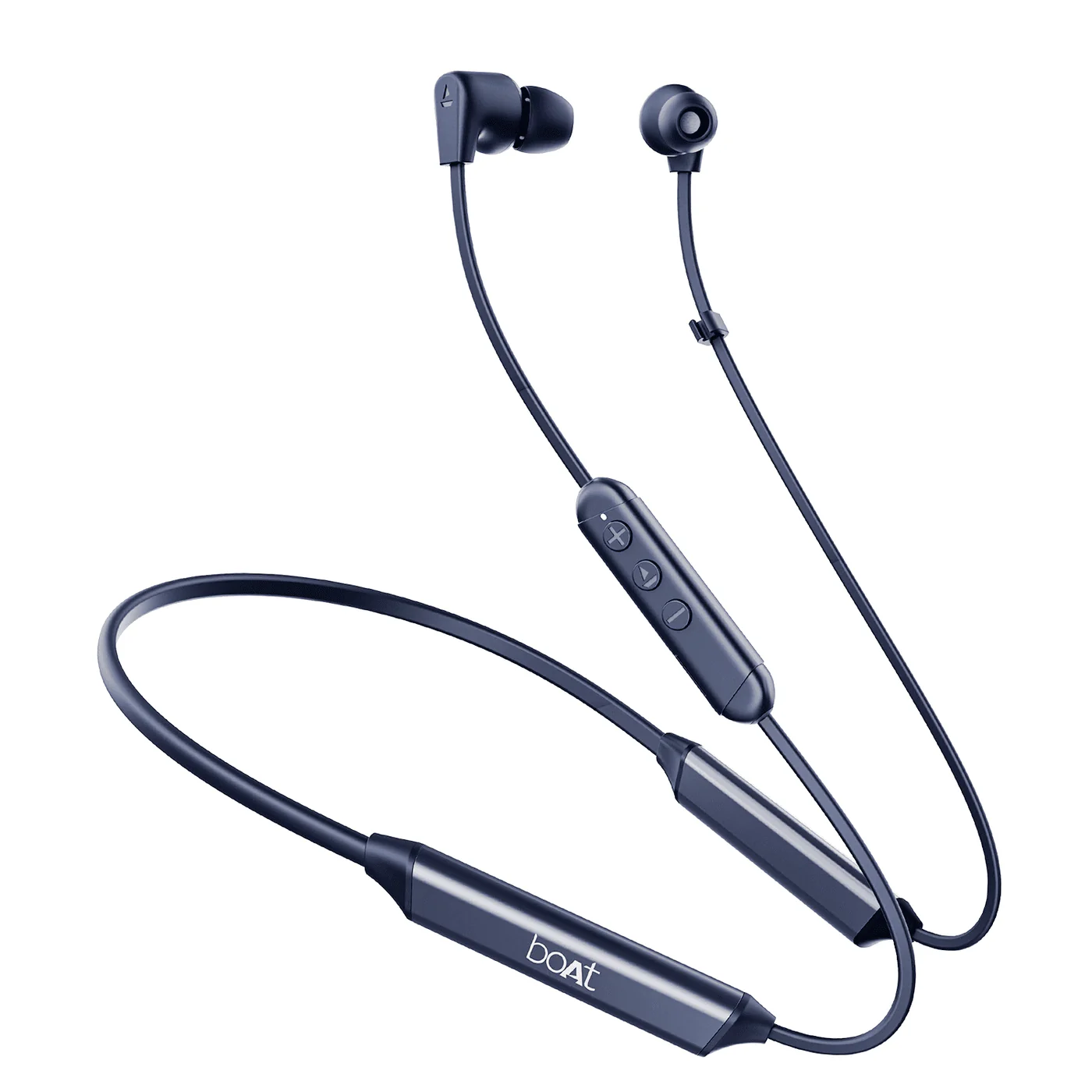
Rockerz Trinity Gen 2
trinity gen 2
Updated
23 days ago
, by boAt Knowledge Base
Rockerz Trinity Gen 2
Experience the pinnacle of audio performance with the boAt Rockerz Trinity Gen2, a neckband engineered for those who demand more. Delivering studio-quality Hi-Res Audio with LDAC™ and an incredible 150 hours of playtime, it ensures your soundtrack never skips a beat.
Specifications
Type of Product | Bluetooth Wireless Neckband Earphones |
Bluetooth Version | V5.3 |
Dual Pairing | Yes |
Environmental Noise Cancellation | Yes; AI-ENx™ |
No. of Mics | 1 |
BEAST™ Mode | Yes; 65ms Low Latency |
ASAP™ Charge | Yes; 10 mins charge = 24 hrs playtime |
Talk Time | Up to 150 hrs |
Music Playtime | Up to 150 hrs |
Transmission Range | 10m |
Frequency | 20Hz - 20kHz |
Driver Size | 10mm*2 |
Battery | 220mAh |
Charging Time | 60 mins |
Charging Interface | USB Type-C |
Troubleshooting FAQs
General FAQs
Power On: Press and hold the MFB for 3 seconds; indicated by a blue LED flash for 1 second.
Power Off: Press and hold the MFB for 5 seconds; indicated by a single red LED blink.
Via neckband: In the power off state, press and hold the MFB for 10 seconds until the purple LED flashes.
Via App: Navigate to the Troubleshooting section "?", tap "Malfunctioning," and select "Reset My Device".
Switch the earphones on; both the earphones automatically enter the Connection Mode.
Turn on the Bluetooth functionality on your phone/media device and scan.
Search for ‘Rockerz Trinity Gen 2’ and tap on the same for pairing & connect via Bluetooth.
If asked for a passcode, enter the pairing code as “0000” to establish Bluetooth connectivity.
Rockerz Trinity Gen2 can be connected to 2 devices at once. To enable this feature, following steps are to be taken:
Pair Rockerz Trinity Gen2 neckband earphones with your first media device via Bluetooth.
Turn off both the earphones and the Bluetooth on this device.
Switch on the earphones and the Bluetooth on your second media device to pair.
Finally, switch on the Bluetooth of the first media device again.
Congratulations! Your earphones are now connected to both your devices successfully via Bluetooth.
Short press the MFB once to answer an incoming call.
End call: Short press the MFB once to end an ongoing call.
Reject call: Press the MFB twice during an incoming call to reject it.
Press the Multifunction Button (MFB) once to play or pause a track
Next Track: While playing music, press and hold the volume up (+) button for 2 seconds.
Previous Track: While playing music, press and hold the volume down (-) button for 2 seconds.
Short press the volume +/- button in steps to increase or decrease the volume respectively.
Press and hold the MFB for 2 seconds to activate the Voice Assistant.
● Press the MFB 3 times to activate/deactivate low latency gaming mode.
Plug the provided USB Type-C cable into the earphones and connect the other end to a computer, wall adapter, or power bank.
The red LED will remain solid while charging and turn off when complete.
Use a 5V/2A wall adapter.
Use a standard cable with 35 strands @ 0.10mm diameter.
Fully charge the device before first use.
Note: The earphones cannot be used or switched on while charging.
Yes.
No, the voice prompts are integrated inside the earphones and as of now there is no feature to turn them off or lower their volume.
To install the boAt Hearables app, you can follow one of the options mentioned below-
Scan QR Code - Rockerz Trinity Gen2 has the Hearables app QR code printed on the packaging. Simply scan this code using your smartphone and the subsequent link will redirect you to the Google Play Store or iOS Store, as applicable.
Google Playstore - Download the boAt Hearables app from the Google Play Store on your Android smartphone. <https://play.google.com/store/apps/details?id=com.boAt.hearables&hl=en_IN&gl=US>
App Store - Download the boAt Hearables app from the App Store on your iOS smartphone.<https://apps.apple.com/in/app/boat-hearables/id1592550875>
Power on your Rockerz Trinity Gen2 neckband earphones. Alternate red and blue LED flashes indicate that the earphones are in pairing mode.
Log in to your account on the boAt Hearables app.
Turn on the Bluetooth on your media device and enable location permission as per the notification prompt on the app.
Go to the “My Devices” section on the app. Rockerz Trinity Gen2 will show up under the list of available devices with “Ready to Pair'' status. Follow the ‘Pull down to refresh’ option on the app if the device does not show up on the list.
Tap the Rockerz Trinity Gen2 name card and accept the pairing request pop-up notification on your media device by clicking on ‘OK’.
You can also save Rockerz Trinity Gen2 to your Google account for fast pairing in the future by clicking on “Save” and then “Set up.
Congratulations! Rockerz Trinity Gen2 is now connected to your media device with “Connected” status.
Check the "My Devices" section; paired neckbands will show a "Connected" status in the thumbnail.
Tap the thumbnail to view specific connection statuses and battery levels.
Open the app and follow prompts to enter your name, email, and phone number
Use the "Touch" tab in the app to reassign MFB single or double-tap functions.
Go to the Sound tab and select Balanced or boAt Signature Sound under the Equalizer header.
Navigate to the Troubleshooting section "?", tap "Malfunctioning," and select "Reset My Device".
Select "Diagnose My Device" at the bottom of the app home screen to test Bluetooth, mic, speaker, and battery.
Toggle "Multipoint Connectivity/Dual Pairing" to ON in the System tab.
Tap "Check For Updates" under the Software Update header in the System tab.
You can view the smart guide for Rockerz Trinity Gen 2 under the “System” tab of the Hearables app. Go to the ‘User Manual’ section and tap ‘Know More’ to access the manual.
Power ON: Blue LED for 1 second.
Pairing Mode: Alternating red and blue LED.
Charging: Solid red LED.
Full Charge: LED turns off.
Yes, it features AI-ENx™ Tech for clear call quality.
Yes, it features 65ms BEAST™ Mode.
No, it does not support the aptX codec.
No, it does not support ANC.
No, voice prompts cannot be adjusted or disabled.
No, while IPX5 splash resistant, they should not be submerged or used for swimming.