Rockerz 351 ANC
Rockerz 351 ANC
Updated
18 days ago
, by boAt Knowledge Base
Rockerz 351 ANC
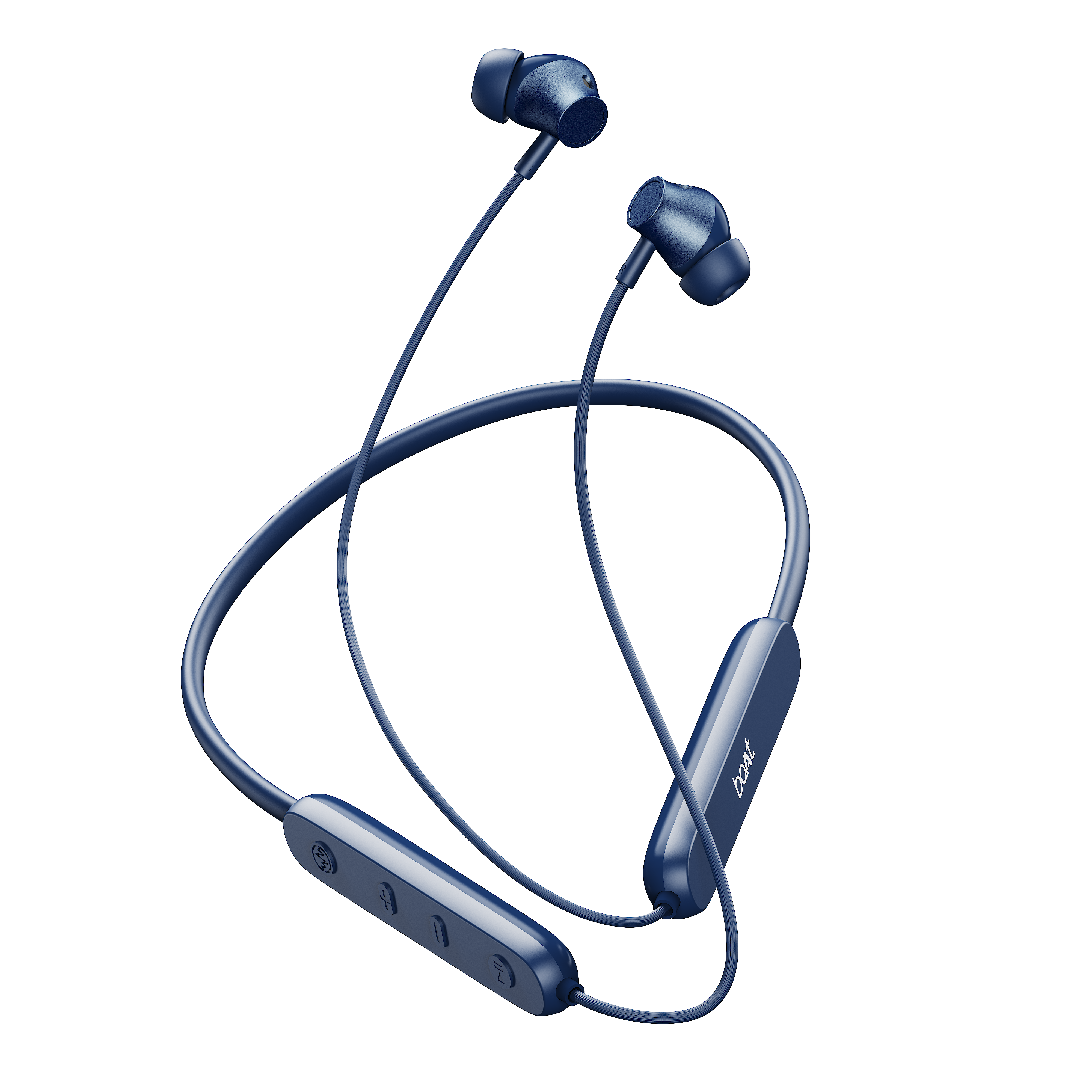
Sleek, stylish, and remarkably immersive, the boat Rockerz 351 ANC headphones blend active noise cancellation with punchy signature bass for uninterrupted audio clarity. Designed for all-day comfort and effortless control, they turn every playlist into an extraordinary, distraction-free soundscape.
Specifications
.png)
Environmental Noise CancellationType of Product | Bluetooth Wireless Neckband Earphones |
Bluetooth Version | v5.4 |
Active Noise Cancellation | Up to 42 dB |
Music Playtime | Up to 60 hrs (Non-ANC mode); Up to 30 hrs (ANC mode) (At 60% volume) |
BEAST™ Mode | Yes |
BEAST™ Mode | Yes; 40ms Low Latency |
Transmission Range | 10m |
Driver Size | 10 mm*2 |
Frequency | 20Hz-20kHz |
Battery | 250mAh |
Charging Time | About 60 mins |
Charging Interface | USB Type-C |
Water Resistance | IPX5 |
User Manual
Rockerz_351_ANC_Smart_Guide.pdf
36.94 MB
Troubleshooting FAQs
General FAQs
POWER ON:
Smart Power On : When switched off, separate the left and right magnetic buds from each other to switch on the earphones. The blue LED flashes for 1 second to indicate this.
Manual Power On : To power on the earphones manually, press and hold the MFB for 3 seconds.
Power OFF:
Smart Power Off : In switched on state, connect the left and right magnetic buds with each other to turn the earphones off. Red LED blinks once to indicate power off.
Manual Power Off : To manually power off the earphones, press and hold the MFB for 5 seconds.
On the device:
In pairing mode (when the blue and red LEDs flash), press and hold the ANC and Volume Down (-) buttons simultaneously for 5 seconds to clear the list of paired devices.
After a successful factory reset, red and blue LEDs flash alternatively for 1 second to indicate the same. Congratulations! Your Rockerz 351 ANC earphones have been reset.
On the App:
To reset Rockerz 351 ANC from your device, go to the Troubleshooting section “?” on the Hearables app.
Next, tap the “Malfunctioning” sub-header in the Troubleshooting section.
Click on the option “Reset My Device” and select ‘Reset’ to reset the earphones. Congratulations! Your Rockerz 351 ANC has been reset. After performing the reset, the earphones will enter pairing mode.
Remove Rockerz 351 ANC from the list of paired devices in the Bluetooth settings and then reconnect to your media device to start using Rockerz 351 ANC.
Rockerz 351 ANC will now show as “Ready to Pair” in the ‘My Devices’ section of the app.
Turn on the Bluetooth on your device and select ‘Rockerz 351 ANC’ from the list of available devices to pair.
Switch the earphones on; both the earphones automatically enter the Connection Mode.
Turn on the Bluetooth functionality on your phone/media device and scan.
Search for ‘Rockerz 351 ANC’ and tap on the same for pairing & connect via Bluetooth.
If asked for a passcode, enter the pairing code as “0000” to establish Bluetooth connectivity.
Once connected, solid blue LED flashes for 3 seconds to show successful pairing.
To charge the earphones, plug one end of the provided USB Type-C cable into the earphones and connect the other end to a laptop or a wall adapter, or a power bank.
During charging, the red LED remains solid ON.
Once charging is complete, the LED turns OFF.
Charging through wall adapter – Specs of the adapter: 5V, 2A
Charging through cable/wire – Standard cable: 35 strands @0.10mm diameter/strand
Any other accessory can be used for charging the neckband if the above norms are followed.
Note : Before using the neckband for the first time, it is recommended to fully charge it.
Press the Multifunction Button (MFB) once to answer an incoming call or end an ongoing call.
Press the Multifunction Button (MFB) twice to reject an incoming call.
Press the Multifunction Button (MFB) once to play or pause a track
While playing music, press and hold the volume down (-) button for 2 seconds to return to the previous track.
While playing music, press and hold the volume up (+) button for 2 seconds to jump to the next track
Short press the volume +/- button in steps to increase or decrease the volume respectively.
There will be a ‘tone’ when the sound volume reaches its maximum level
Press the Multifunction Button (MFB) 3 times to activate Voice Assistant.
Press the ANC button 1 time to toggle between Normal (ANC OFF), Ambient, ANC ON, and modes.
Press and hold the MFB(Multifunction Button) for 2 seconds to activate/deactivate low latency gaming mode.
To install the boAt Hearables app, you can follow one of the options mentioned below-
Scan QR Code: Rockerz 351 ANC comes with a Hearables app Download card in the packaging box. This card has the Hearables app QR code printed on it. Simply scan this code using your smartphone and the subsequent link will redirect you to the Google Play Store or iOS Store, as applicable.
Google Playstore: Download the boAt Hearables app from the Google Play Store on your Android smartphone. (https://play.google.com/store/apps/details?id=com.boAt.hearables&hl=en_IN&gl=US )
App Store: Download the boAt Hearables app from the App Store on your iOS smartphone. (https://apps.apple.com/in/app/boat-hearables/id1592550875 )

After installing the app, follow the steps shown on the app to set up your account by entering your phone number, name, and email ID. Account setup is a one-time action.
Separate the left and right magnetic buds of your Rockerz 351 ANC neckband earphones. Alternate red and blue LED flashes indicate that the earphones are powered on and in pairing mode.
Log in to your account on the boAt Hearables app.
Turn on the Bluetooth on your media device and enable location permission as per the notification prompt on the app.
Go to the “My Devices” section on the app. Rockerz 351 ANC will show up under the list of available devices with “Ready to Pair'' status. Follow the ‘Pull down to refresh’ option on the app if the device does not show up on the list.
Tap the Rockerz 351 ANC name card and accept the pairing request pop-up notification on your media device by clicking on ‘OK’.
You can also save Rockerz 351 ANC to your Google account for fast pairing in the future by clicking on “Save” and then “Set up.
Congratulations! Rockerz 351 ANC is now connected to your media device with “Connected” status.
Pair the Rockerz 351 ANC to your media device by following the process mentioned above.
Go to the “Sound” tab on the Hearables app.
Under the Sound tab, the “Noise Cancellation” header has all the audio modes displayed.
Select the mode of your choice depending on the level of noise cancellation required-
Tap ‘Off’ to turn off ANC and Ambient modes
Tap ‘Ambient’ to have transparency towards your audible surroundings.
Tap ‘ANC’ to cancel external noise
Note: The last operational noise cancellation mode remains activated upon opening the app.
Pair the Rockerz 351 ANC to your media device by following the pairing process.
Go to the “Sound” tab on the Hearables app.
Under the Sound tab, the “boAt Equalizer” header has all the equalization modes displayed.
Select the mode of your choice depending on the level of sound elements required-
Tap ‘Balanced’ to experience audio with balanced sound elements
Tap ‘Classic’ to experience preset Classic EQ mode
Tap ‘Pop’ to experience preset Pop EQ mode
Tap ‘Jazz’ to experience preset Jazz EQ mode
Tap ‘Club’ to experience preset Club EQ mode
Tap ‘Rock’ to experience preset Rock EQ mode
Note: The last operational EQ mode will be activated upon opening the app.
Rockerz 351 ANC lets you customize the existing Multifunction Button (MFB(Multifunction Button)) controls to another from the list of available options.
MFB(Multifunction Button):
Press 1 Time:
Existing Function - Play/Pause audio, Answer/End Call
Customizable Functions - Volume Up, Volume Down, Previous Track, Next Track, Activate Google/Siri Voice Assistant, Activate/De-activate BEAST™ Mode
Press 2 Times:
Existing Function – Reject Call
Customizable Functions - Volume Up, Volume Down, Previous Track, Next Track, Play/Pause audio, Activate Google/Siri Voice Assistant, Activate/De-activate BEAST™ Mode
To reset Rockerz 351 ANC from your device, go to the Troubleshooting section “?” on the Hearables app.
Next, tap the “Malfunctioning” sub-header in the Troubleshooting section.
Click on the option “Reset My Device” and select ‘Reset’ to reset the earphones. Congratulations! Your Rockerz 351 ANC has been reset. After performing the reset, the earphones will enter pairing mode.
Remove Rockerz 351 ANC from the list of paired devices in the Bluetooth settings and then reconnect to your media device to start using Rockerz 351 ANC.
Rockerz 351 ANC will now show as “Ready to Pair” in the ‘My Devices’ section of the app.
Turn on the Bluetooth on your device and select ‘Rockerz 351 ANC’ from the list of available devices to pair.
To diagnose issues related to Bluetooth connectivity, mic, speaker, and battery, use the Smart Diagnostics function of the Hearables app.
Tap the “Diagnose My Device” option at the bottom.
Follow the instructions to start the smart diagnostics process.
Click on “Let’s Go” to start.
Complete all the steps one by one to check Bluetooth connectivity, mic, speaker, and battery functions.
Click on ‘Done’ to finish diagnostics.
You can view the smart guide for Rockerz 351 ANC under the “System” tab of the Hearables app. Go to the ‘User Manual’ section and tap ‘Know More’ to access the manual.
The boAt Hearables app shows all currently and previously paired devices in the ‘My Devices’ section.
Once Rockerz 351 ANC is paired to your smartphone, the status gets changed to “Connected” in the thumbnail.
Tap the thumbnail to check whether the earphones are connected or not. You can also check the battery level of the earphones.
Check to see if the earphones are in pairing mode indicated by alternate red and blue LED flashes.
Check if the device is in the range of Bluetooth (usually 10m) and if there are any obstructions in between.
Check if it works after clearing the pairing list on the device: press and hold the EQ button and the volume down (-) button simultaneously for 5 seconds to clear the paired list of devices.
Check to see if the device being connected to supports Bluetooth connection.
Check if it is a passcode issue and if so, enter ‘0000’.
Check to see if the device being connected to does not have any software issues – check to forget the device on Bluetooth, and update the mobile software, if it still does not work, try factory resetting the device.
In the App :
Run the Smart Diagnostics function of the boAt Hearables app and check whether there are issues related to Bluetooth connectivity. Please note the Smart Diagnostics function in the app can only identify issues related to the firmware and not the hardware
Check to see if the earphones are in pairing mode indicated by alternate red and blue LED flashes.
Check whether the boAt Hearables app on the media device is updated to the latest version. The app version can be checked from the Google Play Store for Android smartphones and from the App Store for iOS smartphones.
Follow the ‘Pull down to refresh’ option on the app if the device does not show up on the list.
Check if the device is in the range of Bluetooth (usually 10m) and if there are any obstructions in between.
Check to see if the device being connected to supports Bluetooth connection.
Check if the Bluetooth of the media device is turned ON.
Check to see if the device being connected to has no software issues.
Check to forget the earphones from the device’s Bluetooth paired list, update the mobile software and if it still does not work, try factory resetting the product.
Check whether closing the app and opening it again solves the issue.
Check if restarting the device resolves the issue.
Try factory resetting the earphones.
Check if the same problem happens for different devices and media players.
Check if there are any obstructions between the earphones and the device and clear them- move the device at a closer range to the earphones and see if this still affects it.
Check to pair boAt Rockerz 351 ANC to the first phone as per the usual pairing procedure- Select “boAt Rockerz 351 ANC” from the list of available Bluetooth devices and then switch off both the earphones and the Bluetooth of the first phone. After this, switch on the earphones. Then turn on the Bluetooth function of the second phone. Scan and search the earphone’s pairing name “boAt Rockerz 351 ANC” and pair it to the second phone. Then simply switch on the first phone’s Bluetooth. The earphones should reconnect to the first phone and both phones should now be paired to the earphones.
Check to try dual pairing with other devices to see if it works with them.
The boAt Hearables app shows all currently and previously paired devices in the ‘My Devices’ section.
Once Rockerz 351 ANC is paired to your smartphone, the status gets changed to “Connected” in the thumbnail.
Tap the thumbnail to check whether the earphones are connected or not. You can also check the battery level of the earphones.
Check to see if the device has been properly charged first- Solid red LED will turn off to indicate that the earphones are fully charged.
Check if the voltage of the charger is correct for the device- use only 5V/2A chargers.
Check if the device was not subject to any mishandling, broken wires or exposed to direct sunlight, or hazards like fire.
Check if the charging wire being used is working – check to use another charging wire or try using the wire on another device.
Check if the voltage of the charger is correct for the device, use only 5V/2A chargers.
Check if the charging is done till the red LED turns OFF.
Check if the battery was not tampered with or exposed to any electrical damage.
Check if the charging port is not clogged with dirt. If so, please clean it with a cotton swab.
Please check if the adapter and charging cable support fast charging.
In the App:
Run the Smart Diagnostics function of the boAt Hearables app and check whether there are issues related to the earphone battery. Please note the Smart Diagnostics function in the app can only identify issues related to the firmware and not the hardware.
Go to the sound settings of your phone and set the equalizer to normal/ default/ zero/ none.
Perform a factory reset.
In case the neckband have water droplets, use the blow dryer to dry out any water from a distance.
If the neckband are clogged with ear wax, simply clear the neckband to restore the original sound.
In the App :
Check if ‘Spatial Audio’ is turned OFF in the boAt Hearables app.
Check if there are speaker issues using the Smart Diagnostics function of the boAt Hearables app.
Check if the connected device does not have any equalizer settings applied.
Check using different media players and different devices and whether the volume change happens on all devices or only on specific ones.
Unpair/Forget the device and pair it again and check if the issue gets resolved
Check if the controls do not work while being connected to another device.
Check if the media player being used supports such controls and if the controls do not function on call or with other media players.
Check if the controls have been physically damaged or exposed to any hazards.
Check if restarting the device resolves the issue.
Try factory resetting the device
Check to see that the microphone is not blocked by dust.
Check to see if the microphone is being held at an adequate distance for it to be able to pick up the voice.
Check if the microphone was not exposed to any hazards like direct sunlight or fire.
Check if the microphone was not exposed to water above the resistance or dipped in any liquid
In the App :
Run the Smart Diagnostics function of the boAt Hearables app and check whether there are issues related to the earphones’ mics. Please note the Smart Diagnostics function in the app can only identify issues related to the firmware and not the hardware.
Check if the pairing device has the feature enabled. Google Assistant or Siri should be enabled to use this feature from your device.
Please follow the steps carefully- press the MFB 3 times to activate the voice assistant; this should allow Google Assistant or Siri to pop up on the media screen of the device. Though under some circumstances, this feature may or may not work on some devices which may be restricted by default.
Scenario | LED State |
Earphones – Low battery in it (<20%) | Red LED blinks every 30 seconds with a tone prompt |
Power ON | Blue light is ON for 1 second |
Pairing mode | Red and blue LEDs blink alternatively on the earphones. |
Pairing successful (1 time indication) | Solid blue LED flashes for 3 seconds |
If pairing is not successful (In pairing mode) | If 5 minutes later, pairing is still not successful, then the red LED flashes once and the earphones will auto power off |
Connected | • Blue LED flashes every other second on both earphones until timeout • No LED flash when media is playing |
Earphones Charging | Red LED remains solid on |
Fully charged | LED turns OFF |
Power OFF | Red LED blinks once |
Play the music | All lights are OFF (But "Connected" status will remain) |
Factory Reset | Red and blue LEDs flash alternatively for 1 second to indicate a successful reset |
ASAP™ Charge is boAt’s very own patented technology. It lets your device charge at an incredible charging speed (which may vary under some circumstances) where 10 minutes of charging can give up to 10 hours of playback time! It is recommended you follow the charging norms mentioned in the product smart guide.
Yes
Rockerz 351 ANC does support 40ms low latency for entertainment and casual gaming. But if you’re looking for professional gaming equipment, then Rockerz 351 ANC is not the right product..
Yes
No, the voice prompts are integrated inside the earphones and as of now there is no feature to turn them off or lower their volume.
No
No
While your earphones do have IPX5 water and sweat resistance, it is recommended that they are not submerged inside water directly or used for prolonged periods inside water, such as for swimming/showers, as it may lead to damage.
