Rockerz 301 ANC
301 anc
Updated
1 month ago
, by boAt Knowledge Base
Rockerz 301 ANC
Rockerz 301 ANC is a premium Bluetooth neckband designed for an uninterrupted, high-fidelity audio experience. It features Active Noise Cancellation (up to 30 dB) to silence external chaos and ENx™ Technology for crystal-clear voice calls. With a massive 40-hour playtime (non-ANC mode) and 40 ms low-latency BEAST™ Mode, it is built for both marathon music sessions and casual gaming.
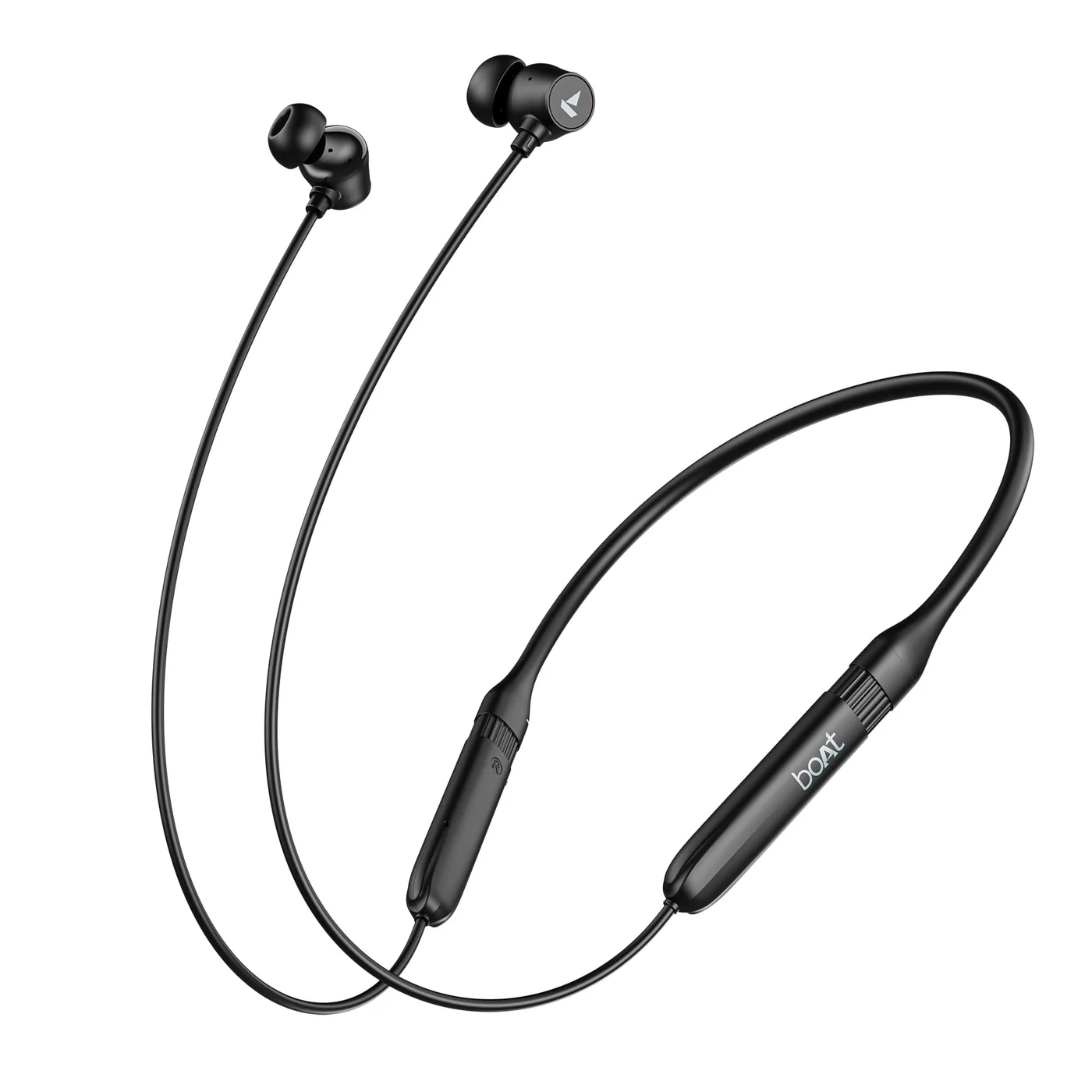
Specifications
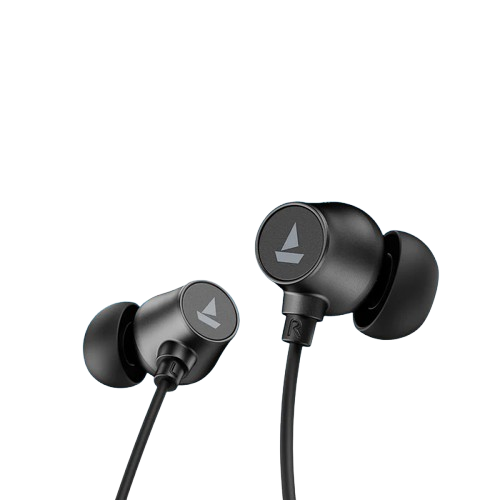
Type of Product | Bluetooth Wireless Neckband neckbands |
Bluetooth Version | V5.3 |
Active Noise Cancellation | 30 dB |
Environmental Noise Cancellation (ENx™) | Yes, AI-ENx™ |
No. of Mics | 1 |
BEAST™ Mode | Yes, 40ms Low Latency |
ASAP™ Charge | No |
Talk Time | Up to 40 hrs |
Music Playtime | 40 hrs (non-ANC mode); 28 hrs (ANC mode) (At 60% volume) |
Transmission Range | 10m |
Driver Size | 10mm*2 |
Frequency | 20Hz-20kHz |
Battery | 280mAh |
Charging Time | About 50 mins |
Charging Interface | USB Type-C |
Water Resistance | IPX5 |
Troubleshooting FAQs
General FAQs
Switch the earphones on; both the earphones automatically enter the Connection Mode.
Turn on the Bluetooth functionality on your phone/media device and scan.
Search for ‘Rockerz 301 ANC’ and tap on the same for pairing & connect via Bluetooth.
If asked for a passcode, enter the pairing code as “0000” to establish Bluetooth connectivity.
Once connected, solid blue LED flashes for 3 seconds to show successful pairing.
Power On :
When switched off, separate the left and right magnetic buds from each other to switch on the earphones. The blue LED flashes for 1 second to indicate this.
To power on the earphones manually, press and hold the MFB for 3 seconds.
Power Off :
In switched on state, connect the left and right magnetic buds with each other to turn the earphones off. Red LED blinks once to indicate power off.
To manually power off the earphones, press and hold the MFB for 5 seconds.
To perform a reset on your Rockerz 301 ANC:
Note: Always unpair or forget your neckband from the connected BT device before performing a reset.
In pairing mode (when the blue and red LEDs flash), press and hold the ANC and Volume Down (-) buttons simultaneously for 5 seconds to clear the list of paired devices.
After successful factory reset, red and blue LEDs flash alternatively for 1 second to indicate the same.
Congratulations! Your Rockerz 301 ANC earphones have been Reset.
To charge the earphones, plug one end of the provided USB Type-C cable into the earphones and connect the other end to a laptop or a wall adapter or a power bank.
During charging, the red LED remains solid ON.
Once charging is complete, the LED turns OFF.
Charging through wall adapter – Specs of the adapter: 5V/ 2A
Charging through cable/wire – Standard cable: 35 strands @0.10mm diameter/strand
Any other accessory can be used for charging the earphones as long as the above norms are followed.
Press the MFB once to answer an incoming call or end an ongoing call.
Short press the volume +/- button in steps to increase or decrease the volume respectively.
There will be a ‘tone’ when the sound volume reaches its maximum or minimum level.
Press the MFB twice to reject an incoming call.
Press the MFB once to play or pause a track
Previous Track : While playing music, press and hold the volume down (-) button for 2 seconds to return to the previous track.
Next Track : While playing music, press and hold the volume up (+) button for 2 seconds to jump to the next track.
Press the multifunction button (MFB) 3 times to activate Voice Assistant.
Press and hold the MFB for 2 seconds to activate/deactivate low latency gaming mode.
Press the ANC button 1 time to toggle between Ambient, ANC ON, and Normal (ANC OFF) modes.
To install the boAt Hearables app, you can follow one of the options mentioned below-
Scan QR Code - The Rockerz 301 ANC packaging box has the Hearables app QR code printed on it. Simply scan this code using your smartphone and the subsequent link will redirect you to the Google Play Store and iOS Store, as applicable.
Google Playstore - Download the boAt Hearables app from the Google Play Store on your Android smartphone. (https://play.google.com/store/apps/details?id=com.boAt.hearables&hl=en_IN&gl=US )
App Store - Download the boAt Hearables app from the App Store on your iOS smartphone. (https://apps.apple.com/in/app/boat-hearables/id1592550875 )

After installing the app, follow the steps shown on the app to set up your account by entering your phone number, name, and email ID. Account setup is a one-time action.
Separate the left and right magnetic buds of your Rockerz 301 ANC neckband earphones. Alternate red and blue LED flashes indicate that the earphones are powered on and in pairing mode.
Log in to your account on the boAt Hearables app.
Turn on the Bluetooth on your media device and enable location permission as per the notification prompt on the app.
Go to the “My Devices” section on the app. Rockerz 301 ANC will show up under the list of available devices with “Ready to Pair'' status. Follow the ‘Pull down to refresh’ option on the app if the device does not show up on the list.
Tap the Rockerz 301 ANC name card and accept the pairing request pop-up notification on your media device by clicking on ‘OK’.
You can also save Rockerz 301 ANC to your Google account for fast pairing in the future by clicking on “Save” and then “Set up.
Congratulations! Rockerz 301 ANC is now connected to your media device with “Connected” status.
Pair Rockerz 301 ANC to your media device by following the process mentioned above.
Go to the “Sound” tab on the Hearables app.
Under the Sound tab, the “Noise Cancellation” header has all the audio modes displayed.
Select the mode of your choice depending on the level of noise cancellation required-
Tap ‘Off’ to turn off ANC and Ambient modes
Tap ‘Ambient’ to have transparency towards your audible surroundings.
Tap ‘ANC’ to cancel external noise
Note: The last operational noise cancellation mode remains activated upon opening the app.
The boAt Hearables app shows all currently and previously paired devices in the ‘My Devices’ section.
Once Rockerz 301 ANC is paired to your smartphone, the status gets changed to “Connected” in the thumbnail.
Tap the thumbnail to check whether the earphones are connected or not. You can also check the battery level of the earphones.
Pair Rockerz 301 ANC to your media device by following the pairing process.
Go to the “Sound” tab on the Hearables app.
Under the Sound tab, the “boAt Equalizer” header has all the equalization modes displayed.
Select the mode of your choice depending on the level of sound elements required-
Tap ‘Balanced’ to experience audio with balanced sound elements
Tap ‘Classic’ to experience preset Classic EQ mode
Tap ‘Pop’ to experience preset Pop EQ mode
Tap ‘Jazz’ to experience preset Jazz EQ mode
Tap ‘Club’ to experience preset Club EQ mode
Tap ‘Rock’ to experience preset Rock EQ mode
Note: The last operational EQ mode will be activated upon opening the app
Rockerz 301 ANC lets you customize the existing Multifunction Button (multifunction button (MFB)) controls to another from the list of available options.
multifunction button (MFB):
1 Tap:
Existing Function - Play/Pause audio, Answer/End Call
Customizable Functions - Volume Up, Volume Down, Previous Track, Next Track, Activate Google/Siri Voice Assistant, Activate/De-activate BEAST™ Mode
2 Taps:
Existing Function - Reject Call
Customizable Functions - Volume Up, Volume Down, Previous Track, Next Track, Play/Pause audio, Activate Google/Siri Voice Assistant, Activate/De-activate BEAST™ Mode
Pair Rockerz 301 ANC to your media device by following the pairing process.
Go to the “System” tab on the Hearables app.
Under the System tab, slide the “Multipoint Connectivity” toggle to the OFF state to deactivate dual pairing. Slide the toggle once again to ON to activate dual pairing.
Note: The last operational dual pairing state remains activated by default on opening the Hearables app.
To reset Rockerz 301 ANC from your device, go to the Troubleshooting section “?” on the Hearables app.
Next, tap the “Malfunctioning” sub-header in the Troubleshooting section.
Click on the option “Reset My Device” and select ‘Reset’ to reset the earphones. Congratulations! Your Rockerz 301 ANC has been reset. After performing the reset, the earphones will enter pairing mode.
Remove Rockerz 301 ANC from the list of paired devices in the Bluetooth settings and then reconnect to your media device to start using Rockerz 301 ANC.
Rockerz 301 ANC will now show as “Ready to Pair” in the ‘My Devices’ section of the app.
Turn on the Bluetooth on your device and select ‘Rockerz 301 ANC’ from the list of available devices to pair.
Pair Rockerz 301 ANC to your media device by following the pairing process.
Go to the “System” tab on the Hearables app.
Tap the “Check For Updates” option under the “Software Update” header to check and update Rockerz 301 ANC to the latest firmware version, if available.
Note: If the product is updated to the latest available version, the app will show an alert on clicking the option -‘You already have the latest firmware version’.
To diagnose issues related to Bluetooth connectivity, mic, speaker, and battery, use the Smart Diagnostics function of the Hearables app.
Tap the “Diagnose My Device” option at the bottom.
Follow the instructions to start the smart diagnostics process.
Click on “Let’s Go” to start.
Complete all the steps one by one to check Bluetooth connectivity, mic, speaker, and battery functions.
Click on ‘Done’ to finish diagnostics.
You can view the user manual of Rockerz 301 ANC under the “System” tab of the Hearables app. Go to the ‘User Manual’ section and tap ‘Know More’ to access the manual.
Switch the earphones on; both the earphones automatically enter the Connection Mode.
Turn on the Bluetooth functionality on your phone/media device and scan.
Search for ‘Rockerz 301 ANC’ and tap on the same for pairing & connect via Bluetooth.
If asked for a passcode, enter the pairing code as “0000” to establish Bluetooth connectivity.
Once connected, solid blue LED flashes for 3 seconds to show successful pairing.
Check to see if the earphones are in pairing mode indicated by alternate red and blue LED flashes.
Check if the device is in the range of Bluetooth (usually 10m) and if there are any obstructions in between.
Check if it works after clearing the pairing list on the device: press and hold the ANC button and the volume down (-) button simultaneously for 5 seconds to clear the paired list of devices.
Check to see if the device being connected to supports Bluetooth connection.
Check if it is a passcode issue and if so, enter ‘0000’.
Check to see if the device being connected to does not have any software issues – check to forget the device on Bluetooth, and update the mobile software, if it still does not work, try factory resetting the device.
In the App:
Run the Smart Diagnostics function of the boAt Hearables app and check whether there are issues related to Bluetooth connectivity. Please note the Smart Diagnostics function in the app can only identify issues related to the firmware and not the hardware.
Resetting your neckband may resolve the issue
To perform a reset on your Rockerz 301 ANC:
Note: Always unpair or forget your neckband from the connected BT device before performing a reset.
In pairing mode (when the blue and red LEDs flash), press and hold the ANC and Volume Down (-) buttons simultaneously for 5 seconds to clear the list of paired devices.
After successful factory reset, purple LED flashes for 1 second to indicate the same.
Congratulations! Your Rockerz 301 ANC earphones have been Reset.
To perform a reset through the Hearables App:
To reset Rockerz 301 ANC from your device, go to the Troubleshooting section “?” on the Hearables app.
Next, tap the “Malfunctioning” sub-header in the Troubleshooting section.
Click on the option “Reset My Device” and select ‘Reset’ to reset the earphones.Congratulations! Your Rockerz 301 ANC has been reset. After performing the reset, the earphones will enter pairing mode.
Remove Rockerz 301 ANC from the list of paired devices in the Bluetooth settings and then reconnect to your media device to start using Rockerz 301 ANC.
Rockerz 301 ANC will now show as “Ready to Pair” in the ‘My Devices’ section of the app.
Turn on the Bluetooth on your device and select ‘Rockerz 301 ANC’ from the list of available devices to pair.
Rockerz 301 ANC can be connected to 2 devices at once. To enable this feature, following steps are to be taken:
Pair Rockerz 301 ANC neckband earphones with your first media device via Bluetooth.
Turn off both the earphones and the Bluetooth on this device.
Switch on the earphones and the Bluetooth on your second media device to pair.
Finally, switch on the Bluetooth of the first media device again. Congratulations! Your earphones are now connected to both your devices successfully via Bluetooth.
If the earphones are not connected, try connecting the first device manually once again to activate dual pairing.
Check to pair boAt Rockerz 301 ANC to the first phone as per usual pairing procedure. Select “boAt Rockerz 301 ANC” from the list of available Bluetooth devices and then switch off both the earphones and the Bluetooth of the first phone.
After this, switch on the earphones. Then turn on the Bluetooth function of the second phone.
Scan and search the earphone’s pairing name “boAt Rockerz 301 ANC” and pair to the second phone. Then simply switch on the first phone’s Bluetooth.
The earphones should reconnect to the first phone and both phones should now be paired to the earphones.
Check to try dual pairing with other devices to see if it works with them.
The boAt Hearables app shows all currently and previously paired devices in the ‘My Devices’ section.
Once Rockerz 301 ANC is paired to your smartphone, the status gets changed to “Connected” in the thumbnail.
Tap the thumbnail to check whether the earphones are connected or not. You can also check the battery level of the earphones.
To charge the neckband, plug one end of the USB type-C cable into the neckbands and connect the other end to a computer or wall adapter
Check to see if the charging wire being used is working – check to use another charging wire or try using the wire on another device.
Check if the voltage of the charger is correct for the device, use only 5V 2A chargers.
Check if the charging is done till the red light turns completely blue.
Check if the battery was not tampered with or exposed to any electrical damage.
Check if the charging port is not clogged with dirt. If so, please clean it with a cotton swab.
Please check if the adapter and charging cable support fast charging.
Low Battery : When the remaining talk time is less than 20%, ‘Low Battery’ prompt is made through the neckbands every 10 minutes and red LED flashes quickly to indicate it.
Charging : Solid red LED indicates that the neckbands are being charged. (Note: neckband cannot be turned on while charging)
Fully Charged : Once the neckbands are fully charged, it is indicated by the red LED getting turned off.
Check if connected device does not have any equalizer settings applied. Go to the connected device's sound settings and set the Equalizer to Normal/ Default/ Zero/ None.
Reset the device or clear the paired devices list.
Check to see if the earbuds have ear wax accumulated. If so, please clean it with cotton swab and alcohol, after doing so gently blow dry it from a distance.
Ensure that there are no obstruction between your Rockerz 301 ANC and the connected device and they are within the Bluetooth range (10 meters).
In the App:
Check if ‘Spatial Audio’ is turned OFF in the boAt Hearables app.
Run the Smart Diagnostics function of the boAt Hearables app and check whether there are any speaker-related issues. Please note the Smart Diagnostics function in the app can only identify issues related to the firmware and not the hardware.
Check if dust has accumulated inside the earphones or if there is any obstruction.
Check if ear wax has accumulated inside the earphones.
Check if there is no damage to the tips of the earphones and see if changing them helps.
Check if sweat or water has gone inside the earphones.
In the App:
Run the Smart Diagnostics function of the boAt Hearables app and check whether there are any speaker-related issues. Please note the Smart Diagnostics function in the app can only identify issues related to the firmware and not the hardware.
Check if the Spatial Audio mode is turned OFF- Deactivate this function by sliding the toggle on the Hearables app to the OFF state or press the ANC button 2 times. Please note that the boAt Equalizer function will not work when the Spatial Audio mode is activated.
Try factory resetting the device.
Run the Smart Diagnostics function of the boAt Hearables app and check whether there are issues related to the earphone battery. Please note the Smart Diagnostics function in the app can only identify issues related to the firmware and not the hardware.
Check if the connected device does not have any equalizer settings applied.
Check using different media players and different devices and whether the volume change happens on all devices or only on specific ones.
Reset your Rockerz 301 ANC.
Ensure the microphone is not being blocked by any particles.
Check to see if the microphone is being held at the adequate distance for it to be able to pick up the voice.
Now check if your voice is getting recorded on a voice recorder to understand if your mic is working.
Check if the microphone was not exposed to any hazards like direct sunlight or fire or to water above the resistance or dipped in any liquid.
In the App:
Run the Smart Diagnostics function of the boAt Hearables app and check whether there are issues related to the earphones’ mics. Please note the Smart Diagnostics function in the app can only identify issues related to the firmware and not the hardware.
Check to see if the device has been properly charged first- Solid red LED will turn off to indicate that the earphones are fully charged.
Check if the voltage of the charger is correct for the device- use only 5V/2A chargers.
Check if the device was not subject to any mishandling, broken wires or exposed to direct sunlight, or hazards like fire.
Check if the controls do not work while connected to another device
Check to forget the device and pair it again.
Check if the media player being used supports such controls.
Check if the controls do not function on call or other media players
Check if the device was not subject to any mishandling, broken wires or exposed to direct sunlight or hazards like fire.
ASAP Charge is boAt’s very own patented technology. It lets your device charge at an incredible charging speed (may vary under some circumstance) where 10 mins of charging can give up to 10 hours of playback time.
For ASAP charge to take place effectively, kindly charge the product with an adapter with TYPE –C 5V 2A specification.
Earphones – Low battery in it (<20%): Red LED blinks every 30 seconds with a tone prompt
Power ON: Blue light is ON for 1 second
Pairing mode: Red and blue LEDs blink alternatively on the earphones.
Pairing successful (1 time indication): Solid blue LED flashes for 3 seconds
If pairing is not successful (In pairing mode): If 5 minutes later, pairing is still not successful, then the red LED flashes once and the earphones will auto power off
Connected: Blue LED flashes every other second on both earphones until timeout; No LED flash when media is playing.
Earphones Charging: Red LED remains solid on
Fully charged: LED turns OFF
Power OFF: Red LED blinks once
Play the music: All lights are OFF (But "Connected" status will remain)
Factory Reset: Red and blue LEDs flash alternatively for 1 second to indicate successful reset
Yes
Yes
Rockerz 301 ANC does support 40ms low latency for entertainment and casual gaming. But if you’re looking for professional gaming equipment, then Rockerz 301 ANC is not the right product.
No
No
While your earphones do have IPX5 water and sweat resistance, it is recommended that they are not submerged inside water directly or used for prolonged periods inside water like for swimming/showers as it may lead to damage.
