Nirvana Crown
ad tmplate - no app
Updated
16 days ago
, by boAt Knowledge Base
Airdopes Nirvana Crown
Meet Nirvana Crown—where intelligent design meets immersive sound. Engineered with an Advanced Rotational Crown, Sonic A.R.C, and boAt Spatial Audio, these next-gen TWS redefine how you control, feel, and experience audio. From powerful up to 50dB Hybrid ANC to ultra-responsive BEAST™ Mode, Nirvana Crown is crafted for those who demand precision, performance, and premium interaction—every single time you plug in.
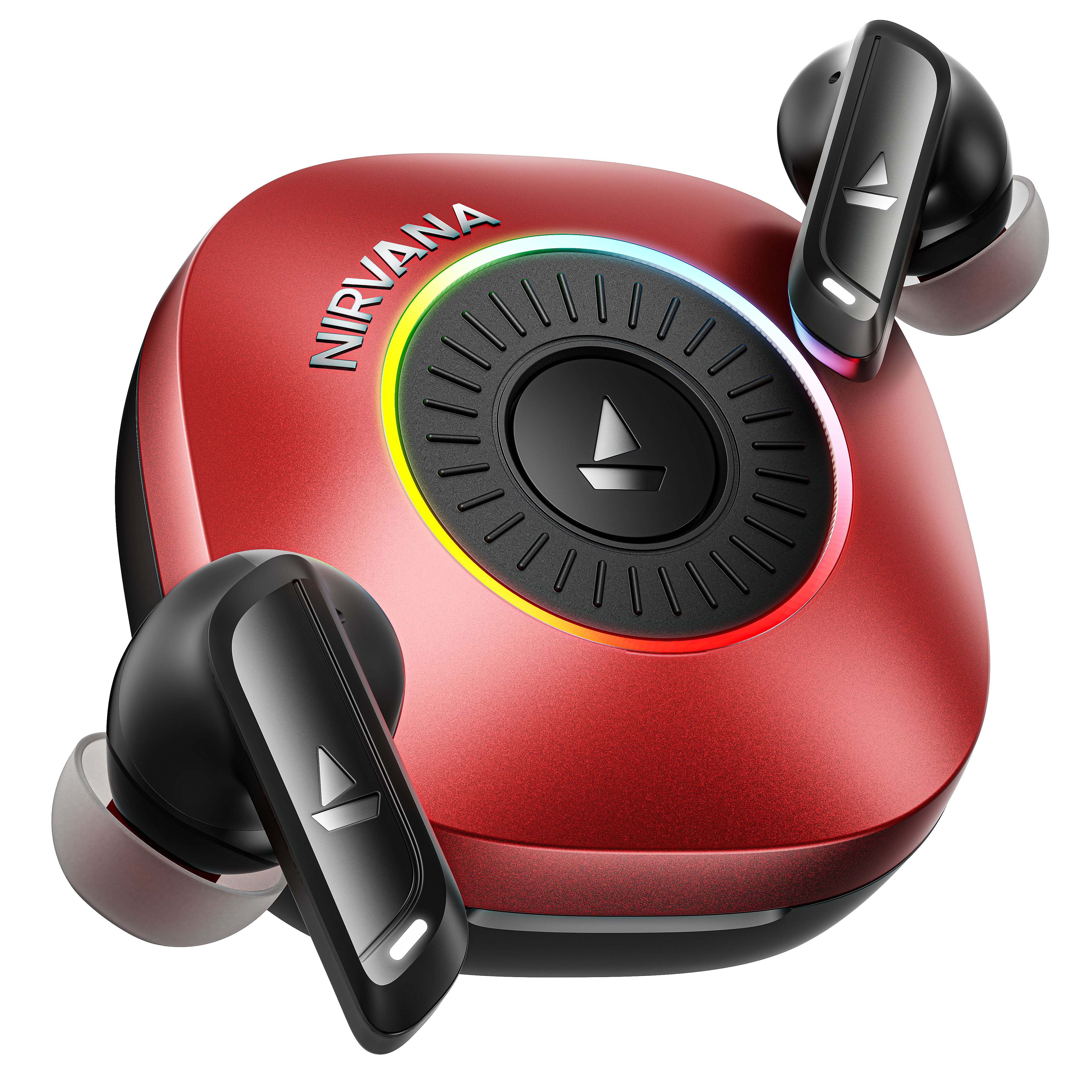
Specifications
Type of Product | ANC TWS Earbuds |
ANC | Up to 50 dB (Hybrid ANC) |
IWP™ Technology | Yes |
In-Ear Detection | Yes |
Bluetooth Version | 6.0 |
Water Resistance | IPX4 |
Music Playtime (with Charging Case) | Up to 40 hrs (Non-ANC mode); Up to 25 hrs (ANC mode) |
Standby Time | 160 hrs |
Transmission Range | 10m |
Driver Size | 10mm*2 |
Frequency | 20Hz - 20kHz |
Battery | 500mAh (Charging Case); 40mAh*2 (Earbuds) |
Charging Time | 90mins (Charging Case), 30mins (Earbuds) |
Charging Interface | USB Type - C |
AI-Environmental Noise Cancellation (AI-ENx™) | Yes; 6 mics |
ASAP™ Charge | Yes; 10 mins charge = 180mins Playtime |
BEAST™ Mode | Yes; 50ms Low Latency |
User Manual
Nirvana Crown SmartGuide.pdf
1.02 MB
Troubleshooting FAQs
General FAQs
POWER ON:
Smart Power On :To automatically switch the earbuds On, simply open the lid of the charging case when earbuds are kept inside.
Power OFF:
Smart Power Off :
After usage, remove both the earbuds from your ears.
Place the earbuds back into the charging case in correct orientation and close the case lid.
Solid red LED flashes for 1 second followed by a tone prompt. The earbuds will automatically switch off (and enter charging mode).
Manual Power Off: Long touch the CTC on both earbuds for 10 seconds (one at a time) till the earbuds get turned off, to manually switch off the earbuds
To perform a reset on your Airdopes:
Note: Before performing reset, clear Nirvana Crown from pairing device history by forgetting the device.
Place the earbuds inside the case in the correct orientation and close the lid.
While the earbuds are inside the case, long press the MFB on the case for 10 seconds. When pressing the MFB, ensure that the crown is not being rotated. After successful factory reset: Charging case vibrates continuously for 3 seconds with the ring LED lighting up progressively in a circular pattern followed by 3 yellow flashes.
Wait for 5 seconds.
Open case lid. Take out the earbuds from the charging case and perform a fresh connection attempt.
Congratulations! Your Nirvana Crown earbuds have been Reset.
Note: When pressing the case MFB for doing factory reset, make sure that the crown is not being rotated.
To charge the earbuds, put the earbuds into the charging case in their correct orientation.
White LED is solid ON for 5 seconds to indicate this.
Plug the provided Type-C cable into the case and connect to a computer or wall adapter.
Charging through wall adapter – Specs of the adapter: 5V, 1A
Charging through cable/wire – Standard cable: 10 strands @0.10mm diameter/strand
Any other accessory can be used for charging the earbuds as long as the above norms are followed.
Single tap the CTC on either earbud or press the case MFB 1 time to answer an incoming call [Haptic Feedback with LED on Case].
Double tap either earbud’s CTC or press the case MFB 2 times to reject an incoming call or end an ongoing call [Haptic Feedback with LED on Case].
During an ongoing call, single tap either earbud’s CTC or press the case MFB 1 time to mute/unmute the ongoing call.
Plug in the earbuds inside your ears to start playback and remove both to pause music. OR
Single tap the CTC on either earbud or press the case MFB 1 time to play or pause a track [Haptic Feedback with LED on Case]
While playing music, double tap the left earbud’s CTC or press the case MFB 3 times to return to the previous track. [Haptic Feedback with LED on Case]
While playing music, double tap the right earbud’s CTC or press the case MFB 2 times to skip to the next track. [Haptic Feedback with LED on Case]
Rotate the crown in the clockwise direction to increase the volume.
Rotate the crown in the anticlockwise direction to decrease the volume.
Press the case MFB 3 times and then hold it for 2 seconds to lock the crown and case MFB.
Press the case MFB 3 times and then hold it for 2 seconds again to unlock the crown and case.[Haptic Feedback with LED on Case]
Press and hold the case MFB for 2 seconds to activate the default smart voice assistant (Google Voice Assistant/Siri). [Haptic Feedback with LED on Case]
Long touch the CTC on the right earbud for 2 seconds to toggle between Normal (ANC Off), Ambient, and ANC (Active Noise Cancellation) audio modes. OR
[This is not a default function in the case MFB] Long press the MFB on the case for 2 seconds to toggle between Normal (ANC Off), Ambient, and ANC (Active Noise Cancellation) modes, indicated with vibration and LED on the case.
Note –
You can customize the case MFB function to switch between the different noise cancellation modes using the boAt Hearables app.
By default, the Normal Mode (ANC Off) is active.
The operational cycle is Normal (ANC OFF) Mode→ Ambient Mode → ANC Mode → Normal (ANC OFF) Mode
Your earbuds will remember the mode you last used & will enable the respective noise cancellation mode when they are powered on next time.
When you activate ANC or Ambient modes, the earbuds will consume more power which will reduce the playtime.
Long touch the CTC on the left earbud for 2 seconds to activate boAt Spatial Audio. Long touch the left earbud CTC again for 2 seconds to switch to boAt Signature Sound.
Nirvana Crown comes with In-Ear Detection that will help in pausing the media when earbuds are taken out of ears. Earmuffs as per CX’s ear size are to be used to have optimal experience of In-Ear detection. This feature can be switched OFF from the boAt Hearables App.
Nirvana Crown can be connected to 2 devices at once. To enable this feature, following steps are to be taken:
Switch on the Bluetooth on your first phone/media device and search for ‘Nirvana Crown’. After the selection is done, the earbuds are paired with your phone/media device.
Turn off the Bluetooth function of your first phone/media device. The earbuds are ready to be paired again.
Now switch on the Bluetooth function on your second phone/media device. Scan and select ‘Nirvana Crown’ to connect.
Switch on the Bluetooth of the first phone/media device again and select ‘Nirvana Crown’ from the list of available devices for pairing. The earbuds are now reconnected to the first phone/media device.
Congratulations! Your earbuds are now connected to both your devices successfully via Bluetooth.
This feature can be switched OFF from the boAt Hearables App.
Please note that both the earbuds can be used in Mono mode. Use Smart Power On for switching on the desired earbud.
The selected earbud will automatically enter the connection mode.
Turn on Bluetooth on your phone/media device and search for “Nirvana Crown” to connect.
Note:
Spatial Audio, ANC, and Ambient mode activation tones can be heard in Mono mode, but both earbuds must be worn for a full sound staging effect.
You can only skip to the next track while using the right earbud or play the previous track using the left earbud in Mono (single earbud) mode.
Switch the earbuds on; both the earbuds automatically enter the Connection Mode.
Turn on the Bluetooth functionality on your phone/media device and scan.
Search for “Nirvana Crown” and tap on the same for pairing & connect via Bluetooth.
To switch to Stereo mode from Mono, simply take out the other earbud from the case. It will automatically power on and pair with the previously selected earbud, hence enabling Stereo usage.
Earbuds – Low battery in it (<30%): White LED blinks 2 times when the case lid is opened
Earbuds – 30-100% charge: White LED blinks 3 times when the case lid is opened
Power ON: White LED flashes for 1 second on opening the case Lid
Pairing mode: Slow LED flashes on the master and slave earbuds until timeout (5 minutes)
Pairing successful (1 time indication): Solid white LED for 3 seconds
If pairing not successful (In pairing mode): If 5 minutes later, pairing is still not successful, then the earbuds will show solid white light for 1 second and auto power off
Connected: White LED flashes on both earbuds every 20 seconds (3 times in a minute); No LED flash when media is playing
Disconnected: The same as pairing mode: Slow LED flashes on the master and slave earbuds
Earbuds Charging: NA
Fully charged: White LED blinks 3 times when the case lid is opened
Play the music: All lights are OFF (But "Connected" status will remain)
Factory Reset: Charging case vibrates continuouslyfor 3 seconds with the ring LED lighting up progressively in a circular pattern followed by 3 yellow flashes.
LOW BATTERY (<20%): BREATHING RED LED WITH HAPTIC FEEDBACK ON OPENING THE CASE LID.
CHARGING: GREEN LED FLASHES SLOWLY
FULLY CHARGED (100%): SOLID GREEN LED
Function | Case Ring LED - Default Color & Pattern | Haptics (Vibration) |
Volume Up | Cyan LED level increases | Low-high vibration |
Volume Down | Cyan LED level decreases | High-low vibration |
Crown Single Press | Dark blue LED | Single haptic feedback per press |
Incoming Call | Breathing green LED | No haptic feedback |
Charging the Case | Green LED level corresponds to the remaining charge | Single haptic feedback when the charging cable is plugged in or unplugged |
Lock Crown and Case MFB | Solid orange LED. When the lock mode is activated, solid red LED on pressing the case MFB. | Haptic feedback for 2 seconds after completion. Once locked, there is no haptic feedback on pressing the case MFB or rotating the crown. |
Unlock Crown and Case MFB | Solid orange LED | Haptic feedback for 2 seconds after completion |
Long press case MFB for 2 seconds | Solid pink LED | Single haptic feedback after completion |
Software Update | Breathing orange LED | Haptic feedback after completion |
Our IWP™ technology allows the earbuds to connect to your phone if they have already been paired before instantaneously upon opening the case.
Simply open the case and ensure that the Bluetooth is turned on for your media device, the buds will connect as soon as the case is opened without the need to take them out of the case first!
There is no special process to enable IWP™- simply follow the steps to first pair your Airdopes Nirvana Crown to your media device. Then upon subsequent usage, the IWP™ tech will be enabled and the earbuds will pair automatically to your previously paired media device if Bluetooth is turned on in your media device.
Yes, it has 3 mics per earbud.
Yes, it does.
Nirvana Crown does support 50 ms low latency for entertainment and casual gaming. But if you’re looking for a professional gaming equipment, then Nirvana Crown is not the right product.
Yes
Selecting “Camera” function during customization on the Hearables app may cause a change in the volume level on certain phone models when the camera app is not open.
Make sure to use the “Camera” feature only when you want to click an image and make sure the camera app is open on your smartphone.
Some phones may not show the volume change on the screen, but when rotating the crown it will perform the volume change. In addition, if the crown is rotated to the max volume and still the loudness is less than the volume of the phone needs to be adjusted to the highest level.
Yes, you need to open the Hearables App and select the “Camera click” feature for a particular action - Single/Double/Triple and Long Press - for charging case.
No custom option is available on the earbuds for this feature. Select media devices like Redmi smartphones will have the option to change from the camera settings itself for the camera click function.
Note: This feature will work on select phone models only.
Yes, the charging case LED will glow in green light (Default color) with a breathable pattern indicating incoming call if the earbuds are connected via Bluetooth to your device.
Yes, you can do it via the Hearables App for both the earbuds and charging case.
Android 5.0 and above
iOS 13 and above
The light on the case is an actionable LED. Please note that the case ring LED will only show the battery status.
When interacting with the case button and crown, the ring LED will give visual cues related to the set of action that is performed for better understanding.
It is the MFB (Multi-functional button) which supports single, double, triple, and long press functions.
The MFB functions can also be customized via the Hearables app.
Smart crown to increase/decrease volume.
Yes, the charging case has Haptic feedback.
While interacting with the crown on the case and the case multi-function button, you will experience haptic feedback (vibration).
Haptic feedback can be enabled/disabled from the Hearables app.
Use the Hearables App to choose from 3 different modes for Haptic feedback (Low-Mid-High).
AAC and SBC
No, the earbuds do not have any integrated volume controls on them. The volume has to be controlled using your connected Bluetooth device.
Ensure that in the Bluetooth settings of your media device, you have enabled syncing of Bluetooth and phone volume levels otherwise you may not be able to fully control the volume of the earbuds as intended.
No, the voice prompts are integrated inside the earbuds and there is no provision to turn them off or lower their volume.
To install the boAt Hearables app, you can follow one of the options mentioned below-
Scan QR Code: Airdopes Nirvana Crown has the Hearables app QR code printed on the packaging box. Simply scan this code using your smartphone. The subsequent link will redirect you to the Google Play Store and iOS Store, and you can select the applicable option.
Google Playstore: Download the boAt Hearables app from the Google Play Store on your Android smartphone - https://play.google.com/store/apps/details?id=com.boAt.hearables&hl=en_IN&gl=US
App Store: Download the boAt Hearables app from the App Store on your iOS smartphone - https://apps.apple.com/in/app/boat-hearables/id1592550875
After installing the app, follow the steps shown to set up your account by entering your phone number, name, and email ID.
Account setup is a one-time action.
Turn on the Bluetooth on your media device.
Log in to your account on the boAt Hearables app.
Go to the “My Devices” section.
Open the case lid. The earbuds will show up under the list of available devices with “Ready to Pair'' status.
Tap the Airdopes Nirvana Crown name card and accept the pairing request pop-up notification on your media device.
Tap the ‘Ok’ option on the pairing notification. You can also save Airdopes Nirvana Crown to your Google account for fast pairing in the future by clicking on “Save” and then “Set up”.
Go to Troubleshooting “?”, tap “Malfunctioning”, and click “Reset My Device”.
Pair Nirvana Crown to your media device by following the process mentioned above.
Go to the “Sound” tab on the Hearables app.
Under the Sound tab, slide the “Spatial Audio” toggle to the ON state to activate spatial audio. Slide the toggle once again in the opposite direction to deactivate spatial audio.

Pair Nirvana Crown to your media device by following the process mentioned above.
Go to the “Sound” tab on the Hearables app.
Under the Sound tab, the “Noise Cancellation” header has all the audio modes displayed.
Select the mode of your choice depending on the level of noise cancellation required-
Tap ‘ANC’ to cancel external noise
Tap ‘Off’ to turn off ANC and Ambient modes
Tap ‘Ambient’ to have transparency towards your audible surroundings.
Note: The existing noise cancellation mode on the product will be activated upon opening the app.

Pair Nirvana Crown to your media device by following the pairing process.
Go to the “Sound” tab on the Hearables app.
Under the Sound tab, the “boAt Equalizer” header has all the equalization modes displayed.
Select the mode of your choice depending on the level of sound elements required-
Tap ‘Default’ to turn off equalization. The ‘Default’ mode is boAt Signature Sound.
Tap ‘Balanced’ to experience audio with boosted highs
Tap ‘Pop’ to experience preset Pop EQ mode
Tap ‘Rock’ to experience preset Rock EQ mode
Tap ‘Jazz’ to experience preset Jazz EQ mode
Tap ‘Club’ to experience preset Club EQ mode
Note: The last operational EQ mode will be activated upon opening the app.

Nirvana Crown lets you customize existing touch functions to another from the list of available options.
LEFT earbud:
1 Tap:
Existing Function - Play/Pause audio
Customizable Functions - Previous Track, Next Track, BEAST™ Mode, Activate Google/Siri Voice Assistant, None
2 Taps:
Existing Function - Return to the Previous Track
Customizable Functions - Play/Pause audio, Next Track, BEAST™ Mode, Activate Google/Siri Voice Assistant, None
RIGHT earbud:
1 Tap:
Existing Function - Play/Pause audio
Customizable Functions - Previous Track, Next Track, BEAST™ Mode, Activate Google/Siri Voice Assistant, None
2 Taps:
Existing Function - Skip to the Next Track
Customizable Functions - Play/Pause audio, Previous Track, BEAST™ Mode, Activate Google/Siri Voice Assistant, None
Case MFB:
Single Press:
Existing Function - Play/Pause audio
Customizable Functions – No Action, Camera Click, Previous Track, Next Track, BEAST™ Mode, Activate Google/Siri Voice Assistant
Existing Function - Call Mute/Unmute
Customizable Functions – No Action
Double Press:
Existing Function - Skip to the Next Track
Customizable Functions - No Action, Play/Pause audio, Camera Click, Previous Track, BEAST™ Mode, Activate Google/Siri Voice Assistant
Existing Function - Reject/Hang Up Call
Customizable Functions – No Action
Triple Press:
Existing Function - Return to the Previous Track
Customizable Functions - No Action, Camera Click, Next Track, BEAST™ Mode, Activate Google/Siri Voice Assistant
Long Press for 2s:
Existing Function – Activate Google/Siri Voice Assistant
Customizable Functions - No Action, Camera, Noise Cancellation Modes.
Pair Nirvana Crown to your media device by following the process mentioned above.
Go to the “Touch” tab on the Hearables app.
Under the Touch tab and Case sub-header, slide the “Lock Functionality” toggle to the ON state to activate case button and crown lock. Slide the toggle once again in the opposite direction to deactivate case button and crown lock.
Pair Nirvana Crown to your media device by following the pairing process.
Go to the “Haptics” tab on the Hearables app.
Under the Haptics tab, slide the toggle to the ON state to enable haptic feedback (vibration). Slide the toggle once again to OFF for deactivating haptic feedback.
Select the vibration intensity mode of your choice from 3 levels-
Low
Medium
High

Pair Nirvana Crown to your media device by following the pairing process.
Go to the “Light” tab on the Hearables app.
Under the Light tab, slide the toggle to the ON state to enable case ring LED. Slide the toggle once again to OFF for deactivating the case ring LED light effect.
Select the LED colour of your choice for the following functions from the available colour grid-
Volume
Clicks
Incoming Calls
Charging
Lock/Unlock
Long Press
Pair Nirvana Crown to your media device by following the pairing process.
Go to the “System” tab on the Hearables app.
Under the System tab, go to the ‘Ring My Device’ section to search for either or both earbuds by playing a tone from the app. Please ensure that the volume on your smartphone is set to the maximum level to detect the earbuds easily.
Pair Nirvana Crown to your media device by following the pairing process.
Go to the “System” tab on the Hearables app.
Under the System tab, slide the “In-Ear Detection” toggle to the OFF state to deactivate in-ear detection. Slide the toggle once again to ON for activating in-ear detection.
Note: By default, In-Ear detection remains ON in Nirvana Crown.
Pair Nirvana Crown to your media device by following the pairing process.
Go to the “System” tab on the Hearables app.
Multipoint connectivity remains ON by default for keeping Nirvana Crown connected to two media devices at the same time. Under the System tab, slide the “Multipoint Connectivity” toggle to the OFF state to deactivate the multipoint connection. Slide the toggle once again to ON to activate multipoint connection.
Note: By default, Multipoint connectivity remains ON in Nirvana Crown.
Pair Nirvana Crown to your media device by following the pairing process.
Go to the “System” tab on the Hearables app.
Tap the “Check For Updates” option under the “Software Update” header to check and update Nirvana Crown to the latest firmware version, if available.
Note: If the product is updated to the latest available version, the app will show an alert on clicking the option -‘You already have the latest firmware version’.
To diagnose issues related to Bluetooth connectivity, mic, speaker, haptics feedback (vibration), case ring LED, and battery, use the Smart Diagnostics function of the Hearables app.
Tap the “Run Diagnostics” option under the Smart Diagnostics header in the System tab.
Follow the instructions to start the smart diagnostics process.
Click on “Let’s Go” to start.
Complete all the steps one by one to check Bluetooth connectivity, mic, speaker, haptics feedback (vibration), case ring LED, and battery functions.
Click on ‘Done’ to finish diagnostics.
The earbuds have IPX5 water and sweat resistance.
However, it is not recommended to submerge them in water or use them for prolonged periods during activities like swimming or showering, as this may cause damage.
While your earbuds do have IPX4 water and sweat resistance, it is recommended that they are not submerged inside water directly or used for prolonged periods inside water like for swimming/showers, as it may lead to damage.
