Airdopes Pulse
Pulse
Updated
20 days ago
, by boAt Knowledge Base
Airdopes Pulse
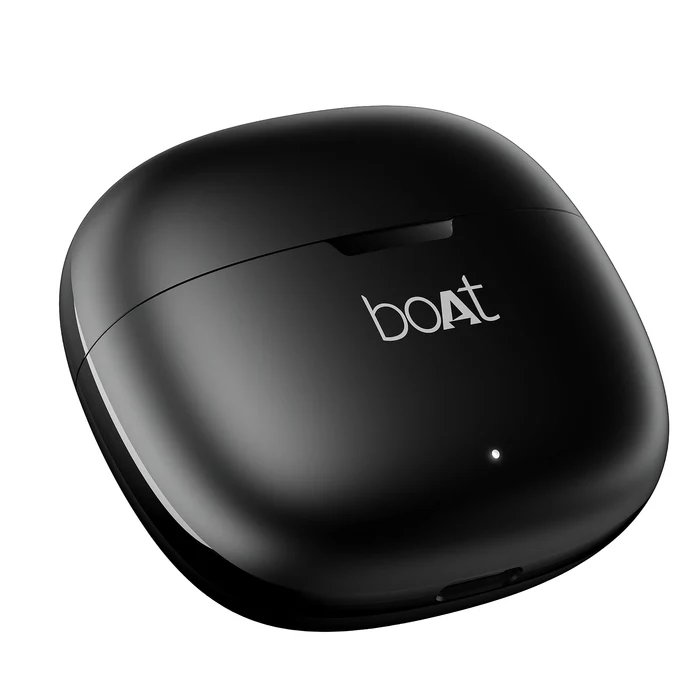
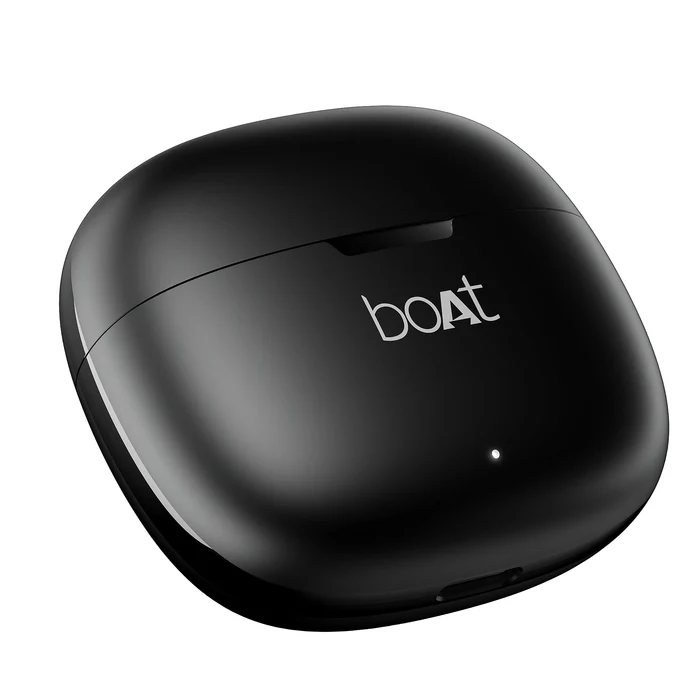
Airdopes Pulse offer up to 50 hours of total playtime with 10mm drivers and boAt Signature Sound. They feature Dual Mics with ENx™ Technology for clear calls, BEAST™ Mode (45 ms low latency), and ASAP™ Charge. The earbuds are also rated IPX4 for splash and sweat resistance.
Specifications
Type of Product | TWS Earbuds |
Bluetooth Version | V5.4 |
Water Resistance | IPX4 |
Music Playtime | Up to 50 hrs |
Transmission Range | 10 meters |
Driver Size | 10 mm*2 |
Frequency | 20 Hz-20 kHz |
Battery Earbuds | 35 mAh*2 |
Battery Charging Case | 320 mAh |
Charging Time | 35 mins (Earbuds); 1 hr 45 mins (Charging Case) |
Charging Interface | USB Type-C |
Number of ENx™ Equipped Mics | 2 (1 on each bud) |
BEAST™ Mode | Yes; 45 ms Low Latency |
ASAP™ Charge | Yes; 10 mins Charge = 140 Mins Playback |
Troubleshooting FAQs
General FAQs
Power On:
Smart Power On - To automatically switch the earbuds on, simply open the lid of the charging case when earbuds are kept inside.
Manual Power On - Long touch the CTC for 3 seconds on both right and left earbuds. This is indicated with solid blue LED for 2 seconds followed by a tone prompt.
Power Off:
Smart Power Off - After usage, remove both the earbuds from your ears. Place the earbuds back into the charging case in correct orientation and close the case lid. Red LED remains on for 2 seconds followed by a tone prompt. The earbuds will automatically switch off (and enter charging mode).
Manual Power Off - Long touch the CTC on both earbuds for 5 seconds (one at a time) till the earbuds get turned off.
Go to the sound settings of your phone and set the equalizer to normal/ default/ none/ 0. EQ settings navigation for top 9 popular mobile brands are as follows:
Vivo - https://www.vivoglobal.ph/questionlist/hi-fi-audio/
Go to i Music>tap the icon at the left upper corner>select Audio effect>turn on Deep space sound effects>touch Equalizer in the bottom., then you can adjust Equalizer as you like.
Note: Equalizer is supported in Funtouch OS 4.0 and higher version and can be adjusted only with the earphone plugged in.
Xiaomi - https://www.mi.com/global/support/faq/details/KA-497702/
Settings > Sound & vibration > Sound effects > Graphic equalizer, You can now choose preset styles or manually adjust the equalizer to your preference.
Samsung - https://www.samsung.com/levant/support/tv-audio-video/how-to-set-eq/
Settings > Sounds and vibration > Sound quality and effects > Equalizer, You can now either choose from pre-set EQ options (like "Music", "Bass", etc.) or manually adjust the frequency bands to fine-tune the sound.
Realme - https://c.realme.com/in/post-details/1397554219417985024
There 3 variations for EQ settings navigation according to the different UIs as mentioned below:
A] Realme UI 6.0: Settings > System & updates > Sound > Equalizer.
B] Realme UI 5.0, 4.0, 3.0: Settings > System/Additional settings > Sound > Equalizer.
C] Realme UI 2.0: Settings > Convenience tools > Sound > Equalizer.
Oppo - https://www.youtube.com/watch?v=-gpyYtrw-58
Open the main Settings app on your phone > Go to Sound & vibration or a similar menu > Look for an Equalizer or Sound Effects option > The exact path can vary depending on the phone model and Android version > Enable it and choose from presets or manually adjust the sliders for different frequency bands.
Apple - https://support.apple.com/en-in/guide/iphone/iph5643d2c85/ios
Settings > Music > EQ
Motorola - https://en-in.support.motorola.com/app/answers/detail/a_id/155724/~/enhance-sound
Go to Settings > Sound (& vibration) > Audio effects. (Or, open the Moto app and touch menu > Play > Audio effects) > Turn it On > to use only for headphones or connected devices, set the speaker equalizer to Flat.
Settings > Sound & Vibration/ Sound > Sound Effects / Equalizer > Graphic Equalizer
OnePlus - https://community.oneplus.com/thread/1111615
Settings > Sound & Vibration > Sound Quality & Effects > Audio Tuner or Audio Tuner > Equalizer Settings.
Perform a factory reset. If the earbuds are clogged with ear wax, simply clean the earbuds to restore the original sound.
Make sure the charging case is charged. Try to manually power on the earbuds, the powering on is indicated by LED lights on the earbuds.
If the earbuds do not power On, try cleaning the pogo pins (magnetic charging pins) of the earbuds with cotton dipped in alcohol swab/spirit. Later, wipe it with a dry cotton to not let any moisture retain on the surface.
Now place the earbuds inside the charging case, shut the lid and open it after 5 seconds. The earbud LEDs will start blinking as they automatically power on.
To troubleshoot control issues:
Check if the controls do not work while being connected to another device.
Check if the media player being used supports such controls and if the controls do not function on a call or with other media players.
Check if the controls have been physically damaged or exposed to any hazards.
Try restarting the device.
Perform a factory reset.
Make sure there are no objects between your earbuds and your connected device. Try moving your device closer to the earbuds to see if the connection improves.
Look closely at the microphone hole for any dirt or earwax. If the microphone seems blocked, gently clean that area.
NOTE: Before performing a reset, clear "Airdopes Pulse" from pairing device history by forgetting the device.
Take out the earbuds from the charging case.
Long touch the CTC on both earbuds for 5 seconds to perform reset. This is indicated by the red LEDs on both the earbuds rapidly flashing 5 times.
Place the earbuds inside the charging case in the correct orientation. Close the case lid and wait for 5 seconds.
Take out the earbuds from the charging case and perform a fresh connection.
To charge the earbuds, put them into the charging case in their correct orientation.
While charging, the white LED on the case remains solid ON.
Once the charging is complete, the charging case automatically switches off to save power.
To charge the case, plug one end of the cable into the case and connect the other end to a computer or a wall adapter or a power bank.
Charging through wall adapter – Specs of the adapter: 5V, 2A
Charging through cable/wire – Standard cable: 35 strands @0.10mm diameter/strand
Any other accessory can be used for charging the earbuds if the above norms are followed.
Note : Before using the earbuds for the first time, it is recommended to fully charge the earbuds as well as the charging case. Also, keep the lid of the charging case closed while charging.
Go to the sound settings of your phone and set the equalizer to normal/ default/ none/ 0. EQ settings navigation for top 9 popular mobile brands are as follows:
Vivo - https://www.vivoglobal.ph/questionlist/hi-fi-audio/
Go to i Music>tap the icon at the left upper corner>select Audio effect>turn on Deep space sound effects>touch Equalizer in the bottom., then you can adjust Equalizer as you like.
Note: Equalizer is supported in Funtouch OS 4.0 and higher version and can be adjusted only with the earphone plugged in.
Xiaomi - https://www.mi.com/global/support/faq/details/KA-497702/
Settings > Sound & vibration > Sound effects > Graphic equalizer, You can now choose preset styles or manually adjust the equalizer to your preference.
Samsung - https://www.samsung.com/levant/support/tv-audio-video/how-to-set-eq/
Settings > Sounds and vibration > Sound quality and effects > Equalizer, You can now either choose from pre-set EQ options (like "Music", "Bass", etc.) or manually adjust the frequency bands to fine-tune the sound.
Realme - https://c.realme.com/in/post-details/1397554219417985024
There 3 variations for EQ settings navigation according to the different UIs as mentioned below:
A] Realme UI 6.0: Settings > System & updates > Sound > Equalizer.
B] Realme UI 5.0, 4.0, 3.0: Settings > System/Additional settings > Sound > Equalizer.
C] Realme UI 2.0: Settings > Convenience tools > Sound > Equalizer.
Oppo - https://www.youtube.com/watch?v=-gpyYtrw-58
Open the main Settings app on your phone > Go to Sound & vibration or a similar menu > Look for an Equalizer or Sound Effects option > The exact path can vary depending on the phone model and Android version > Enable it and choose from presets or manually adjust the sliders for different frequency bands.
Apple - https://support.apple.com/en-in/guide/iphone/iph5643d2c85/ios
Settings > Music > EQ
Motorola - https://en-in.support.motorola.com/app/answers/detail/a_id/155724/~/enhance-sound
Go to Settings > Sound (& vibration) > Audio effects. (Or, open the Moto app and touch menu > Play > Audio effects) > Turn it On > to use only for headphones or connected devices, set the speaker equalizer to Flat.
Settings > Sound & Vibration/ Sound > Sound Effects / Equalizer > Graphic Equalizer
OnePlus - https://community.oneplus.com/thread/1111615
Settings > Sound & Vibration > Sound Quality & Effects > Audio Tuner or Audio Tuner > Equalizer Settings.
Perform a factory reset. If the earbuds are clogged with ear wax, simply clean the earbuds to restore the original sound.
Make sure the charging case is charged. Try to manually power on the earbuds, the powering on is indicated by LED lights on the earbuds.
If the earbuds do not power On, try cleaning the pogo pins (magnetic charging pins) of the earbuds with cotton dipped in alcohol swab/spirit. Later, wipe it with a dry cotton to not let any moisture retain on the surface.
Now place the earbuds inside the charging case, shut the lid and open it after 5 seconds. The earbud LEDs will start blinking as they automatically power on.
To troubleshoot control issues:
Check if the controls do not work while being connected to another device.
Check if the media player being used supports such controls and if the controls do not function on a call or with other media players.
Check if the controls have been physically damaged or exposed to any hazards.
Try restarting the device.
Perform a factory reset.
Make sure there are no objects between your earbuds and your connected device. Try moving your device closer to the earbuds to see if the connection improves.
Look closely at the microphone hole for any dirt or earwax. If the microphone seems blocked, gently clean that area.
Single tap the CTC on either earbud to answer an incoming call.
Double tap the CTC on either earbud to end an ongoing call or reject incoming calls.
While playing music, single tap on the left or right earbud CTC to pause or play the track.
While playing music, double tap on the left earbud’s CTC to return to the previous track.
While playing music, double tap on the right earbud’s CTC to skip to the next track.
Volume can only be adjusted via phone/media devices.
Both the earbuds can be used in Mono mode. Use either the Smart Power On or Manual Power On for switching on the desired earbud.
The selected earbud will automatically enter the connection mode indicated by alternate red and blue LED flashes.
Turn on Bluetooth on your phone/media device and search for “Airdopes Pulse” to connect.
Note: You can only skip to the "next track" using the right earbud in Mono/Stereo mode. You can only switch to the "previous track" using the left earbud in Mono/Stereo mode.
Switch the earbuds on; both the earbuds automatically enter into Connection Mode.
This is indicated with alternate red and blue LEDs flashing on the master earbud and the blue LED flashing once every 5 seconds on the slave earbud.
Turn on the Bluetooth functionality on your phone/media device and scan.
Search for ‘Airdopes Pulse’ and tap on the same for pairing & connecting via Bluetooth.
Long touch the CTC on the left earbud for 3 seconds to activate ‘Google Assistant’ for Android devices and ‘Siri’ for iOS devices.
Earbuds LED Indications:
Low battery in it (<10%): Red light quickly blinks 3 times every 30 seconds on opening the lid.
Factory Reset Successful: Red LED blinks 5 times on both earbuds after successful factory reset.
Power ON: Solid blue light flashes for 2 seconds on opening the lid.
Playing music: All lights are OFF (But "Connected" status will remain).
Power OFF: Solid red LED flashes for 2 seconds when powered off.
Fully charged: Blue LED remains solid ON for 10 seconds and then turns off.
Pairing mode: Alternate red and blue LED flashes on the master earbud. Slave earbud LED flashes blue once every 5 seconds.
Earbuds Charging: Solid red LED on opening the lid.
Pairing successful (1 time indication): Solid blue LED flashes for 3 seconds.
Disconnected: Alternate blue and red LED flashes on the master earbud and slave earbud LED blinks blue every 5 seconds.
If pairing not successful (In pairing mode): The earbuds will show solid red light and auto power off.
Connected: Solid blue light flashes for 3 seconds on both the earbuds, or no LED flash when media is playing.
Charging Case LED Indications (Case Status):
On charging: White LED flashes slowly.
Fully charged (100%): Solid white LED.
Charging Case LED Indications (When Earbuds are charging from the case and the lid is closed):
On charging: The 1st LED corresponds to the left earbud and the 3rd LED corresponds to the right earbud. When the left and right earbuds enter the charging state, the corresponding LED is on for 10 seconds.
Fully charged (100%): LED turns off.
Our IWP™ technology allows the earbuds to connect to your phone if they have already been paired before instantaneously upon opening the case.
Simply open the case and ensure that the Bluetooth is turned on for your media device, the buds will connect as soon as the case is opened without the need to take them out of the case first!
There is no special process to enable IWP™- simply follow the steps to first pair your Airdopes Pulse to your media device. Then upon subsequent usage, the IWP™ tech will be enabled and the earbuds will pair automatically to your previously paired media device if Bluetooth is turned on in your media device.
Yes, Airdopes Pulse is integrated with 1 mic per earbud.
Yes, it does.
Airdopes Pulse does support 45 ms low latency for entertainment and casual gaming. But if you’re looking for a professional gaming equipment, then Airdopes Pulse is not the right product
No, it does not.
No, it does not.
No, the earbuds do not have any integrated volume controls on them. The volume must be controlled using your connected Bluetooth device.
Yes, it supports the voice assistant feature.
No, the voice prompts are integrated inside the earbuds and there is no provision to turn them off or lower their volume.
While your earbuds do have IPX4 water and sweat resistance, it is recommended that they are not submerged inside water directly or used for prolonged periods inside water like for swimming/showers, as it may lead to damage.
