Airdopes ProClip
Airdopes ProClip
Updated
17 days ago
, by boAt Knowledge Base
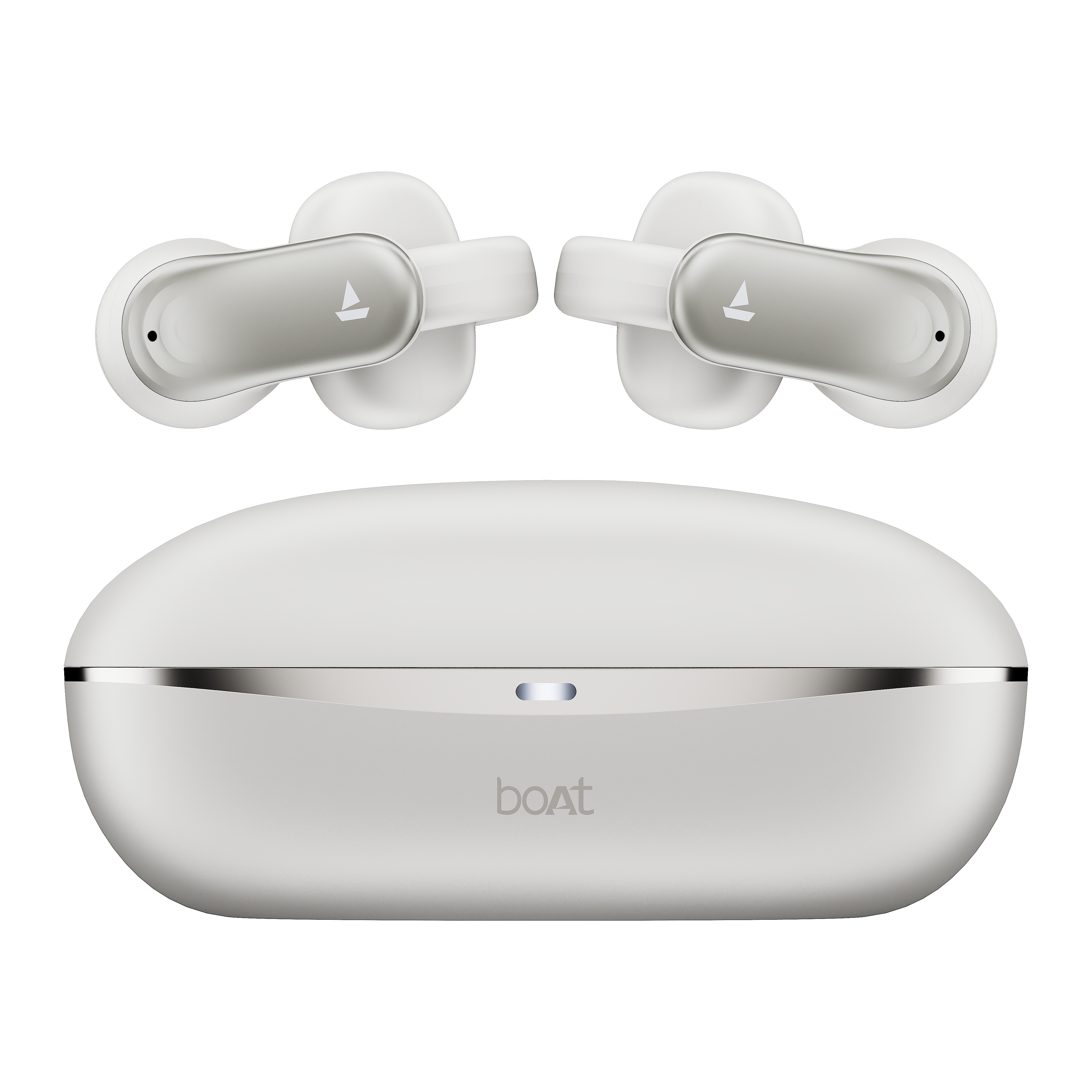
Airdopes ProClip
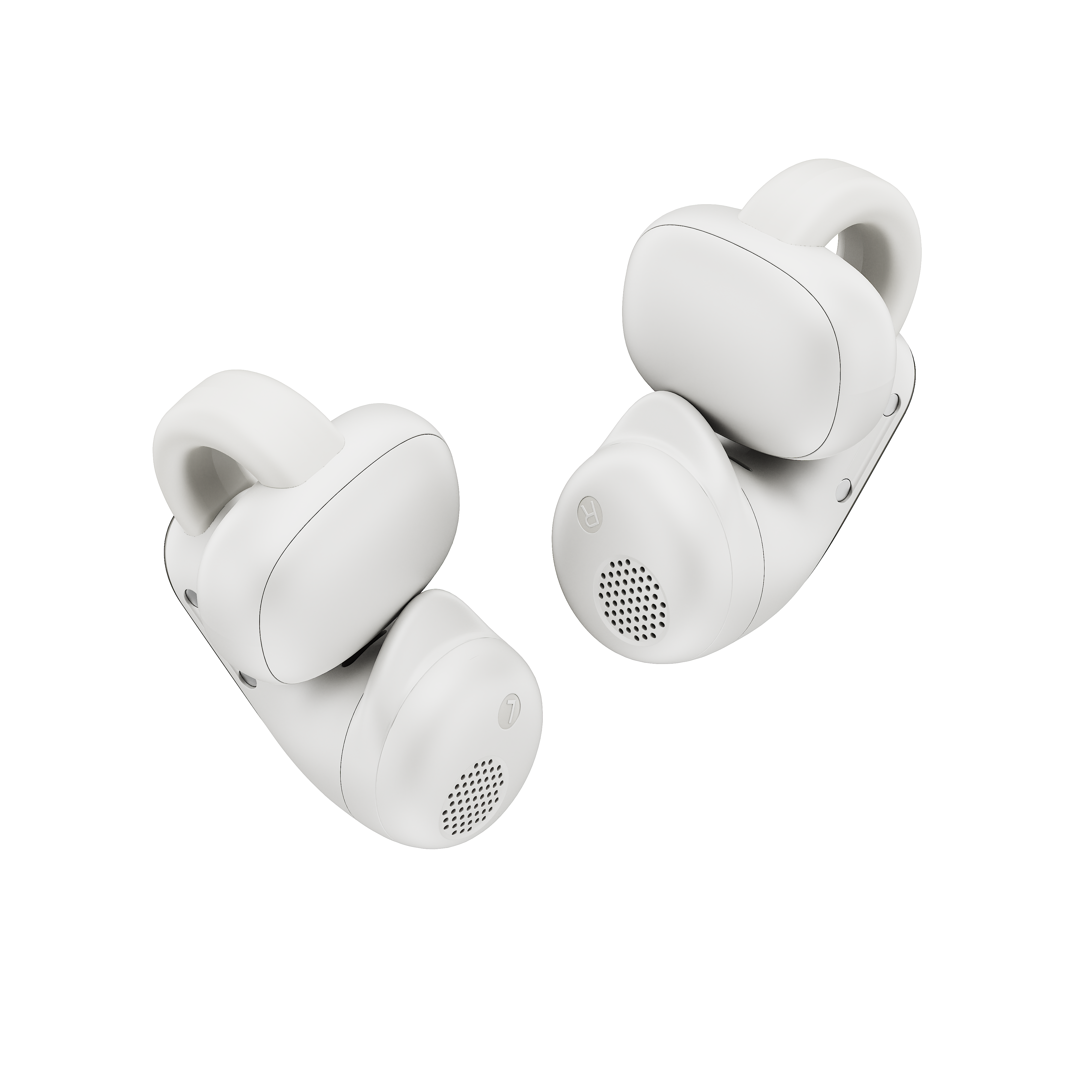
Redefine your audio experience with the ultra-comfortable boAt Airdopes ProClip, featuring an innovative OWS clip-on design! Engineered with open-ear directional sound and massive battery life, it delivers immersive tracks while keeping you fully aware of your surroundings.
Specifications
Type of Product | OWS Earbuds |
Bluetooth Version | v6.0 |
Music Playtime | Up to 52 hrs (at 60% volume) |
Number of ENx™ Equipped Mics | 2 Mics |
BEAST™ Mode | Yes; 55 ms Low Latency |
Transmission Range | 10 m |
Driver Size | 12 mm |
Frequency | 20Hz-20kHz |
Battery | 500 mAh (Charging Case); 50 mAh*2 (Earbuds) |
Charging Time | Up to 2 hrs(Charging Case), 50 mins (Earbuds) |
Charging Time | USB Type-C |
Water Resistance | IPX4 |
User Manual
Airdopes_ProClip_SG.pdf
1.08 MB
Troubleshooting FAQs
General FAQs
Power On:
Smart Power On: To automatically switch the earbuds on (Smart Power On), simply open the lid of the charging case when the earbuds are kept inside.
Manual Power Off: To manually switch the earbuds on (Manual Power On), long-touch the Capacitive Touch Controls (CTC) for 3 seconds on both earbuds. This is indicated with a white LED for 1 second, followed by a tone prompt.
Power Off:
Smart Power Off:
After usage, remove both earbuds from your ears.
Place the earbuds back into the charging case in the correct orientation and close the case lid.
Red LED remains on for 1 second, followed by a tone prompt. The earbuds will automatically switch off (and enter charging mode).
Manual Power Off: Long touch the CTC (Capacitive Touch Controls) on both earbuds for 5 seconds (one at a time) till the earbuds turn off to manually switch off the earbuds.
NOTE: Before performing reset, clear "Airdopes ProClip" on your device's pairing history.
Place both earbuds inside the charging case in the correct orientation.
Press the reset button inside the charging case for 10 seconds to perform a reset. This is indicated by the red LED on the case and earbuds flash 5 times quickly.
Close the case lid and wait for 5 seconds
Open the case lid and perform a fresh connection.
Congratulations! Your Airdopes ProClip has been reset.
To charge the earbuds, put the earbuds into the charging case in their correct orientation.
During charging, Red and White LEDs blink alternatively for 5 seconds on the case.
Once the charging is complete, the white LED blinks 3 times on the earbuds when the case lid is opened.
To charge the case, plug one end of the cable into the case and connect the other end to a computer, wall adapter, or a power bank.
Charging through wall adapter – Specs of the adapter: 5V/2A
Charging through cable/wire – Standard cable: 10 strands @0.10mm diameter/strand
Any other accessory can be used for charging the earbuds as long as the above norms are followed.
Single tap the CTC (Capacitive Touch Controls) on either earbud to answer an incoming call.
Double tap the CTC (Capacitive Touch Controls) on either earbud to end an ongoing call or reject incoming calls.
While playing music, single tap on the left or right earbud CTC (Capacitive Touch Controls) to pause or play music.
Previous Track: While playing music, double tap on the left earbud’s CTC (Capacitive Touch Controls) to return to the previous track.
Next Track: While playing music, double tap on the right earbud’s CTC (Capacitive Touch Controls) to skip to the next track.
Volume can only be adjusted via phone/media devices.
Long touch the left earbud CTC (Capacitive Touch Controls) for 3 seconds to activate Private Mode.
Long touch the left earbud CTC (Capacitive Touch Controls) again for 3 seconds to switch to boAt Signature Sound.
Please note that both earbuds can be used in Mono mode. Use either of the two options: Smart Power On or Manual Power On for switching on the desired earbud.
The selected earbud will automatically enter the connection mode indicated by alternate red and white LED flashes.
Turn on Bluetooth on your phone/media device and search for “Airdopes ProClip” to connect.
Note: Please check the ‘L’ and ‘R’ labels on the earbuds before wearing the desired earbud.
Switch the earbuds on; both the earbuds automatically enter Connection Mode
This is indicated with alternate red and white LEDs flashing on the master earbud and the white LED flashing once every 5 seconds on the slave earbud.
Turn on the Bluetooth functionality on your phone/media device and scan.
Search for ‘Airdopes ProClip’ and tap on the same for pairing & connecting via Bluetooth.
To switch to Stereo mode from Mono, simply take out the other earbud from the case. It will automatically power on and pair with the previously selected earbud, hence enabling Stereo usage.
You can only skip to the "next track" using the right earbud in Mono/Stereo mode.
You can only switch to the "previous track" using the left earbud in Mono/Stereo mode.
Note:
Please check the ‘L’ and ‘R’ labels on the earbuds before wearing them.
Wear the earbud marked ‘R’ in your right ear and ‘L’ in your left ear to ensure clear communication over calls.
Tap the right earbud CTC 3 times to activate the default smart voice assistant (Google Voice Assistant/Siri).
Long touch the right earbud CTC (Capacitive Touch Controls) for 3 seconds to activate BEAST™ mode.
Long touch the right earbud CTC (Capacitive Touch Controls) again for 3 seconds to deactivate BEAST™ mode.
Airdopes ProClip can be connected to 2 devices at once. To enable this feature, following steps are to be taken:
Switch on the Bluetooth of your first phone/media device and search for ‘Airdopes ProClip’. After the selection is done, the earbuds are paired with your phone/media device.
Turn off the Bluetooth function of your first phone/media device. The earbuds are ready to be paired again.
Now switch on the Bluetooth function on your second phone/media device. Scan and select ‘Airdopes ProClip’ to connect.
Switch on the Bluetooth of the first phone/media device again and select ‘Airdopes ProClip’ from the list of available devices for pairing. The earbuds are now reconnected to the first phone/media device.
Congratulations! Your earbuds are now connected to both your devices successfully via Bluetooth.
Note: This feature can be switched OFF from the boAt Hearables App.
To install the boAt Hearables app, you can follow one of the options mentioned below-
Scan QR Code - Airdopes ProClip the Hearables app QR code printed on the outer packaging box. Simply scan this code using your smartphone and the subsequent link will redirect you to the Google Play Store and iOS Store, and you can select the applicable option.
Google Play Store - Download the boAt Hearables app from the Google Play Store on your Android smartphone. <https://play.google.com/store/apps/details?id=com.boAt.hearables&hl=en_IN&gl=US >
App Store - Download the boAt Hearables app from the App Store on your iOS smartphone.<https://apps.apple.com/in/app/boat-hearables/id1592550875 >
After installing the app, follow the steps shown on the app to set up your account by entering your phone number, name, and email ID. Account setup is a one-time action.
Turn on the Bluetooth on your media device and connect with Airdopes ProClip
Log in to your account on the boAt Hearables app.
Go to the “My Devices” section.
Open the case lid and take out Airdopes ProClip. The earbuds will show up under the list of available devices with “Ready to Pair'' status.
Tap the Airdopes ProClip name card and accept the pairing request pop-up notification on your media device.
Tap the ‘Pair’ option on the pairing notification. You can also save AD ProClip to your Google account for fast pairing in the future by clicking on “Save” and then “Set up”.
Congratulations! Airdopes ProClip is now connected to your media device with “Connected” status.
The boAt Hearables app shows all currently and previously paired devices in the ‘My Devices’ section.
Once Airdopes ProClip paired to your smartphone, the status gets changed to “Connected” in the thumbnail.
Tap the thumbnail, to check whether both the left and right earbuds are connected or not. You can also check the battery level of both earbuds.
To reset Airdopes ProClipm your device, go to the Troubleshooting section “?” on the Hearables app.
Next, tap the “Malfunctioning” sub-header in the Troubleshooting section.
Click on the option “Reset My Device” to reset the earbuds. Congratulations! Your Airdopes ProClip been reset.
Note: Airdopes ProClipl now show as “Ready to Pair” in the My Devices section. Follow the pairing procedure to connect the earbuds to your device.
Pair Airdopes ProClip to your media device by following the pairing process.
Go to the “System” tab on the Hearables app.
Under the System tab, go to the ‘Ring My Buds’ section to search for either or both earbuds by playing a tone from the app. Please ensure that the volume on your smartphone is set to the maximum level to detect the earbuds easily.

Pair the Airdopes ProClip to your media device by following the process mentioned above.
Go to the “Sound” tab on the Hearables app.
Under the Sound tab, slide the “Dual EQ” toggle to the ON state to activate Private Mode. Slide the toggle once again in the opposite direction to switch to boAt Signature Sound.
Airdopes ProClip lets you customize existing touch functions to another from the list of available options.
LEFT earbud :
1 Tap :
Existing Function - Play/Pause Audio, Accept Calls
Customizable Functions - Play/Pause Audio, Volume Up, Volume Down, Previous Track, Next Track, Activate Google/Siri Voice Assistant, No Action
2 Taps :
Existing Function - Return to the Previous Track, Reject/End Call
Customizable Functions - Volume Up, Volume Down, Previous Track, Next Track, Play/Pause audio, Activate Google/Siri Voice Assistant, No Action
Long Press:
Existing Function - Dual EQ
Customizable Functions - Volume Up, Volume Down, Previous Track, Next Track, Play/Pause audio, Activate/De-activate BEAST™ Mode, Activate Google/Siri Voice Assistant, No Action
RIGHT earbud:
1 Tap:
Existing Function - Play/Pause audio, Accept Calls
Customizable Functions - Play/Pause Audio, Volume Up, Volume Down, Previous Track, Next Track, Activate Google/Siri Voice Assistant, No Action
2 Taps:
Existing Function - Skip to the Next Track, Reject/End Call
Customizable Functions - Volume Up, Volume Down, Previous Track, Next Track, Play/Pause audio, Activate Google/Siri Voice Assistant, No Action
Long Press:
Existing Function - Activate/De-activate Spatial Audio
Customizable Functions - Volume Up, Volume Down, Previous Track, Next Track, Play/Pause audio, Activate/De-activate BEAST™ Mode, Activate Google/Siri Voice Assistant, No Action

Pair Airdopes ProClip to your media device by following the pairing process.
Go to the “System” tab on the Hearables app.
Multipoint connectivity remains ON by default for keeping Airdopes ProClip connected to two media devices at the same time. Under the System tab, slide the “Multipoint Connectivity” toggle to the OFF state to deactivate the multipoint connection. Slide the toggle once again to ON to activate multipoint connection.
Note: By default, Multipoint connectivity remains ON in Airdopes ProClip.
Pair Airdopes ProClip with your media device by following the pairing process.
Go to the “System” tab on the Hearables app.
Tap the “Check For Updates” option under the “Software Update” header to check and update Airdopes ProClipthe latest firmware version, if available.
Note: If the product is updated to the latest available version, the app will show an alert on clicking the option -‘You already have the latest firmware version’.
To diagnose issues related to Bluetooth connectivity, mic, speaker, and battery, use the Smart Diagnostics function of the Hearables app.
Tap the “Diagnose My Device” option at the bottom.
Follow the instructions to start the smart diagnostics process.
Click on “Let’s Go” to start.
Complete all the steps one by one to check Bluetooth connectivity, mic, speaker, and battery functions.
Click on ‘Done’ to finish diagnostics.
You can view the product’s manual under the “System” tab of the Hearables app. Go to the ‘User Manual’ section and tap ‘Know More’ to access the user manual.
Remaining Case Battery LED Indications:
Case Remaining Battery | Case LED State |
Low battery | Red LED blinks 3 times when the case lid is opened |
30% to 100% Charge in case | White LED blinks 3 times when the case lid is opened |
On charging | Red LED blinks continuously |
Fully charged (100%) | White LED remains solid on |
Case LED indication when the earbuds are charging within the case:
Earbuds Status | Case LED State (when the lid is closed) |
On charging | When the earbuds are placed in the case, and the lid is closed, the red and White LED blink alternatively for 5 seconds |
Both earbuds charged | LED remains off |
Note: Earbuds charging status will be shown after the case charge status.
Scenario | Charging State |
Earbuds – Low battery in it (<30%) | Red LED blinks 3 times on opening the lid |
Earbuds Charge between 30% to 100% | White LED blinks 3 times when the case lid is opened |
Power ON | The white LED is ON for 1 second upon opening the lid or manually powered ON |
Power OFF | Red LED is on for 1 second when manually powered off |
Pairing mode | ●Alternate red and white LED flashes on the master earbud. ●Slave earbud blinks White LED every 5 seconds |
Pairing successful (1-time indication) | Solid white LED remains on for 3 seconds |
If pairing is not successful (In pairing mode) | The earbuds will show a solid red light and auto power off |
Connected | ●White LED on both earbuds will flash once every 20 seconds ●No LED flash when media is playing |
Disconnected | Same as Pairing mode ●Alternate red and white LED flashes on the master earbud. ●Slave earbud blinks White LED every 5 seconds |
Earbuds Charging | Solid red LED |
Fully charged | The LED turns off |
Play the music | All lights are OFF (But "Connected" status will remain) |
Factory Reset | The red LED on the case and earbud flashes 5 times quickly after a successful factory reset. |
Our IWP™ technology allows the earbuds to connect to your phone if they have already been paired before instantaneously upon opening the case.
Simply open the case and ensure that the Bluetooth is turned on for your media device, the buds will connect as soon as the case is opened without the need to take them out of the case first!
There is no special process to enable IWP™- simply follow the steps to first pair your Airdopes ProClipyour media device. Then upon subsequent usage, the IWP™ tech will be enabled and the earbuds will pair automatically to your previously paired media device if Bluetooth is turned on in your media device.
No, each earbud is equipped with 1 mic. 2 mics in total.
Yes, it does.
Airdopes ProClip does support 55 ms low latency for entertainment and casual gaming. But if you’re looking for professional gaming equipment, then Airdopes ProClip is not the right product.
No.
No
No, the earbuds do not have any integrated volume controls on them. The volume must be controlled using your connected Bluetooth device.
No, the voice prompts are integrated inside the earbuds and there is no provision to turn them off or lower their volume.
While your earbuds do have IPX4 water and sweat resistance, it is recommended that they are not submerged inside water directly or used for prolonged periods inside water like for swimming/showers, as it may lead to damage.
