Airdopes plus 221
No tags available
Updated
13 days ago
, by boAt Knowledge Base
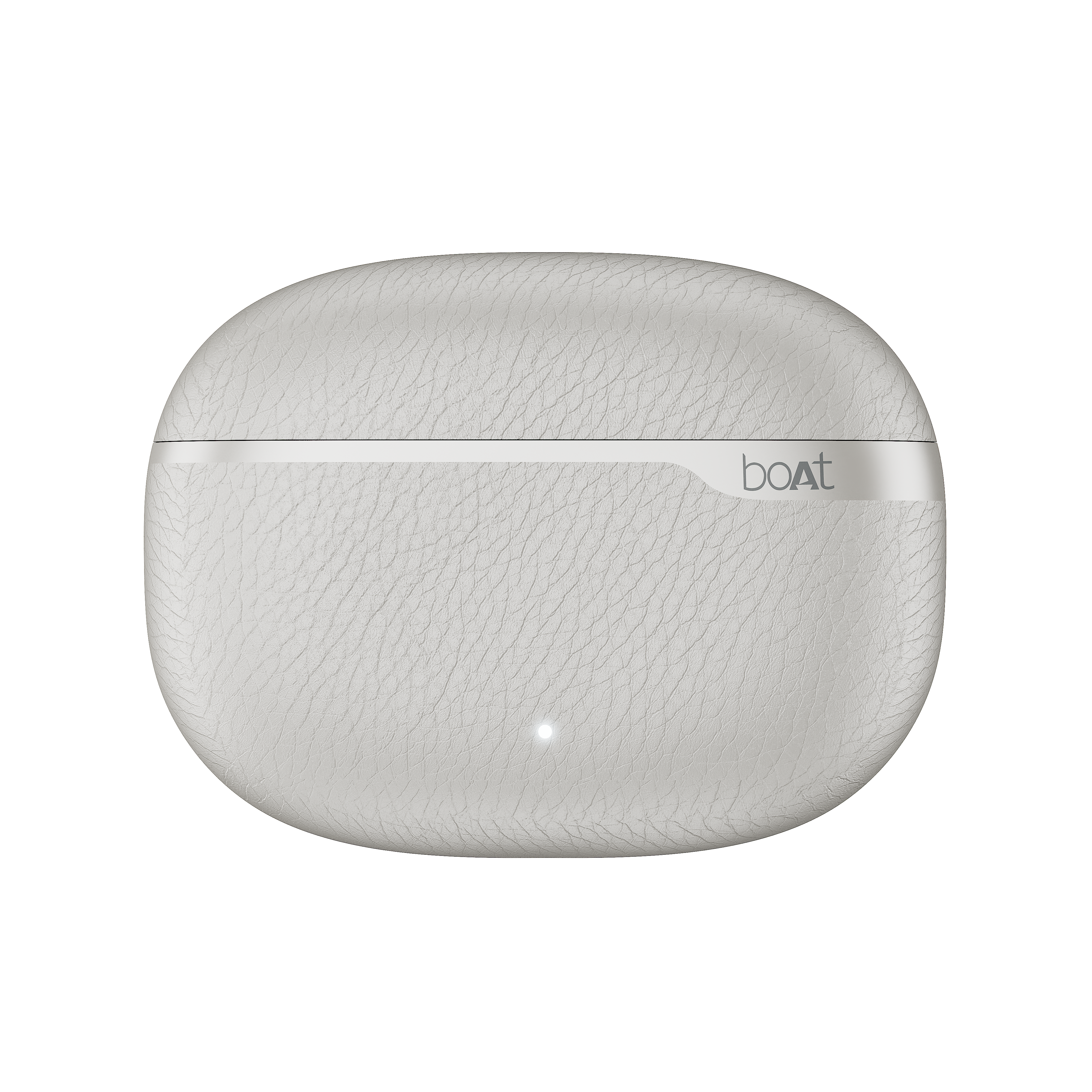
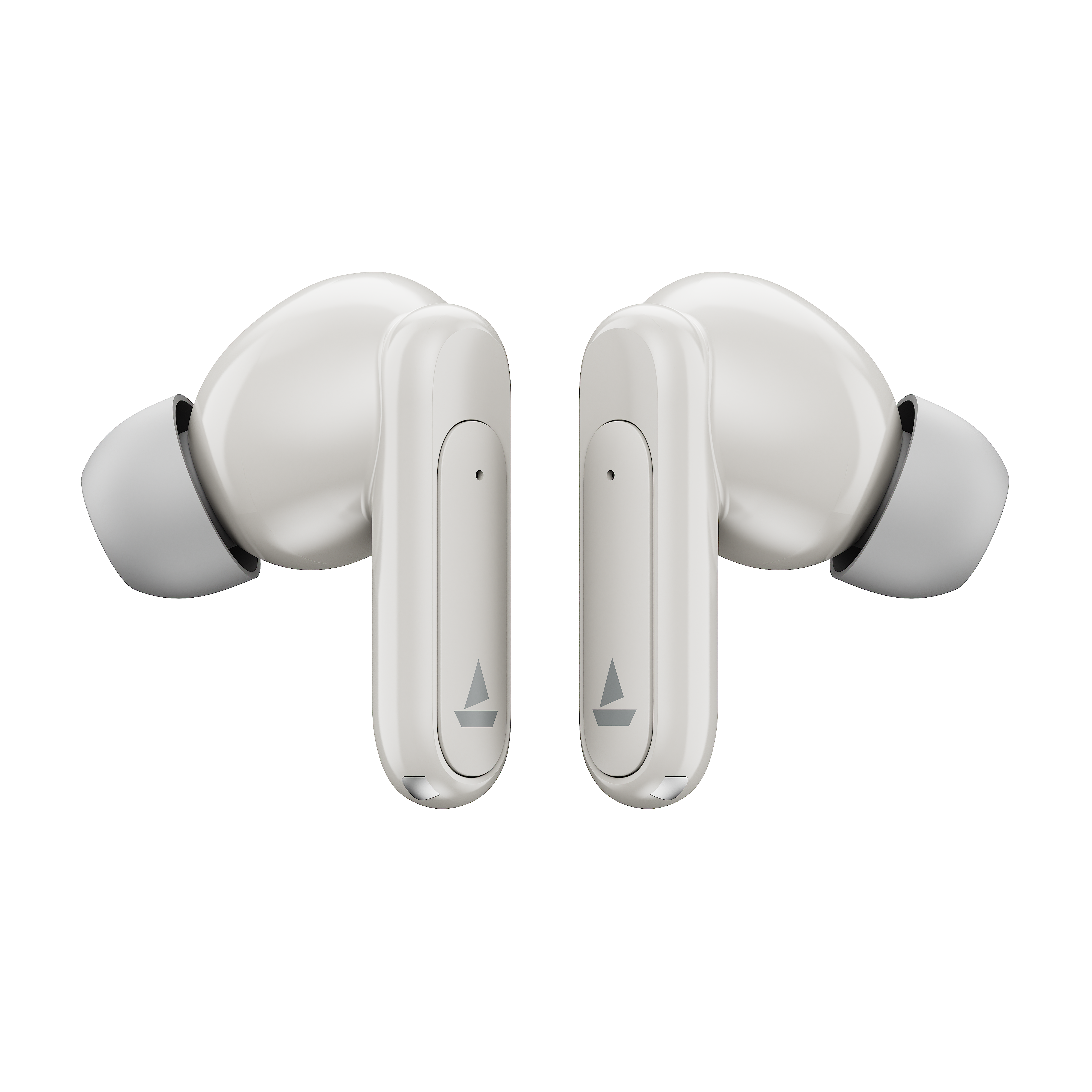
Airdopes Plus 221
Meet the Airdopes 221—where powerful sound meets effortless style. Engineered for all-day comfort with seamless connectivity, they keep you in sync with your vibe. From deep bass to crystal-clear calls, experience audio that moves with you.
Specifications
Type of Product | TWS Earbuds |
IWP™ Technology | Yes |
Bluetooth Version | v6.0 |
Water Resistance | IPX4 |
Music Playtime | 60 hrs |
Standby Time | 200 hrs |
Transmission Range | 10m |
Driver Size | 13mm*2 |
Frequency | 20Hz-20kHz |
Codec Support | SBC and AAC |
Battery | 600 mAh (Charging Case); 40 mAh*2 (Earbuds) |
Charging Time | 100 mins (Charging Case), 35 mins (Earbuds) |
Charging Interface | USB Type-C |
AI-Environmental Noise Cancellation (ENx™) | Yes; 2 mics |
ASAP™ Charge | Yes; 10 mins charge=150 mins Playtime |
BEAST™ Mode | Yes; 55ms Low Latency |
Troubleshooting FAQs
General FAQs
Smart Power On: To automatically switch the earbuds On, simply open the lid of the charging case when earbuds are kept inside.
Smart Power Off :
After usage, remove both the earbuds from your ears.
Place the earbuds back into the charging case in correct orientation and close the case lid.
The earbuds will automatically switch off (and enter into charging mode).
Manual Power Off - Long touch the CTC on both earbuds for 10 seconds (one at a time) till the earbuds get turned off, to manually switch off the earbuds. Red LED remains on for 1 second to indicate power off.
NOTE: Before performing reset, clear "Airdopes Plus 221" on your device's pairing history.
Place the earbuds inside the case in the correct orientation. Keep the case lid open.
While the earbuds are inside the case, long press the Reset button located inside the case for 10 seconds.
After successful factory reset:
White LED blinks quickly 5 times on the Charging Case
Red LED blinks quickly 5 times on the Earbuds
Close the lid and then re-open it again after 5 seconds.
Take out the earbuds from the charging case and perform a fresh connection attempt.
NOTE: The case enters sleep mode automatically after 15 minutes when the lid is kept open. Please make sure to close the case lid and open it again, with both earbuds placed inside, to perform factory reset.
Congratulations! Your Airdopes Plus 221 earbuds have been Reset.
To charge the earbuds, put the earbuds into the charging case in their correct orientation.
During charging, white LED on the case flashes once if one earbud is charging inside & the white LED on the case flashes twice if both earbuds are charging inside.
Once the charging is complete, white LED on the case blinks 2 times.
To charge the case, plug one end of the cable into the case and connect the other end to a computer, wall adapter, or a power bank.
Charging through wall adapter – Specs of the adapter: 5V/2A
Charging through cable/wire – Standard cable: 10 strands @0.10mm diameter/strand
Any other accessory can be used for charging the earbuds as long as the above norms are followed.
Single tap the CTC on either earbud to answer an incoming call.
Double tap either earbud’s CTC to reject an incoming call or end an ongoing call.
Single tap the CTC on either earbud to play or pause a track
While playing music, double tap the left earbud’s CTC to return to the previous track.
While playing music, double tap the right earbud’s CTC to skip to the next track.
Volume can only be adjusted via phone/media devices.
Please note that both the earbuds can be used in Mono mode. Use Smart Power On for switching on the desired earbud.
The selected earbud will automatically enter the connection mode.
Turn on Bluetooth on your phone/media device and search for “Airdopes Plus 221” to connect.
Note:
boAt Spatial Audio is activated only when both earbuds are worn. This mode will be deactivated in Mono (single earbud) mode.
You can only skip to the next track while using the right earbud or play the previous track using the left earbud in Mono (single earbud) mode.
Switch the earbuds on; both the earbuds automatically enter the Connection Mode.
Turn on the Bluetooth functionality on your phone/media device and scan.
Search for “Airdopes Plus 221” and tap on the same for pairing & connect via Bluetooth.
To switch to Stereo mode from Mono, simply take out the other earbud from the case. It will automatically power on and pair with the previously selected earbud, hence enabling Stereo usage.
Tap the right earbud CTC 3 times to activate the default smart voice assistant (Google Voice Assistant/Siri).
Long touch the CTC on the right earbud for 2 seconds to activate boAt Spatial Audio. Long touch the right earbud CTC again for 2 seconds to switch to boAt Signature Sound.
Tap the left earbud CTC 3 times to activate BEAST™ mode. Tap the left earbud CTC 3 times again to de-activate BEAST™ mode.
Airdopes Plus 221 can be connected to 2 devices at once. To enable this feature, following steps are to be taken:
Switch on the Bluetooth of your first phone/media device and search for ‘Airdopes Plus 221’. After the selection is done, the earbuds are paired with your phone/media device.
Turn off the Bluetooth function of your first phone/media device. The earbuds are ready to be paired again.
Now switch on the Bluetooth function on your second phone/media device. Scan and select ‘Airdopes Plus 221’ to connect.
Switch on the Bluetooth of the first phone/media device again and select ‘Airdopes Plus 221’ from the list of available devices for pairing. The earbuds are now reconnected to the first phone/media device.
Congratulations! Your earbuds are now connected to both your devices successfully via Bluetooth.
Note: This feature can be switched OFF from the boAt Hearables App.
To install the boAt Hearables app, you can follow one of the options mentioned below-
Scan QR Code - Airdopes Plus 221 the Hearables app QR code printed on the outer packaging box. Simply scan this code using your smartphone and the subsequent link will redirect you to the Google Play Store and iOS Store, and you can select the applicable option.
Google Play Store - Download the boAt Hearables app from the Google Play Store on your Android smartphone. <https://play.google.com/store/apps/details?id=com.boAt.hearables&hl=en_IN&gl=US >
App Store - Download the boAt Hearables app from the App Store on your iOS smartphone.<https://apps.apple.com/in/app/boat-hearables/id1592550875 >
After installing the app, follow the steps shown on the app to set up your account by entering your phone number, name, and email ID. Account setup is a one-time action.
Turn on the Bluetooth on your media device and connect with Airdopes Plus 221
Log in to your account on the boAt Hearables app.
Go to the “My Devices” section.
Open the case lid and take out Airdopes Plus 221. The earbuds will show up under the list of available devices with “Ready to Pair'' status.
Tap the Airdopes Plus 221 name card and accept the pairing request pop-up notification on your media device.
Tap the ‘Pair’ option on the pairing notification. You can also save AD Plus 221 to your Google account for fast pairing in the future by clicking on “Save” and then “Set up”.
Congratulations! Airdopes Plus 221 is now connected to your media device with “Connected” status.
The boAt Hearables app shows all currently and previously paired devices in the ‘My Devices’ section.
Once Airdopes Plus 221 paired to your smartphone, the status gets changed to “Connected” in the thumbnail.
Tap the thumbnail, to check whether both the left and right earbuds are connected or not. You can also check the battery level of both earbuds.
To reset Airdopes Plus 221m your device, go to the Troubleshooting section “?” on the Hearables app.
Next, tap the “Malfunctioning” sub-header in the Troubleshooting section.
Click on the option “Reset My Device” to reset the earbuds. Congratulations! Your Airdopes Plus 221 been reset.
Note: Airdopes Plus 221l now show as “Ready to Pair” in the My Devices section. Follow the pairing procedure to connect the earbuds to your device.
Pair Airdopes Plus 221 to your media device by following the pairing process.
Go to the “System” tab on the Hearables app.
Under the System tab, go to the ‘Ring My Buds’ section to search for either or both earbuds by playing a tone from the app. Please ensure that the volume on your smartphone is set to the maximum level to detect the earbuds easily.

Pair Airdopes Plus 221 to your media device by following the process mentioned above.
Go to the “Sound” tab on the Hearables app.
Under the Sound tab, slide the “Spatial Audio” toggle to the ON state to activate spatial audio. Slide the toggle once again in the opposite direction to deactivate spatial audio.

Airdopes Plus 221 lets you customize existing touch functions to another from the list of available options.
LEFT earbud :
1 Tap :
Existing Function - Play/Pause audio
Customizable Functions - Volume Up, Volume Down, Previous Track, Next Track, Activate/De-activate BEAST™ Mode, Activate Google/Siri Voice Assistant, None
2 Taps :
Existing Function - Return to the Previous Track
Customizable Functions - Volume Up, Volume Down, Next Track, Play/Pause audio, Activate/De-activate BEAST™ Mode, Activate Google/Siri Voice Assistant, None
3 Taps :
Existing Function - Activate/De-activate BEAST™ Mode
Customizable Functions - Volume Up, Volume Down, Previous Track, Next Track, Play/Pause audio, Activate Google/Siri Voice Assistant, None
Long Press:
Existing Function - NIL
Customizable Functions - Volume Up, Volume Down, Previous Track, Next Track, Play/Pause audio, Activate/De-activate Spatial Audio, Activate/De-activate BEAST™ Mode, Activate Google/Siri Voice Assistant, None
RIGHT earbud:
1 Tap:
Existing Function - Play/Pause audio
Customizable Functions - Volume Up, Volume Down, Previous Track, Next Track, Activate/De-activate BEAST™ Mode, Activate Google/Siri Voice Assistant, None
2 Taps:
Existing Function - Skip to the Next Track
Customizable Functions - Volume Up, Volume Down, Previous Track, Play/Pause audio, Activate/De-activate BEAST™ Mode, Activate Google/Siri Voice Assistant, None
3 Taps:
Existing Function - Activate Google/Siri Voice Assistant
Customizable Functions - Volume Up, Volume Down, Previous Track, Next Track, Play/Pause audio, Activate/De-activate BEAST™ Mode, None
Long Press:
Existing Function - Activate /De-activate BEAST™ Mode
Customizable Functions - Volume Up, Volume Down, Previous Track, Next Track, Play/Pause audio, Activate/De-activate BEAST™ Mode, Activate Google/Siri Voice Assistant, None

Pair Airdopes Plus 221 to your media device by following the pairing process.
Go to the “System” tab on the Hearables app.
Multipoint connectivity remains ON by default for keeping Airdopes Plus 221 connected to two media devices at the same time. Under the System tab, slide the “Multipoint Connectivity” toggle to the OFF state to deactivate the multipoint connection. Slide the toggle once again to ON to activate multipoint connection.
Note: By default, Multipoint connectivity remains ON in Airdopes Plus 221.

Pair Airdopes Plus 221your media device by following the pairing process.
Go to the “System” tab on the Hearables app.
Tap the “Check For Updates” option under the “Software Update” header to check and update Airdopes Plus 221the latest firmware version, if available.
Note: If the product is updated to the latest available version, the app will show an alert on clicking the option -‘You already have the latest firmware version’.

To diagnose issues related to Bluetooth connectivity, mic, speaker, and battery, use the Smart Diagnostics function of the Hearables app.
Tap the “Diagnose My Device” option at the bottom.
Follow the instructions to start the smart diagnostics process.
Click on “Let’s Go” to start.
Complete all the steps one by one to check Bluetooth connectivity, mic, speaker, and battery functions.
Click on ‘Done’ to finish diagnostics.
You can view the product’s manual under the “System” tab of the Hearables app. Go to the ‘User Manual’ section and tap ‘Know More’ to access the user manual.
Remaining Case Battery LED Indications:
Case Remaining Battery | Case LED State |
Less than 70% | White LED blinks 4 times quickly |
More than 70% | White LED is solid on for 3 seconds |
Charging | White LED blinks once each second |
Fully Charged (100%) | White LED remains solid on |
Case LED indication when the earbuds are charging within the case:
Earbuds Status | Case LED State (when the lid is closed) |
Left/Right earbud charging | White LED flashes 1 time |
Both earbuds charging | White LED flashes 2 times |
Fully charged (100%) | White LED flashes 2 times |
Note: Earbuds charging status will be shown after the case charge status.
Scenario | Charging State |
Earbuds – Low battery in it (<20%) | Red LED blinks 3 times when the case lid is opened |
Earbuds – 30-100% charge | Blue LED blinks 3 times when the case lid is opened |
Power ON | Blue LED flashes for 1 second on opening the case Lid |
Pairing mode | Alternate blue and red LED flashes on the master earbud and slave earbud LED blinks blue every 5 seconds |
Pairing successful (1 time indication) | Solid blue LED flashes for 3 seconds |
If pairing not successful (In pairing mode) | If 5 minutes later, pairing is still not successful, then the earbuds will show solid red light once and auto power off |
Connected | Blue LED flashes on both earbuds every 20 seconds (3 times in a minute) No LED flash when media is playing |
Disconnected | The same as pairing mode: Alternate blue and red LED flashes on the master earbud and slave earbud LED blinks blue every 5 seconds |
Earbuds Charging | If the battery is less than 20%, red LED blinks 3 times when the case lid is opened and if the charge is above 30%, blue LED blinks 3 times when the case lid is opened. LED should be off when lid is closed. |
Fully charged | Blue LED flashes for 3 times when the case lid is opened |
Play the music | All lights are OFF (But "Connected" status will remain) |
Factory Reset | White LED blinks quickly 5 times on the charging case Red LED blinks quickly 5 times on the earbuds |
Our IWP™ technology allows the earbuds to connect to your phone if they have already been paired before instantaneously upon opening the case.
Simply open the case and ensure that the Bluetooth is turned on for your media device, the buds will connect as soon as the case is opened without the need to take them out of the case first!
There is no special process to enable IWP™- simply follow the steps to first pair your Airdopes Plus 221your media device. Then upon subsequent usage, the IWP™ tech will be enabled and the earbuds will pair automatically to your previously paired media device if Bluetooth is turned on in your media device.
Yes, Airdopes Plus 221 has 2 mics per earbud.
Yes, it does.
Airdopes Plus 221 does support 55 ms low latency for entertainment and casual gaming. But if you’re looking for professional gaming equipment, then Airdopes Plus 221 is not the right product.
No, it does not.
No.
No, the earbuds do not have any integrated volume controls on them. The volume must be controlled using your connected Bluetooth device.
No, the voice prompts are integrated inside the earbuds and there is no provision to turn them off or lower their volume.
While your earbuds do have IPX4 water and sweat resistance, it is recommended that they are not submerged inside water directly or used for prolonged periods inside water like for swimming/showers, as it may lead to damage.
