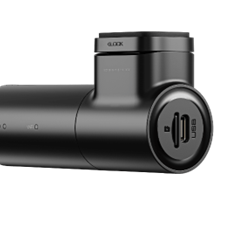
Hive Dashcam E1
e1
Updated
2 days ago
, by boAt Knowledge Base
Hive Dashcam E1
The boAt Hive Dashcam E1 is a robust security device capturing 1296P Full HD video with a wide-angle1.8 lens. It includes safety features like G-Sensor activated emergency recording and versatile parking surveillance modes (requires hardwire kit). It supports up to 256GB storage for reliable, continuous security monitoring.
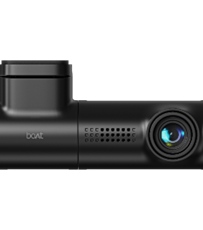
Specifications
Model | Hive Dashcam E1 |
Video Resolution | 1296P Full HD |
Aperture | F/1.8 |
Lens Coverage | Wide-angle lens (covers multiple lanes) |
Video Format | MP4 (H.264 compression) |
Photo Format | JPG |
Storage Support | Micro SD card (Class 10, U3 or above), up to 256GB supported |
Loop Recording | 1 min / 2 min / 3 min (default 1 min) |
G-Sensor | 3-axis impact sensor (Off / Low / Medium / High sensitivity) |
Audio | Built-in microphone & speaker (Audio ON/OFF selectable) |
Connectivity | Wi-Fi (10 ft range, works with boAt HiveCam app on Android 7.0+ / iOS 12.0+) |
Parking Mode | Time-Lapse (1 fps) / Collision Detection (Hardwire Kit required, sold separately) |
Power Supply | Type-C USB, 5V/1.5A |
Operating Temperature | -20°C to 70°C (-4°F to 158°F) |
Firmware Update | Via micro SD card and boAt Hive app |
Color | Space Black |
Installation FAQs
Troubleshooting FAQs
General FAQs
Download the boAt HiveCam app on your device using the QR code. The app is available on both:
App Store (for iOS 12.0+ and above)
Google Play Store (for Android 7.0+ and above)

Step 1: Downloading the boAt HiveCam app on your Device
Download the boAt HiveCam app on your device using the QR code. The app is available on both:
App Store (for iOS 12.0+ and above)
Google Play Store (for Android 7.0+ and above)

Step 2: Register or Log In
Open the HiveCam app: A pop-up message about GPS usage & BT enabling appears, 'Tap Confirm to continue.'
On the login screen: Enter your mobile number and password and agree to the Terms of Service and Privacy Policy.
Finally, tap Login. OR
Skip Login (Optional): If you're unable to receive the verification code or prefer not to register, tap Skip Login in the top right corner. After skipping login, tap Add Device and follow the prompts to connect to your dashcam. The app will automatically scan for available devices. However, this is not recommended, as skipping login will not help you register for warranty and further issue resolution.
Note:
During the initial launch, the boAt HiveCam app will request the following permissions:
Location Access: Needed to retrieve the Wi-Fi name for dashcam pairing. You can select precise or approximate location.
Nearby Devices: Required to detect and connect with your dashcam.
Photos & Media Access: Needed to save and view recordings from the dashcam.
Notifications: The app will prompt you to enable notifications for alerts.
Grant these permissions as prompted to ensure full functionality of the app.

Step 3: Connecting Hive Dashcam E1 via Wi-Fi
Hive Dashcam E1 is a built-in Wi-Fi dash cam. Open the app and tap on the product to proceed.
Make sure that the dashcam is connected to a power supply and turned ON.

Step 4: Connect to Dashcam Wi-Fi
On your phone, go to Settings > Wi-Fi.
Manually select the network named ‘boAt-Hive_Dashcam-E1_XXXXXX (your device’s unique ID).
Enter the default password: 12345678.
Note: The hotspot is without internet and might disconnect. Please select the "Stay Connected even without internet" option when asked by the Settings popup.
Once connected, return to the app and tap ‘Next’.

Step 5: Finalize Connection & Preview
After tapping ‘Next’, the app will display the connected dashcam model.
Tap on the dashcam icon to open the Live Video Preview interface.
Now you can view the video currently being recorded in real-time by connecting your smartphone to the dashcam via Wi-Fi Direct.
Please STOP recording first, then press the ‘Device Album’ to get photos, videos, and emergency files.
Note: To ensure connectivity, please always connect to a power supply.
Location Access: Needed to retrieve the Wi-Fi name for dashcam pairing. You can select precise or approximate location.
Nearby Devices: Required to detect and connect with your dashcam.
Photos & Media Access: Needed to save and view recordings from the dashcam.
Notifications: The app will prompt you to enable notifications for alerts.
Stop recording → Go to “Device Album” in app → Select and download files → Saved under “Local Video.”
Access via Dashcam menu and it will take you to the following features:
Resolution: Sets the video quality (1296 p) for recording.
Loop Time: Defines the duration of video segments before the dashcam overwrites the oldest file.
Exposure: Adjusts the brightness of the recorded video.
G-Sensor Sensitivity: Controls how easily impacts trigger an emergency video lock.
Boot Sounds: Enables or disables the sound played when the dashcam starts up.
Volume: Adjusts the playback loudness of audio and voice prompts.
Frequency: Sets the screen refresh rate to match the local power frequency (example: 50Hz/60Hz).
Date/Time: Allows manual setting or synchronization of the system time and date.
Reset: Restores all dashcam settings to their factory defaults.
Firmware Version: Displays the current software version running on the device.
On the app, click on the "Snapshot" feature.
The picture click is indicated by a shutter sound.
Install 3-lead hardwire kit (sold separately).
Enable Parking Mode + G-Sensor in settings.
Adjust sensitivity.
Activate in settings (1h / 2h / 4h).
Go to Live Video Preview > Tap on Snapshot > Snapshot will be saved to Device Albums > Photos Tab
Stop recording → Go to “Device Album” in app → Select the file → Tap on Trim option on selected video → Download files → Saved under “Downloaded Files.”
Go to Profile > Account Management, from here, you can access the following options:
Reset Password
Delete Account
Log Out
Navigate to Profile > Clear Cache, select Clear App Cache, and tap Confirm to proceed.
This clears temporary app data to improve performance and resolve minor app issues without deleting your account or recordings.
This option allows users to report app issues, share feedback, and help improve app performance.
Go to Profile > Feedback.
Enter the issue details (up to 150 characters), upload up to 2 photos or 1 video (optional), add your phone number or email, Device Log File (optional), and App log file (optional; can be enabled or disabled).
Tap Confirm to submit feedback.
You may face issues like photo not getting captured or any other issues while using the app. You can try to:
Attempt Formatting the SD Card
Restart the device
Go to the Dashcam Preview interface.
Please STOP recording first, then press the ‘Dashcam Albums’ to get photos, videos, and emergency files (event tab).
Select the media files to download onto your device. Go to Event tab to download the emergency event videos.
Press the download icon to save the media files. Trim the video duration as per your requirement, then wait for the download to complete.
Then you can find these downloaded media files in APP original interface menu named ‘Downloaded Files’.
SR Synthesis allows you to view route details, steering wheel direction, vehicle acceleration, and vehicle speed as on-screen data stamps on downloaded videos.
Steps to Enable SR Synthesis:
Stop the ongoing recording.
Go to Downloaded Files.
Open the Videos / Event folder.
Tap SR Synthesis to process the video with SR data.
Open SR / Close SR to view/hide the video with SR data overlays.
Note: Since E1 doesn’t have in-built GPS functionality so SR Synthesis video won’t work as expected.
Connect Dashcam to car charger via Type-C cable.
Engine ON → Dashcam powers on and starts recording automatically.
Engine OFF → Dashcam powers down.
Insert U3 Class 10 micro SD (up to 256GB) with gold contacts facing lens.
Push until click.
To remove, push until pop-out.
The Wi-Fi range is maximum 10 ft without obstacles.
The Wi-Fi key functions are:
Short press: Toggle Wi-Fi ON/OFF.
Double press: Toggle Audio ON/OFF.
Long press (3s): Lock video (Emergency Video)
Long press (8s): Format microSD & restore defaults.
Settings > System Settings > WiFi > set a new password from here.
Continuous recording: Enabled by default.
Loop recording: Set to 1 min (default).
G-Sensor: Triggers emergency lock during impact
The device announces events like:
“Wi-Fi is on”
“Recording started”
“Emergency video locked”
“Please insert TF card”
Time-Lapse (1fps with impact-triggered 1-min clip)
Collision Detection (camera off until impact detected → auto ON for 1-min recording).
Continuous recording is enabled by default.
Loop recording is set to 1 min (default). The options are 1 min / 2 min / 3 min.
Dash cam time-lapse recording, also known as time-lapse video, is a technique that compresses a longer recording into a shorter one, similar to the fast-forward function in movies.
For dash cameras with time-lapse recording function, they record video at a rate of one frame per second during monitoring, and every 30 minutes of recording will be compressed into 1 minute for storage.